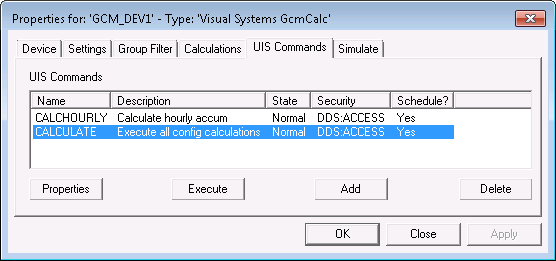
Use the UIS Command page to configure the UIS commands used by the GCM system. UIS Commands can be executed on demand by using the Execute button on this page or by adding command buttons on CygNet Studio screen. Commands can be scheduled using the MSS (if the command’s Can Schedule option is enabled) or executed via a script.
|
|
| Sample UIS Commands Page |
The following table lists and describes the fields found under the UIS Commands page.
| Parameter | Description |
|---|---|
|
Name |
The name of a UIS command. |
|
Description |
Brief description of a UIS command. |
|
State |
The alarm state of a UIS command. |
|
Security |
Security application and event used to validate users of a UIS command. |
|
Schedule? |
Indicates whether it is possible or not to schedule this command in the Master Scheduling Service (MSS). |
|
Properties |
Highlight a UIS command and click this button to view and edit properties for that command. |
|
Execute |
Highlight a UIS command and click Execute to perform the selected command. |
|
Add |
To add a new, blank UIS command, click in the UIS Commands white space and click Add. A blank UIS Command Properties dialog box appears. Configure as needed. To use an existing UIS command as a template, highlight a command from your UIS Commands list, then click Add. A populated UIS Command Properties dialog box appears. Configure as needed. |
|
Delete |
Delete unwanted UIS commands. |
More:
 Configuring UIS Command Properties

|
|
|

