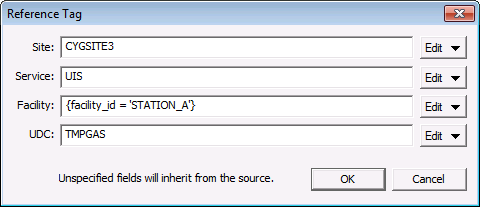
It is possible to include other points (for instance, data values or descriptive information) in a notification message using reference point token substitution. A single point value in a notification may not always provide sufficient detail to analyze a problem. By adding current value information for points other than the point that triggered the notification, it is possible to add more context to your notification messages.
Example
Plant pressure puts a point into alarm, generating a notification, but you would also like to view the device's flow rates in the resulting notification message. The values for the other points (flow rates) can provide valuable information allowing you to troubleshoot the initial alarm more quickly.
You can include a reference point token in a notification that resolves to another point in the same CVS, or to another point in a different CVS. Implicit (meaning the same facility as the point triggering the alarm), relative, and absolute facility references are supported. A fully qualified facility reference tag is required for a facility in another CVS.
Regular text tokens can be used within the reference point token.
The reference point token is color-coded to assist with readability, but the colors do not appear in the notification message. The reference point token uses the following syntax elements:
|
% < { } > value [ ] % %% %units% |
Example
|
%<CYGSITE3.UIS::{facility_id = 'STATION_A'}.%udc%>value[DateTime]%%%%units% |
which corresponds to the following:
Percent signs % % enclose the whole reference point token.
Angle brackets < > indicate to use the point defined by the string enclosed within the brackets. A full SITE SERVICE FACILITY UDC tag format can be inside the brackets, but it builds up from the reverse:
<UDC>
<FACILITY.UDC>
<SERVICE::FACILITY.UDC>
<SITE.SERVICE::FACILITY.UDC>
Example
|
<PDIFF> <EMERSON800L.PDIFF> <UIS::EMERSON800L.PDIFF> <CYGSITE1.UIS::EMERSON800L.PDIFF> |
Other possible variant formats include:
<FACILITY.>
<SITE.::FACILITY.UDC>
<SITE.::.UDC>
<SITE.SERVICE::.UDC>
Example
|
<EMERSON800L.> <CYGSITE1.::EMERSON800L.PDIFF> <CYGSITE1.::.PDIFF> <CYGSITE1.UIS::.PDIFF> |
If any part of the string is unspecified (left blank), this indicates a shortcut meaning "use the ambient value for that field," where ambient is defined as inherited from the active notification’s point.
FACILITY is special case, in that if it resolves to a facility tag (either through direct property lookup or by rule filter functionality), it overrides the ambient site, service, and facility ID.
Curly brackets { } indicate to perform a query to find a facility tag that matches the attributes enclosed within the brackets. The query syntax supports all filter functionality (except for names and enabled/disabled status).
See To Set Facility Rules below.
value indicates to look up the point's value resulting from the contents of the point string (within the angle brackets) and/or the results of the facility rule (query within the curly brackets).
Square brackets [ ] indicate any special display formatting to be used for the value.
%% indicates that you can include an escaped percent sign in your reference point token.
%units% shows that you can include other text tokens adjacent to the reference point token.
Within the reference point token (and the facility rule), each Source Attribute is surrounded by percent signs % % to indicate that the attribute comes from the point triggering the notification. Each Reference Attribute is shown without a wrapper to indicate that the attribute is externally sourced.
The following steps describe how to build up a Reference Tag for a point other than the active notification's point. The final format of the reference tag will be of the format described above. If any part of the tag is unspecified, it will be assumed to be ambient, or inherited from the source point.
To Create a Reference Tag
The facility tag portion of the reference tag can be specified using a filtered rule to perform a query against a facility attribute. See Using CygNet Filter Rules for a general discussion of CygNet filter rules.
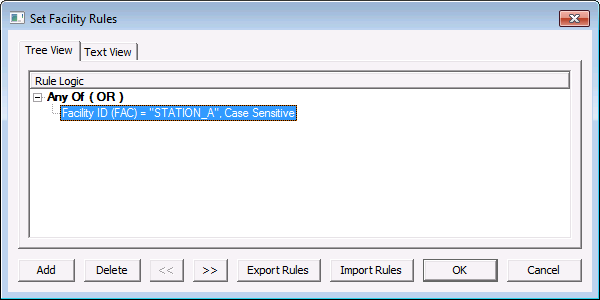
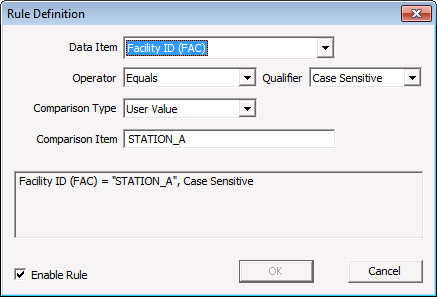
The following table gives several facility rule examples:
| Rule | Meaning |
|---|---|
|
{facility_attr10 = 'TANK'} |
This query creates a rule whose attribute is Facility Attribute 10, doing a case-sensitive string equality comparison to the User Value of TANK. |
|
{facility_attr10 = facility_attr9} |
This query creates a rule whose attribute is Facility Attribute 10, doing a case-sensitive string equality comparison to the Reference Attribute of Facility Attribute 9. Note that reference attributes are self-relative in this example. |
|
{facility_attr10 = %facility_attr9%} |
This query creates a rule whose attribute is Facility Attribute 10, doing a case-sensitive string equality comparison to the "locally sourced reference attribute" of Facility Attribute 9. In this case, %facility_attr9% comes from the object's primary point or the point triggering the notification, depending on usage. |
|
{not (facility_site = facility_id)} |
This query creates a rule that would return the first facility where the facility site does not equal the facility ID. It is equivalent to {facility_site <> facility_id}, but is more useful in cases like the second one where you have a larger expression to negate. |
|
{facility_attr20 = %facility_tag% OR (facility_type = %facility_type%) AND (facility_attr21 = %facility_attr20%)} |
This query is equivalent to {Facility Attribute 20 equals source Facility Tag OR (Facility Type equals source Facility Type) AND (Facility Attribute 21 equals source Facility Attribute 20)}. See Truth Table below. |
|
{not (facility_service = facility_service OR facility_site = facility_site AND facility_id = facility_id)} |
The inner expression would return all facility IDs where the facility_service equals the facility_service OR where both the facility_site equals the facility_site and facility_id equals the facility_id. This query would return the negative case for the inner expression. See Truth Table below. |
|
{(facility_service = facility_service OR facility_site = facility_site) AND facility_id = facility_id} |
This query is similar to the previous one, but the parentheses change the precedence of OR vs. AND. In this example, either the facility_service equals the facility_service or the facility_site equals the facility_site AND where the facility_id equals the facility_id. See Truth Table below. |
|
{facility_service = ToCaseInsensitive('MYSITE')} |
This query changes the default comparison qualifier from a case-sensitive string to a case-insensitive string. |
|
{facility_service = '10'} |
This query changes the default comparison qualifier from a case-sensitive string to an integer. |
|
{facility_service = ToInteger('10')} |
This query changes the default comparison qualifier from a case-sensitive string to an integer. |
|
{facility_service = ToReal('10.1')} |
This query changes the default comparison qualifier from a case-sensitive string to a real number. |
|
{facility_service = ToDate('2010-12-20 11:30')} |
This query changes the default comparison qualifier from a case-sensitive string to a timestamp. |
Note: The content of the parentheses for ToCaseInsensitive, ToInteger, ToReal, and ToDate can be a numeric or string literal (as above), an attribute name, or an external source attribute name.
The following truth table may help you write Boolean queries.
|
Boolean or Boolean and Boolean False or False and False = False False or False and True = False False or True and False = False False or True and True = True True or False and False = True True or False and True = True True or True and False = True True or True and True = True Note: The surrounding "not" just makes it so that the first three are true and the last five are false. |
(Boolean or Boolean) and Boolean (False or False) and False = False (False or False) and True = False (False or True) and False = False (False or True) and True = True (True or False) and False = False (True or False) and True = True (True or True) and False = False (True or True) and True = True Note: Parentheses work "as expected" (similar to most programming languages and SQL). Similar to addition and multiplication, "OR" has lower precedence than "AND." Parentheses allow you to adjust that precedence. |
Rules can be configured with a Name, which can be referenced elsewhere in the expression. This is to avoid defining complex rules more than once in the same expression.
Note: Only a root rule can be named; it is configured on the Compound Rule Properties dialog box; the "refname =" must be typed manually into your token.
Named and referenced rules take the following format:
Example 1
|
%<{name = 'BOB' : facility_id = 'MARY' }.>value% is %<{refname = 'BOB' }.>units% |
where
Example 2
The following expression is also allowed. A reference name (refname) can be used before it is defined (name).
|
%<{refname = 'BOB' }.>value% is %<{name = 'BOB' : facility_id = 'MARY' }.>units% |
The following examples will help you understand how to format your tokens.
| Token | Meaning |
|---|---|
|
%<DP>value% |
Replace the UDC with "DP." Look up that resulting point’s value. |
|
%<%facility_attr9%.LEVEL>value% |
Look up the value of my Facility Attribute 9, and use that to replace the Facility. Replace the UDC with "LEVEL." Look up that resulting point’s value. However, depending on what %facility_attr9% resolves to, this could also mean: Look up the value of my Facility Attribute 9, and use that to replace the SITE, SERVICE, and FACILITY. Replace the UDC with "LEVEL." Look up that resulting point’s value. |
|
%<{facility_attr10 = %facility_tag% AND facility_type = 'TANK'}.LEVEL>value% |
Find the first facility tag whose Facility Attribute 10 equals my facility_tag and whose facility type is "TANK." Use that as the facility tag to look up, and use "LEVEL" as the UDC. Look up that resulting point’s value. |
|
%<HSS::{facility_attr10 = %facility_tag% AND facility_type = 'TANK'}.LEVEL>value% |
Find the first facility tag whose Facility Attribute 10 equals my facility_tag and whose facility type is "TANK." Use that as the facility tag to look up, but first replace the service with "HSS," and use "LEVEL" as the UDC. Look up that resulting point’s value. |
|
%<%site%.%service%::{facility_attr10 = %facility_tag% AND facility_type = 'TANK'}.LEVEL>value% |
Find the first facility tag whose Facility Attribute 10 equals my facility_tag and whose facility type is "TANK." Use that as the facility tag to look up, but replace the site and service with my site and service, and use "LEVEL" as the UDC. Look up that resulting point’s value. Note: This example demonstrates that the ambient site and service remains that of the active notification's point. |
If the reference tag cannot resolve to a valid point, an invalid tag error message will be displayed in the notification message. Possible error messages are shown in the following table:
| Error Message | Displays If |
|---|---|
|
<invalid reference tag, invalid rule> |
The rule could not be parsed correctly (or if the refname could not be found). |
|
<invalid reference tag, failed FAC name lookup for SITE.SERVICE> |
The GNS could not get the facility service from the CVS. |
|
<invalid reference tag, no facility matched> |
The query did not resolve to any facilities. |
|
<invalid reference tag, SOME_ERROR_MESSAGE> |
The tag could not be resolved and the message displays an appropriate error code (for example, -9: "The CygNet service 'MYSITE.FAC' is not in service" or -14: "No reply received from CygNet service MYSITE.FAC", etc.) |
|
<invalid reference tag, invalid tag> |
The resolved tag produced an invalid tag. For example, if you have something like: %<%general1%>value%. On a SVCMON, %general1% is a Site.Service (most often). As a Site.Service is not a valid UDC, that won’t be able to be retrieved, and will result in the invalid tag error. |
|
<invalid reference tag, failed to get data for RESOLVED_TAG> |
The point wasn’t found on the CVS (or the CVS was not running). |

|
|
|

