Pending notification messages can be displayed using CygNet Explorer. There are two GNS queues: the Notification Queue and the Resend Queue.
To view the queues, right-click in the GNS pane in CygNet Explorer and select View Queue, or click on the Notification Queue page or Resend Queue page from the GNS pane.
The columns and buttons on the Queue Viewer dialog box are described below.
| Column or Button | Description |
|---|---|
| Columns | |
|
Event ID |
The root Event ID of the alarm event. |
|
GNS ID |
The ID of the GNS notification record. |
|
Status |
The status of the notification. Options include:
|
|
Address |
Specifies the address of the notification's recipient. |
|
Type |
Specifies the notification type. For example:
|
|
Ack ID |
The acknowledgment ID of the notification. When acknowledging a notification via a method other than using the GNS Queue Viewer, you must supply this code. See Acknowledging Notifications for more information. |
|
Notif ID |
An internal identifier for the notification. Can be used in CxGns. |
|
Resend ID |
An internal identifier for the notification. Can be used in CxGns. |
|
Site.Service |
The Site and Service of the CVS of the point with which this alarm is associated. |
|
Facility ID |
The Facility ID of the point with which this alarm is associated. |
|
UDC |
The UDC of the point with which this alarm is associated. |
|
Long ID |
The long identifier of the point with which this alarm is associated. |
|
Alarm |
The alarm that triggered the notification. |
| Buttons | |
|
Info |
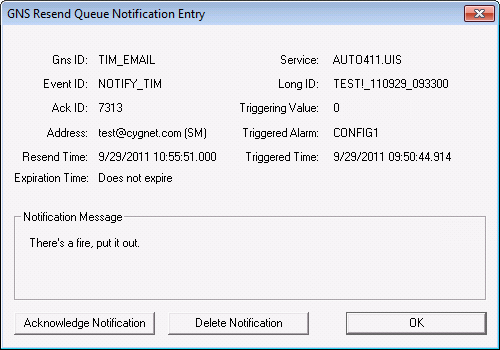
Click Info to see the details of the selected notification, including the message text. The GNS Resend Queue Notification Entry dialog box for a message in the selected queue is shown below.
|
|
Delete |
Click Delete to delete the selected notification from the queue. A notification cannot be deleted from a queue if its status is "In Progress." You can also delete a notification by clicking Delete Notification in the GNS Queue Notification Entry dialog box. Note: If a user deletes a notification from the Resend Queue, the next to notify, resend, and acknowledgment rules will no longer apply. |
|
Ack |
The Resend Queue has an Ack button. Click Ack to acknowledge the selected notification(s). Acknowledging a notification removes all items with the same acknowledgment ID from the Resend Queue. You can also acknowledge a notification by clicking Acknowledge Notification in the GNS Resend Queue Notification Entry dialog box. Note: If a user acknowledges a notification from the Resend Queue, the next to notify, resend, and acknowledgment rules will no longer apply. See Acknowledging Notifications for more information. |
|
All |
Click All to select all the notifications in the queue, usually for deletion. Deleting all notifications from the queue is useful for administrators dealing with a sudden surge of notifications being sent due to an event such as a power loss, where the recipients do not need to be notified multiple times for each point. |
|
Connect |
Click to force a refresh. |
Authorization is required for deletions and acknowledgments. The security application name and event are defined in the Event record on the Notifications page. The default application name is "GNS" (or the name of service if different) and the default event name of "QUEUE." Users must have an authorization level of at least "Delete" (4) to delete notifications and "Add" (3) to acknowledge notifications. See the GNS security reference for more information.
All pending notifications are saved when the GNS is shut down, and are restored when the GNS is restarted. To clear the queue on a GNS restart you have to delete the messages from the queue using CygNet Explorer.

|
|
|