Broadcasting facilities from one screen to another
Canvas provides a sophisticated broadcast feature that allows you to manipulate and pass the SiteService and facility from one screen to another using the Canvas user interface without writing script.
Additionally, you can pass a message or information relevant to your workflow from screen to screen with some simple scripting, using the Broadcast Message feature.
There are three types of broadcasts in Canvas that facilitate interscreen communication. Each is described below:
Note: This feature is different from the CygNet Broadcast option available in CygNet Studio and CygNet Explorer.
The Broadcast SiteService and Broadcast facilities properties available in the Properties pane of the screen allow you to drive the SiteService or facilities in one screen from another screen.
| Property | Description |
|---|---|
|
Broadcast facilities |
The Broadcast facilities check box indicates whether to notify other screens when this screen's facility selection changes. When enabled, and when a screen's facility selection changes, Canvas will broadcast the list of facilities out to all other screens open in the application that are configured to source their facility from <Broadcast>. |
|
Broadcast SiteService |
The Broadcast SiteService check box indicates whether to notify other screens when this screen's SiteService selection changes. When enabled, and when a screen's SiteService selection changes, Canvas will broadcast the SiteService out to all other screens open in the application that are configured to source their SiteService from <Broadcast>. |
Broadcast Example
The following example demonstrates this passing of facilities between screens:
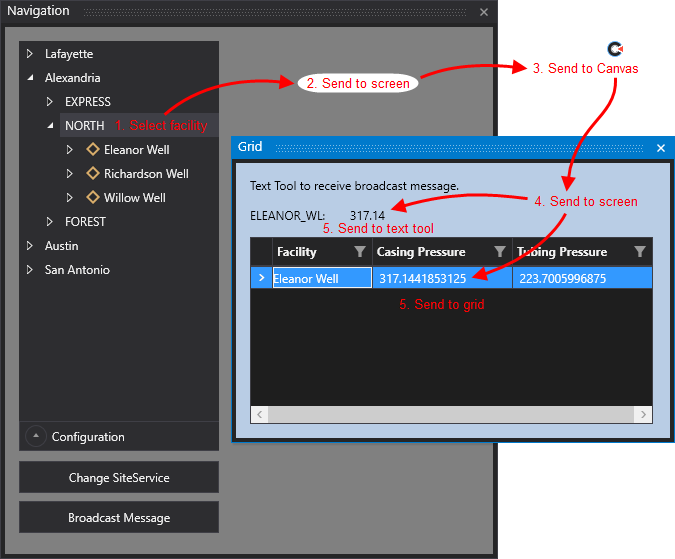
In this example we see one screen driving the contents of another screen. The first navigation screen will broadcast its facility change and Canvas will detect that the facility has changed and will look for all open screens that are configured to receive their source via <Broadcast>. The second screen will detect that its facility source is inherited from <Broadcast> and the text tool and grid contained within are configured to get their facility from the navigation screen. The order in which the facilities are passed is as follows:
1. Select facility on tag chooser > 2. Broadcast to navigation screen > 3. Send to Canvas application > 4. Received on the receiving screen > 5. Display facility on the tool and grid controls
|
Broadcasting facilities from one screen to another |
It is important to note that the screen, text tool, and chart only store a single facility, while grids can receive multiple facilities. This is important because if a control is sourced from the screen, and it is capable of receiving multiple facilities, the control needs to know which facility it is receiving.
When a screen is notified that there has been a change in facilities and it receives the list of facilities, the screen takes the first facility in the list of possible facilities, and uses that facility for itself, but then passes the whole list on to the next receiver in the path. So, when a facility is selected on a tag chooser, and the screen is getting the list from the tag chooser, it gets the whole list of facilities, saves the first one, and then passes the whole list onto the application, which then sends the whole list onto the next screen, which then picks the first facility and passes the whole list onto other controls on the screen. In the example above, the text tool will receive the whole list, but the text tool only cares about the first facility. The grid will receive the whole list of facilities.
The Broadcast feature is a way to support controls that care about a single selection (screen, text tool, chart) and controls that care about multiple selections (grid) with the same selection at the source. While facility source selection is more obvious due to the large number of facilities in a CygNet system, SiteService source selection behaves in the same way.
The only SiteService sender control is the screen, but you can accomplish the sending of SiteService to the screen and other controls via script, shown below.
Canvas provides an option to pass messages to or manipulate objects on other open screens. This is accomplished via script using the SendMessageBroadcast method on the sending screen and the BroadcastMessageReceived event on the receiving screen.
For example, a button can be scripted to fire a broadcast message when clicked, which will send a message string and a screen's properties out to any open screens that are scripted to receive the message and passed objects.
The SendMessageBroadcast method is performed on the Screen object.
Objects.Screen.SendMessageBroadcast("String", Objects.Screen);
There are two parameters that must be passed in via the SendMessageBroadcast method:
| Parameters | Description |
|---|---|
|
String |
The string identifies what the message is about. |
|
Object |
The object contains the value of the message, but it can be anything you want to send. |
Example — SendMessageBroadcast
The following example code shows the script required to drive the two buttons on the navigation screen:
|
public ScreenClass() { // control event handler code goes here -- do not modify Objects.Button2.Click += new EventHandler(this.Button2_Click); Objects.Button1.Click += new EventHandler(this.Button1_Click); // add your custom initialization code here } #region Button1 private void Button1_Click(object sender, EventArgs args) { Objects.Screen.SiteService.SiteService = "BOB.UIS"; } #endregion #region Button2 private void Button2_Click(object sender, EventArgs args) { Objects.Screen.SendMessageBroadcast("This is my message to you!", Objects.Screen); } #endregion |
The mechanism by which Canvas accesses the message string and the sending screen object is the BroadcastMessageReceived event on the receiving screen.
Example — BroadcastMessageReceived
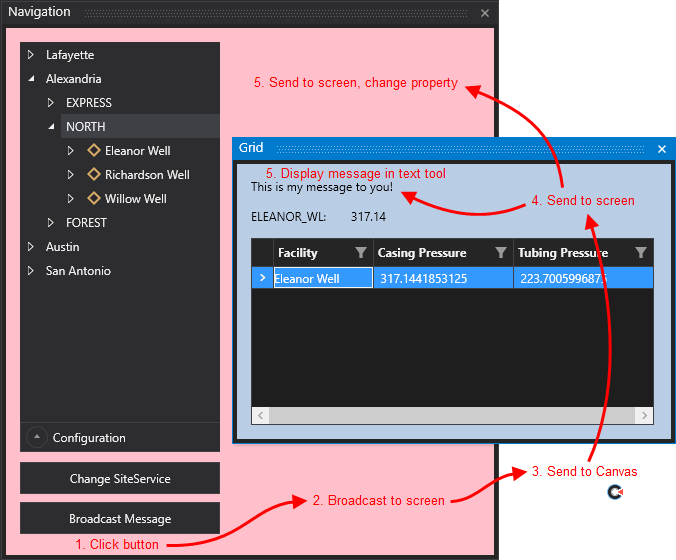
The following example code shows the script on the second screen, which receives the broadcast message from the navigation screen, and manipulates a property back on the navigation screen. The receiving screen has access to a string field (MessageText) and an object field (Data). It takes the message string and puts it in the text tool, displaying the broadcast message from the navigation screen in the second screen. The Data object knows about the screen properties (CanvasScreenPropertiesViewModel), which then changes the screen property's object (BackgroundColor) of the navigation screen to pink, then green, then pink.
So when the Broadcast Message button is clicked, Canvas will fire a broadcast message, and send the string and the navigation screen's properties to all open screens that have the BroadcastMessageReceived event implemented. The second screen will receive the message, change the value of the text tool, and change the sending screen's background color. While the background color is changed on the navigation screen, it is actually being manipulated by script that is executing over on the second screen.
|
public ScreenClass() { // control event handler code goes here -- do not modify Objects.Screen.BroadcastMessageReceived += new EventHandler(this.Screen_BroadcastMessageReceived); // add your custom initialization code here } #region Screen private void Screen_BroadcastMessageReceived(object sender, EventArgs args) { var messageInfo = args as BroadcastMessageEventArgs; Objects.MessageText.Text = messageInfo.Message; var navigationScreen = messageInfo.Data as CanvasScreenPropertiesViewModel; if (navigationScreen.BackgroundColor != "Pink") { navigationScreen.BackgroundColor = "Pink"; } else { navigationScreen.BackgroundColor = "Green"; } } #endregion |
The order in which the message and object are passed is as follows:
1. Click button > 2. Broadcast to navigation screen > 3. Send to Canvas application > 4. Received on the receiving screen > 5. Display message in text tool and manipulate background color on navigation screen
|
SendMessageBroadcast and BroadcastMessageReceived passing a message and object (property change) |
|
|
|