Design Mode Elements
The Canvas screen interface provides the following elements to aid in screen design.
Screen Border and Default Size
The size of your Canvas screen (or object) that will be presented in run mode is configurable in design mode. Modify the Height and Width values in the Properties pane to change the screen size. A cyan-colored border delimits the boundaries of the screen and all controls are limited by those boundaries.
- The default size for a Canvas screen is 750 by 1000 pixels.
- The default size for a Canvas object is 200 by 200 pixels.
Layout Grid
The Screen pane contains a layout grid to help you position objects visually. The layout grid does not appear in run mode. By default, objects snap to grid points when they are placed on screen. They also snap to each other when moved, by default. The display of the grid, the height and width of the grid lines (in pixels), the grid line colors, and whether objects snap to the grid and to each other are configured in the Properties pane for the screen and object.
|
Grid color
|
GridColor
|
The Grid color property specifies the color of the lines in the layout grid. Click  to select a color using the . to select a color using the .
|
|
Grid height
|
GridHeight
|
The Grid height property specifies the height of the layout grid. The default is 10 pixels high.
|
|
Grid width
|
GridWidth
|
The Grid width property specifies the width of the layout grid. The default is 10 pixels wide.
|
| Show grid |
ShowGrid
|
The Show grid property indicates whether to show the grid lines in design mode. By default the layout grid will be displayed. The grid will always be hidden in run mode.
|
|
Snap to grid
|
SnapToGrid
|
The Snap to grid property indicates whether controls should snap to the grid. The default value is true.
|
|
Snap to items
|
SnapToItems
|
The Snap to items property indicates whether controls should snap to other controls. The default value is true.
|
Rulers
The Screen pane contains a horizontal and vertical ruler in pixels, which provide a visual indication about the pane's size and cursor coordinates. The ruler will adjust as you pan and zoom the screen.
|
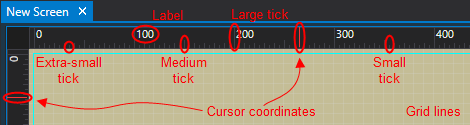
Canvas rulers
|
Navigation Pane — Pan and Zoom
The Canvas screen includes a navigation pane which gives you the ability to easily pan around, zoom in and out, and auto fit the Canvas screen in both design and run mode. Pan and zoom are always enabled in design mode. These features are optional in run mode.
Display of the navigation pane in run mode is configurable on the Screen and Object properties pane. If configured to display the pane is also visible in Canvas View.
|
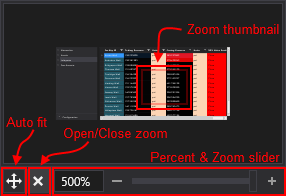
Navigation pane — pan and zoom
|
Pan and zoom functionality is controlled by two properties on the Screen and Object controls:
- Is pan zoom control visible — The Is pan zoom control visible check box indicates whether to display the pan zoom control on the screen in run mode. Pan and zoom are always enabled in design mode; the control is optional in run mode.
- Is pan/zoom enabled — The Is pan/zoom enabled check box indicates whether the user can pan around or zoom in and out of the screen. Pan and zoom are always enabled in design mode; the control is optional in run mode.Note: Enabling this will negatively impact screen load performance and disable the ability to dynamically add controls via script.
 To use the navigation pane
- Click
 (Open) to access the navigation pane.
- Click on the zoom slider to zoom in and out of the area you wish to examine.
- Use the red Zoom thumbnail to pan around the area.
- Click
 (Close) to close the navigation pane.
- Click
 (Auto fit) to return to 100% size.
The navigation pane is also available on the .

