Configuring an Object Library
 An Object is a simple Canvas screen containing one or more controls, which can be used on one or many screens. The controls on an object might represent assets such as a well or compressor or device or facility. Once configured, you can drop an object onto many different screens. If you need to make a single edit to any one control on an object, you simply change the master object, save the object, and all screens containing that object will be automatically updated. Any change made to an object will affect all instances of that object on any Canvas screen where it is used. Objects are analogous to templated screens in CygNet Studio. An object and a screen share the same configuration properties, events, and methods.
These settings are saved in XML format as part of the global settings file (.gsf) for your Canvas application and applied to all instances of Canvas.
Configure the Object Library
Objects are stored together in an object library, either on the local or network Windows file-system folder, or in a CygNet APPS or BSS folder for system-wide access. The object library must be configured in the Backstage view in order to see your objects in the Toolbox pane.
- In the Backstage view, go to Settings, and click Object library
 to open the Object Library dialog box.
|
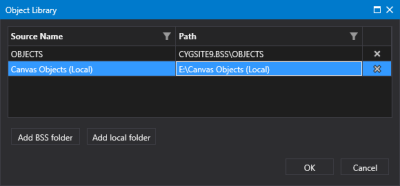
Object Library Configuration
|
- Click Add BSS folder to select a CygNet APPS or BSS folder. Find the folder and select OK. (If the desired folder doesn't exist, you may need to create it using CygNet Explorer.)
- Click Add local folder to select a folder on your local or network Windows file-system folder. Find the folder and select Open folder. (If the desired folder doesn't exist, you may need to create it using Windows Explorer.)
- Once your object library is configured, click OK to save the configuration to the global settings file.
- Or click Cancel to abort and close the Object Library dialog box.

