Accessing General Settings
Use the Settings page in the Backstage view to configure basic application settings, including the following:
- Settings folder — Click to open the folder where the Canvas settings files are stored
- Object library — Click to open the Object Library configuration dialog box
- Facility navigation — Click to open the Facility Navigation configuration dialog box
- Relative facilities — Click to open the Relative Facilities configuration dialog box
- Style sheets — Click to open the Style Sheets configuration dialog box
- Color palettes — Click to open the Color Palettes configuration dialog box
- General Settings
- Global settings — Configure the location of your global settings file, or create a new global settings file
These settings are saved in XML format as part of the global settings file (.gsf) for your Canvas application and applied to all instances of Canvas. Each setting is described below.
Settings Folder

|
The Settings folder contains application files used by Canvas during each working session, which save information about global settings, control plugins, user settings, and workspace layouts, and are generated each time you close the application. If the current file is deleted, a new file will be generated upon closing Canvas.
Note: If you want to remove the content of any currently saved settings file, close Canvas and then delete the current version of the saved file(s). The deleted file(s) will be generated anew upon the next close of the application.
|
Object Library

|
 An Object is a simple Canvas screen containing one or more controls, which can be used on one or many screens. The controls on an object might represent assets such as a well or compressor or device or facility. Once configured, you can drop an object onto many different screens. If you need to make a single edit to any one control on an object, you simply change the master object, save the object, and all screens containing that object will be automatically updated. Any change made to an object will affect all instances of that object on any Canvas screen where it is used. Objects are analogous to templated screens in CygNet Studio. An object and a screen share the same configuration properties, events, and methods. An Object is a simple Canvas screen containing one or more controls, which can be used on one or many screens. The controls on an object might represent assets such as a well or compressor or device or facility. Once configured, you can drop an object onto many different screens. If you need to make a single edit to any one control on an object, you simply change the master object, save the object, and all screens containing that object will be automatically updated. Any change made to an object will affect all instances of that object on any Canvas screen where it is used. Objects are analogous to templated screens in CygNet Studio. An object and a screen share the same configuration properties, events, and methods.
- Click Object library to configure the contents of the Canvas object library.
- See Configuring Object Library for more information about configuring an object library.
|
Facility Navigation

|
Canvas supports navigation to a specific screen by selecting a CygNet facility. You can also specify optional facility record properties to be included when the navigation is triggered. This Navigation by Facility feature requires global configuration of the facility attribute that contains the path to the screen that will be displayed when the navigation via facility is requested.
- Click Facility navigation to configure the facility attribute that contains the associated screen.
- See Configuring Facility Navigation for more information about configuring the facility attribute and other properties.
|
Relative Facilities

|
For any given facility you can configure a relationship to define a path to another facility in your CygNet environment.
- Click Relative facilities to configure global relative facility definitions. These definitions are stored as XML but are encoded inside the global settings file (.gsf).
- See Using Relative Facilities for more information about relative facilities.
- See Configuring Relative Facilities for more information about configuring relative facility definitions.
|
Style Sheet

|
A Canvas style consists of a set of properties with preconfigured property values for a particular control type. Style sheets allow you to quickly apply a predetermined style to any control added to a screen or object. By designing and using style sheets consistently you can make changes in one place and cascade those changes down to all Canvas screens in the CygNet environment. Style sheets allow for the creation of unique style guidelines for your enterprise, making screen design faster, easing the burden of screen maintenance, and improving operator experience. If you create more than one object with the same properties, it's a good idea to use styles to ensure consistency in design.
- Click Style sheets to configure styles sheets for Canvas controls.
- See Configuring Style Sheets for more information about creating and managing styles.
|
Color Palettes

|
Canvas supports custom color palettes, which can be configured in the Canvas settings and then applied to any screen containing CygNet-aware controls.
CygNet supports a dual mode for point state color; that is, each point type allows both a background color and a foreground color to be set. The point state definition colors are configured in the CVS metadata file for each point scheme.
In CygNet-aware controls the color configuration for point state supports either background color or foreground color:
- Typically background color is used for the closed space on a control, for example, the background area, borders and lines, grid cells, bars and rings, markers, and fills. The default background color for the standard point scheme is configured from one of the following colors: green, cyan, magenta, yellow, or red.
- Typically foreground color is the element on the face of control, usually the text. For most point states, the default foreground color for the standard point scheme is black.
In Canvas you can create a custom color palette to override the default point state colors for any point type. If a custom color palette is selected for a screen, any CygNet-aware controls using Point State for color will apply the selected color palette in run mode.
- Click Color palettes to configure custom color palettes for use in CygNet-aware controls.
- See Configuring Color Palettes for more information about creating and managing color for point states.
|
General Settings
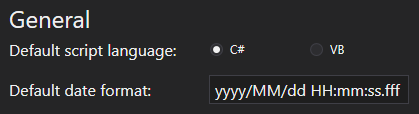
Canvas has some general default settings that apply to all screens or controls.
|
General settings
|
Default script language
Use the radio buttons to configure the Default script language used for new Canvas screens. A screen's scripting language cannot be changed after the screen is created. Options include:
- C# — By default, the Canvas application uses the C# script language.
- VB.NET
Default date format
Configure the default date format used when displaying timestamps on Canvas screens. The default format is YYYY/MM/DD HH:MM:SS.fff, which corresponds to 2019/01/01 10:20:30.0001. The format can be overwritten at the control level via the Date and time format property.
Note: You can also use the Microsoft .NET Standard Date and Time Format Strings to define the text representation of a date and time value in Canvas. For example, "d" is the short date pattern and corresponds to 1/1/2019, "F" is the full date/time pattern and corresponds to Monday, January 1, 2019 1:45:30 PM.
Global settings
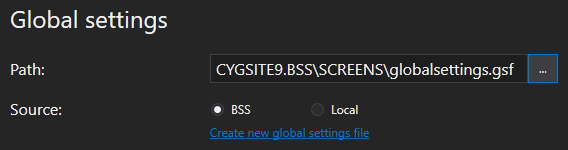
All Canvas screens use a set of globally configured XML-based settings (compiled into a .gsf file). Global settings are common to all screens and objects and are automatically associated with a screen when it is created. Global settings include, for example, relative facility definitions, style sheets (describing colors, fonts, etc. for controls) and object library location. The Global settings is where you specify the location where this default file is located.
|
Global settings
|
Path
The Path property specifies the path to the global settings file. Depending on the selection in the source property the type of path is different. Click  to access either the:
- Select File dialog box — To access a CygNet APPS or BSS folder
- Open File dialog box — To access a local or network Windows file-system folder
Source
The Source property specifies the source of the global settings file. Select from the following options:
- BSS — Indicates that the file is stored in a CygNet APPS or BSS folder
- Local — Indicates that the file is stored in a local or network Windows file-system folder
The default value is BSS.
Create a new global settings file
To create a new, empty global settings file, perform the following steps. Note that all current global settings (relative facilities, object library location, style sheet, etc.) will be lost when you choose to use the new file. You can create as many global settings files as you wish.
- Click Create a new global settings file to open the Save dialog box, so that you can navigate to a designated location, add a new folder, provide a file name for the new file, and then save the file. You can save to a CygNet APPS or BSS folder or to a local or network Windows file-system folder. You do not need to specify the ".gsf" extension when naming the file, as Canvas will automatically add this when the file is created.
- Saving to a CygNet APPS or BSS folder — In the Save dialog box, click BSS. Click the desired APPS or BSS. Find the desired folder location, type a File name, and click OK.
- Saving to a Windows file-system folder — In the Save dialog box, click Local. Find the desired folder location, type a File name, and click OK. Right-click to view the context menu to make a New folder, as necessary.
- Tell Canvas where to find the new global settings file. Select the Source and Path of the new global settings file, as described above.
- Close and reopen the Canvas application for the change to take effect.
- Configure new global settings as necessary.
|

|
|
