|
Sample Relative Facilities Tester |
This topic describes how to test that your relative facility links resolve to the appropriate facility tags in your environment.
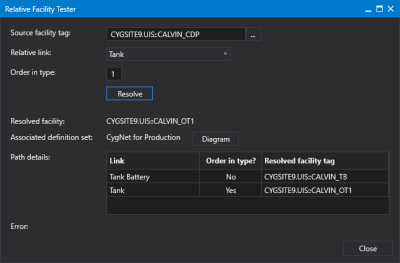
Sample Relative Facilities Tester
 to select a Source facility tag using the Select Facility Tag dialog box or enter the facility tag directly in the field provided. The source facility tag can be any facility in the relative facility path, although the tester will only resolve to facility tags down the path from the source facility.
 to select the Relative link from the drop-down menu.

Click the thumbnail to see a
sample Relative Facilities Tester
showing Error message
The Relative Facility Tester dialog box contains the following options and properties:
| Option | Description |
|---|---|
|
Source facility tag |
Click |
|
Relative link |
The Relative link property specifies a list of all available relative facility paths. Click |
|
Order in Type |
Specifies the facility attribute used to represent the order in type (the facility ordinal) for this relative facility definition. The Order in type is used to account for multiple children of a certain type. For example, in a Tank Battery with multiple tanks, this attribute would specify the order of the child tanks in the tank farm. A blank attribute value means that the property is not to be used and will not be configurable when specifying a relative link on a Canvas screen or control. Options include a hard-coded list of generic text attributes including facility_info0, facility_info1, and facility_attr0 to facility_attr29. Note the following: Specifying an Order in type attribute reduces the number of relative facility definitions. Resolution must be the last resolved facility in the path or chain. Order-in-type-based definitions can allow for the creation of multi-parent configuration; this should be avoided. See Design Considerations for more information about creating Order-in-type-based definitions. |
|
Resolve |
Click Resolve to resolve to all down-path facilities. |
|
Resolved facility |
The Resolved facility field displays the last resolved facility in the path. |
|
Associated definition set |
The Associated definition set displays the name of the definition set with which the selected Relative link is associated. |
|
Diagram |
Click Diagram to see a graphical representation of the relative facility definitions configured for this definition set. |
|
Path Details |
Review the Path details to see all resolved facilities. The columns of information include:
|
|
Error |
If the relative link cannot resolve down to all facilities in the path an Error message will display. Review the message to identify the problem. Adjust the Relative link and Order in type and Resolve again. |
|
|
|


