Configuring Relative Facilities
This topic describes how to configure relative facility definition sets and definitions via the Canvas user interface.
- See Using Relative Facilities in Canvas for more information about this feature, including examples, design suggestions, and configuring relative facility definitions via script.
Configure a Relative Facility Definition Sets
Different relative facility definition sets can be created to associate single or multiple Facility services with different facility attributes in a multi-site domain. Multiple Facility services can be associated with the same relative facility definition.
- In the Backstage view, go to the Settings page, and click Relative facilities
 to open the Relative Facilities dialog box.
|
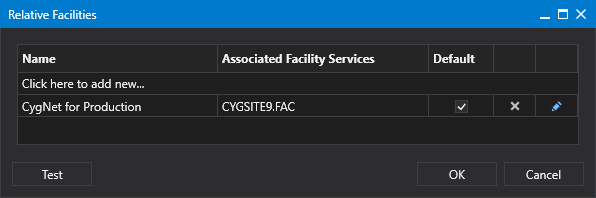
Relative Facility Definition Sets
|
- Click in the area titled Click here to add new… to create a new definition set for your associated Facility service(s). Type a name for your definition and press enter.
- Click the Default
 (Set as default) check box to indicate whether this definition set is the default to use in your Canvas screens.
- Click
 (Delete definition set) to remove a selected definition set.
- Click
 (Edit definition set) to open the Relative Facility Definitions dialog box for the selected definition set. See Configuring a Relative Facility Definition to learn how to configure the definitions.
- Click Test to test that your configured relative facility links resolve to the appropriate facility tags in your environment. See Testing Relative Facility Links for more information.
- Once the definition set is configured, click OK to save the configured relative facility definition sets to the global settings file, and close the dialog box.
- Or click Cancel to abort and close the Relative Facilities dialog box.

