Navigator
 The Navigator control is a navigation control that can be populated to display any number of Canvas screens and objects. Intrinsic to the control is a hierarchical menu on the left side, which can be configured to organize access to different categories of information. The navigation menu supports a single nested level of navigation; that is, you can configure multiple top-level menu items, each containing multiple sub-menu items. When a menu or sub-menu item is clicked a related screen will be displayed in the body of the control. The path to the linked screen can be a local or network Windows file-system folder or a CygNet APPS or BSS folder. Additionally, each menu item can display a configurable icon to the left of the menu's label. The navigation menu includes an adaptive display mode designed to preserve screen real estate: it can be configured to minimize all menu items, display only the top-level menu icon, or display the icon and menu item label. See the Tab control for a lighter version of the navigator.
Note: This control only supports Canvas screens in CygNet v9.4. It does not support the display of CygNet Studio screens (.csf).
|
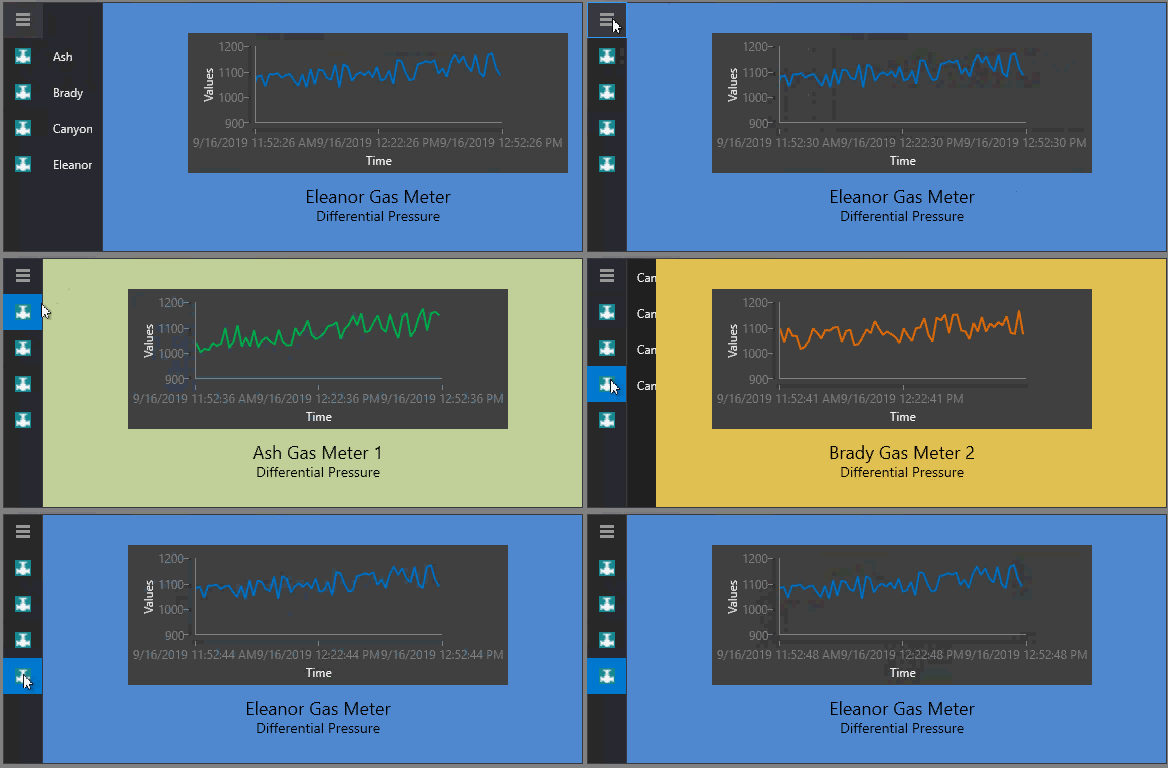
Sample Navigator showing menu icons, Expanded display mode, and multiple sub-menu items
|
Related Topics

