Use the Alarm Notifier page in the Backstage view to configure the global settings for the Alarm Notifier, including the following:
- Alarm service — Configure the Common Alarm Services (CAS) from where the alarm notifier will retrieve its alarm information
- Alarm filter — Click to open the Alarm Filter configuration dialog box to create filtering rules to limit the alarms displayed
- Alarm sounds — Click to open the Alarm Sounds configuration dialog box to configure the alarm priority ranges and associated sound files
- Alarm colors — Click to open the Alarm Colors configuration dialog box to configure the background text color displayed in the alarm box
- Alarm attributes — Configure the attributes for the three items that appear in the alarm box on the Alarm Notifier
- Alarm screen file — Configure the path to the custom alarm screen that will display when the total number of unacknowledged alarms in the alarm banner is clicked
These settings are saved in XML format as part of the global settings file (.gsf) for your Canvas application and applied to all instances of Canvas. If no global settings file is available, none of these settings will be configurable, but a message will provide a link to the Backstage view where you can configure one.
Each setting is described below.
Alarm Service
The alarm notifier pulls its information from the Common Alarm Service (CAS) where centralized alarm processing for the current value services (CVSs) takes place. The alarm notifier needs to know from which CAS(s) to retrieve information.
|
Alarm service configuration |
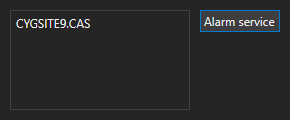
- Click Alarm service a select one or more CAS(s) using the Select Service dialog box.
- Repeat for each CAS you wish to monitor.
Alarm Filter

|
Use the Alarm Filter dialog box to create custom alarm filtering rules to limit the alarms displayed in the alarm notifier.
|
Alarm Sounds

|
Use the Alarm Sounds dialog box to configure a sound file that will play when an alarm displayed in the alarm notifier falls within the configured alarm priority range.
|
Alarm Colors

|
Use the Alarm Colors dialog box to configure the color elements of the alarm notifier. The color can be explicitly configured (using <Self>) or it can be sourced from the point state of the associated point (by selecting Point State).
|
Alarm Attributes
These attributes specify the text that will appear in the three items in the alarm box on the notifier. The text can be a static label or dynamic text based on point or facility attributes. Dynamic text is built using tokens, which can represent real-time CVS point properties, point configuration properties, and facility properties. Each alarm box will expand in width to display any specified text.
- See Configuring Alarm Box Attributes for more information about configuring the alarm box items.
Alarm Screen File
The Alarm Notifier includes a box on the far left showing the total number of unacknowledged alarms, which can be clicked to launch a related custom screen file. This link uses the Navigate by Facility feature and the mode of navigation is by the Facility navigation mode property setting on the screen displaying the Alarm Notifier. The specified screen must be stored in the BSS.
|
Alarm screen file path |

Path
The Path property specifies the path to the screen to open when you click on the box displaying the total number of unacknowledged alarms in the Alarm Notifier.
- Click
 to access the Select File dialog box.
 - Click the BSS and browse to the folder and file you want to open.
- Click OK to save the file path.
- Or click Cancel to abort and close the Select File dialog box.


