A Canvas style consists of a set of properties with preconfigured property values for a particular control type. Style sheets allow you to quickly apply a predetermined style to any control added to a screen or object. By designing and using style sheets consistently you can make changes in one place and cascade those changes down to all Canvas screens in the CygNet environment. Style sheets allow for the creation of unique style guidelines for your enterprise, making screen design faster, easing the burden of screen maintenance, and improving operator experience. If you create more than one object with the same properties, it's a good idea to use styles to ensure consistency in design.
The style sheets are configured on the Backstage view, Settings page.
Best practice recommends that you create new styles when building your screens in the Screen and Properties panes, and then subscribe to the style in the control's Style property. Once created you can manage all styles in the Backstage view: edit style name and property values, set as default, delete, even create new styles.
These settings are saved in XML format as part of the global settings file (.gsf) for your Canvas application and applied to all instances of Canvas. If no global settings file is available, none of these settings will be configurable, but a message will provide a link to the Backstage view where you can configure one.
You can use the Canvas Find / Replace feature to globally edit style names and property values.
Configure Style Sheets
Styles are created and configured in two places within Canvas:
- in the control's Properties pane when you are building your screens (the preferred method)
- in the Settings in the Backstage view
Both locations are described below.
 To configure style sheets in the Properties pane
It is easy to create styles in the Properties pane using the Select Properties for New Style dialog box. This is the preferred method for style sheet creation and configuration.
- Configure the desired properties values for your screen object (control) in the Properties pane.
- Click
 (Add a new style based on this control) next to the Style property to open a new style sheet for this control. The style sheet will pick up any property values you have configured for the control.
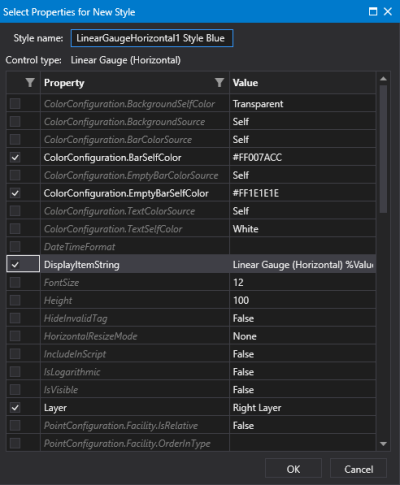
Style Sheet configuration — Properties pane
Note: The style sheet does not display all properties for all control types. Some complex object types (for example, Chart.Series properties, and Grid.ColumnDefinition properties) and lists (e.g. ComboBox.Items properties) are hidden from style configuration.
- Click the check box next to the properties for which you wish to apply a new style.
- Edit any property values as desired.
- Optionally, rename the style by editing the name in the Style name box.
- Once your style sheet is configured, click OK to save the configuration to the global settings file.
- Or click Cancel to abort and close the Select Properties for New Style dialog box.
To manage style sheets in the Backstage view
The Backstage view is the best location for globally managing styles. Additionally, this is where you designate the default style for a control type. You can also delete styles from this view. Once created in this view, the style will be visible in the Styles property drop-down menu and can then be associated with an object in the Properties pane.
- In the Backstage view, go to Settings, and click Style sheet
 to open the Style Sheets dialog box.
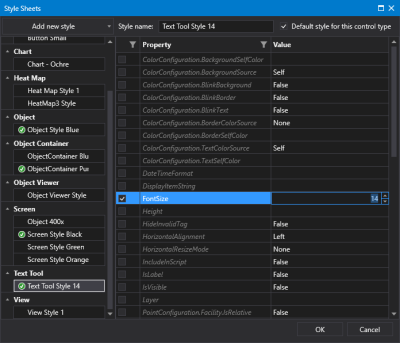
Style Sheet configuration — Backstage view
Note: The style sheet does not display all properties for all control types. Some complex object types (for example, Chart.Series properties, and Grid.ColumnDefinition properties) and lists (e.g. ComboBox.Items properties) are hidden from style configuration.
- Click Add new style to add a new style for any control type listed in the drop-down menu. The styles are added sequentially under each control type, and you can change a style's name to suit your needs. You can expand and collapse each control type by clicking
 or
or  next to the control name or simply by clicking anywhere in the control name heading.
 - Select the style in the left pane and the grid in the main pane of the dialog box will populate with three columns:
- a selection check box
- a list of most properties associated with this control type
- the default values for each property
- Optionally, rename the style by editing the name in the Style name box.
- Indicate whether the style will be the default style for this control type by clicking Default style for this control type. A green check
 will display next to the default style for each control type. Each time a new control of this type is added to a screen, the default style will be used.
 - Edit the control's properties for the selected style:
- Click the check box for the property for which you want to set a style value.
- Click in the Value column and use the configuration options to set a new value. See the properties topic for each control type for an explanation of each property.
- Optionally, click
 next to a style name to remove it from the list of available styles for any control type. If you delete a style in the Backstage view, any controls using the style will retain the style settings but will no longer get style updates.
 -
Click
 in the column header to filter the rows as needed. Click here for more information about using the filter tool.
 -
Click any column header to sort that column in ascending or descending order.
- Once your style is configured, click OK to save the configuration to the global settings file.
- Or click Cancel to abort and close the Style Sheets dialog box.
Notes:
- Open screens do not automatically apply changes made in pre-existing style sheets. When you save, open, or run a screen Canvas will check the style sheet for any changes and apply any new property values.
- The Canvas plugin model allows the creation of third-party control types, and once added to Canvas they will appear in this dialog box and you can create and apply new style sheets as desired.


