The Map has numerous run-mode options:
-
You can dynamically resize your screen and any controls within. See Resizing Screens for more information about resizing Canvas screens.
 Map user controls
The map control offers several user controls to allow you to interact with geographical data.
Mini-map
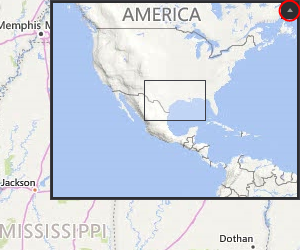
The mini-map control allows you to see the desired region on your map at a larger zoom level and is enabled by default. Click the expander arrow in the top right of the map to expand and collapse the mini map.
|
Mini map |
Mouse position coordinates
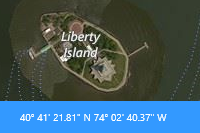
The mouse position coordinates are located in the lower left corner of the map's toolbar, and display the current mouse position on the map.
|
Mouse position coordinates |
Map controls to change the view, pan, and zoom
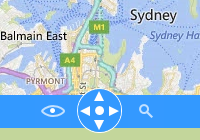
Several map controls are grouped at the center of the map's toolbar, which allow you to zoom, navigate, and change the view.
|
Map controls |
From left to right:
|
Map Mode Control Use the eye ( The map mode control differs for each map provider. See Configuring Map Settings for more information about providers. Move the mouse over the eye to expand the control.
|
Navigation Control
Click the four arrows on the Tip: Use the keyboard arrows to move around the map
Click the circle in the
|
Zoom Level Control Use the magnifier ( Move the mouse over the magnifier to expand the control.
Click the + and - icons or drag the slider Tip: Use the keyboard + and - keys to zoom. Click the buttons to zoom to the regions: World, State, |
||||||||||
 ) to switch between the map modes (views).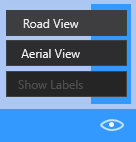
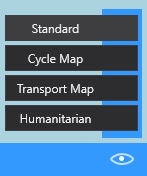


 ) to switch between the zoom levels of the map.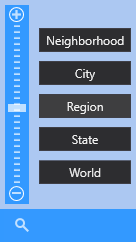
Map scale
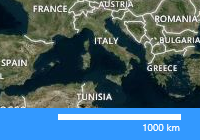
The map scale is shown on the lower right corner of the map's toolbar, and allows you to track the distance on the currently selected zoom level.
|
Map scale |