Canvas supports a Map control, which requires the configuration of some global settings: the name of the map provider, its API key, the facility attribute(s) where the associated latitude and longitude location coordinates are stored so that facilities can be identified on the map, and the delimiter character, if only one attribute is used.
These settings are saved in XML format as part of the global settings file (.gsf) for your Canvas application and applied to all instances of Canvas. If no global settings file is available, none of these settings will be configurable, but a message will provide a link to the Backstage view where you can configure one.
Before You Start
Before you can configure the global map settings or add a map control to a screen, you must tell Canvas the name of the map provider from which to consume the required geographical data and the facility attributes in the Facility service where latitude and longitude coordinates are stored.
Selecting a Map Provider
- Choose a map provider. Currently the Canvas Map supports Microsoft's Bing Maps and OpenStreetMap Foundation's OpenStreet.
- Get a map API key from the selected provider:
Configuring Facility Coordinates
Latitude and longitude are the units that represent location coordinates in a geographic coordinate system. Use a latitude and longitude finder to find lat long coordinates, also called doubles. CygNet and Canvas use decimal equivalents, up to 6 decimal places.
- In the Facility service choose one or more available text facility attribute(s) where the location coordinates will be stored for all facilities. Coordinates can be stored in a single attribute or in two different attributes.
- Enable and describe the facility attributes in the FAC service.
- For each CygNet facility populate the facility attributes with the coordinates. This can be done manually or with the CygNet Facility Import/Export (FacLoad.exe) utility.
Single attribute format
If the coordinates are stored in a single attribute, they must be written in the following format: <decimal><delimiter charater><decimal>
For example:
31.296088,-92.456041
See the example for facility_attr4 below.
Dual attribute format
If the coordinates are stored in dual attributes, they must be in the format shown in example facility_attr16 and facility_attr17 below:
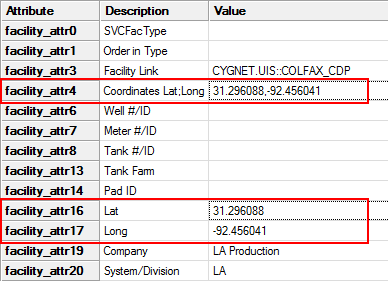
FAC service attributes
Configure Global Map Settings
You must tell Canvas the type of map the Map control is using, its API key, which facility attribute(s) contain the location coordinates data, and the delimiter character, if one is used.
- In the Backstage view, go to Settings, and click Map
 to open the Map dialog box.
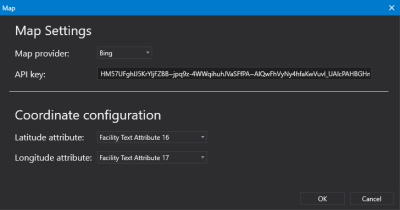
Map configuration
- Select the Map provider for the Map control from the drop-down menu.
- Paste the map provider's API key.
- If you are storing the coordinates in a single attribute, do the following:
- Select the attribute from the Latitude attribute drop-down menu.
- Leave the Longitude attribute drop-down menu empty.
- Indicate the Delimiter character used, for example, comma, semi-colon, etc.
- If you are storing the location coordinates in two attributes, do the following:
- Select the attribute storing the latitude value from the Latitude attribute drop-down menu.
- Select the attribute storing the longitude value from the Longitude attribute drop-down menu.
- Ignore the Delimiter field.
- Once the map details and attributes are configured, click OK to save the configuration to the global settings file.
- Or click Cancel to abort and close the Map dialog box.
- Now you are ready to add a map to a Canvas screen. See Configuring a Map.


