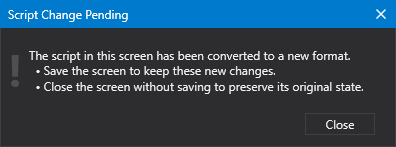
Canvas supports pre-compiled assemblies. These assembly files are embedded within the screen or object to allow for faster load time. To support this feature the Canvas screen format in v9.6 or later has been modified and the screen version incremented. Pre-v9.6 Canvas screens used a script format that is incompatible with Canvas v9.6+. When you open a pre-v9.6 screen in Canvas v9.6+ the application will convert the screen to an updated script format, and then permanently apply the new format when you save the screen in Canvas v9.6+. In Canvas, a Script Change Pending message will warn you of the pending change. Older screens opened in Canvas View or Canvas View Lite will be converted on the fly, but not saved with the new format. A new screen created in v9.6 will get the new file version; any converted screens will get the new file version. When an older screen is converted the file conversion is logged at the basic Info logging level.
|
Script Change Pending dialog box |
If you have a lot of older screens to convert, a CLI-based utility, CanvasFileConverter, is available to convert multiple Canvas screens to the updated script format.
Older screens are converted on the fly, but are limited to just the selected screen. If the selected screen includes Canvas objects or other nested screens that contain script, those will not be automatically converted during the open operation. To ensure all screens are converted, be sure to open any screen dependencies prior to opening the parent screen or use the bulk conversion utility, described below.
Custom Canvas Controls
Note the following about custom Canvas controls:
- If your older screen contains a custom Canvas control, the control assemblies must be compiled against the v9.6 Canvas binaries before attempting to convert the screen to the new script format. Any screen that makes use of a custom Canvas control will fail to convert if the control is not first updated to the latest version of Canvas.
- Depending on where the CanvasFileConverter is being executed, the custom control assemblies need to be placed in the same folder. While Canvas currently allows for the custom control assemblies to reside in custom folders or subfolders, the CanvasFileConverter requires that the control assemblies be located in the same directory—along with all the Canvas and CygNet support binaries, typically CygNet\Bin.
CanvasFileConverter Utility
A command-line-interface utility, CanvasFileConverter, is available to bulk convert multiple Canvas screens to the updated script format, and save a copy of the original files as a backup.
The CanvasFileConverter utility is not automatically installed on the host computer. It is distributed on the CygNet v9.6 CD_Image. It is automatically included in the APPS service, but it is not installed, nor is it automatically included in .rsp/.rsq files for version management.
Input file
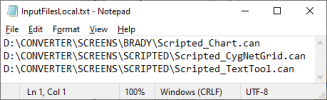
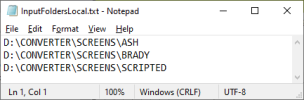
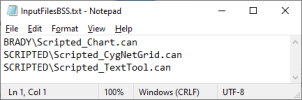
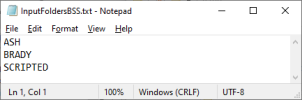
The CanvasFileConverter utility requires an input file that must be prepared in advanced of running the utility. The input file tells the utility the path to the file names of the screens to be converted. The input file can include a list of files, or a list of folders that contain the files. The utility supports converting files stored in a BSS, or in a local or network Windows file-system folder.
To bulk convert screens via command-line
- Prepare the input file. See the parameters described below.
- Open a Command Prompt window.
- Navigate to the directory where the CanvasFileConverter application is installed.
- Optional. Type
canvasfileconverterand press Enter to see user assistance for the utility, for example:CopyC:\CygNet\Bin>canvasfileconverter - Type the desired command(s) using the syntax described below.
Usage
CanvasFileConverter [-svc:<site.service>] [-files:<input file path> || -folders:<input file path>] [-topDirectoryOnly] [-backupPath:<path>]
Note:
Command-line commands are not case sensitive.
Parameters
Some parameters require additional data; follow each parameter with :additional data. See Usage and the examples for each parameter for more information.
| Parameter | Required | Description | ||||
|---|---|---|---|---|---|---|
|
-svc |
no |
Specify the name of the BSS hosting the files to be converted in site.service format. If no service is specified, the file or folder names are assumed to be in a local or network Windows file-system folder. Do not use slashes in the path, e.g., <site.service>\ or \\<site.service>\. Example
|
||||
|
-files || -folders |
yes |
Specify the name of an input file containing file names or folder names. The format of the input file differs for files and folders, local or BSS-based:
Also note:
Examples
|
||||
|
-topDirectoryOnly |
no |
By default, the converter will recursively find all .can and .cob files in all subfolders specified in the Example
|
||||
|
-backupPath |
no |
Specify a local path to a backup location for the original files that have been converted. Backups will never be written back to the hosting BLOB service. If a Example
|
Known CanvasFileConverter Failures
Note the following known converter failure issues that deal with initializing certain variables outside of the new ScreenClassInitializer() method.
When converting pre-v9.6 Canvas screens to Canvas v9.6 using CanvasFileConverter, certain initialization code that was previously acceptable to the compiler will now generate errors. This is caused by an underlying change to the construction of the Objects collection and is unavoidable. The code that previously compiled correctly will not behave as expected in all circumstances.
Any initialization performed outside of a method that involved the Objects collection must be modified to compile and operate successfully. Two most common manifestations are described below, but there are other less common possibilities as well.
Compiler Error One
An initialization like:
|
String buttonText = Objects.Button1.Text; |
Will generate the following error:
A field initializer cannot reference the non-static field, method, or property 'ScreenClass.Objects'
In this case the solution is to declare the variable, but not initialized it:
|
String buttonText; |
And then do the initialization in the ScreenClassInitializer method:
|
buttonText = Objects.Button1.Text; |
Compiler Error Two
An initialization like:
|
Objects.Button1.Text = "Button label"; |
Will generate the following error:
Invalid token '=' in class, struct, or interface member declaration
In this case no declaration is required, so the static initialization line is eliminated entirely above, and again the initialization can be performed in ScreenClassInitializer method:
|
Objects.Button1.Text = "Button label"; |
Sample Scripts
The sample scripts below show both errors and appropriate corrections.
Sample 1
CopyThe following script shows both errors:namespace Screen
{
// add custom classes here
public partial class ScreenClass
{
string buttonText = Objects.Button1.Text;
Objects.Button1.Text = "Button Label";
// add custom methods here
/// <summary>
/// Main function for the screen. Used to create class instance.
/// </summary>
public static ScreenClass Main()
{
return new ScreenClass();
}
/// <summary>
/// Detach script from screen. Used to unhook event handlers.
/// </summary>
public void DetachEventHandlers()
{
// Code to detach event handler code goes here -- do not modify
}
/// <summary>
/// Initializer for screen. Used to hook-up event handlers and for
/// any custom initialization code
/// ScreenClassInitializer is called immediately after ScreenClass construction
/// </summary>
public void ScreenClassInitializer()
{
// control event handler code goes here -- do not modify
// add your custom initialization code here
}
}
Sample 2
CopyThe following script shows both corrections:namespace Screen
{
// add custom classes here
public partial class ScreenClass
{
string buttonTxt;
// add custom methods here
/// <summary>
/// Main function for the screen. Used to create class instance.
/// </summary>
public static ScreenClass Main()
{
return new ScreenClass();
}
/// <summary>
/// Detach script from screen. Used to unhook event handlers.
/// </summary>
public void DetachEventHandlers()
{
// Code to detach event handler code goes here -- do not modify
}
/// <summary>
/// Initializer for screen. Used to hook-up event handlers and for
/// any custom initialization code
/// ScreenClassInitializer is called immediately after ScreenClass construction
/// </summary>
public void ScreenClassInitializer()
{
// control event handler code goes here -- do not modify
// add your custom initialization code here
buttonText = Objects.Button1.Text;
Objects.Button1.Text = "Button Label";
}
}


