Use the Find/Replace feature to search for a string on a Canvas screen or object and replace the string with another value. Find and replace allows you to transfer screens made for one CygNet system to another system, by finding and replacing site and service names, facility names, CygNet version numbers, etc. You can perform a find and replace in one or many files and the action can apply to any kind of Canvas file. This feature searches the XML strings underlying a Canvas screen, so be very careful to not find and replace strings such as "Canvas" or "canvas", or you will render a screen inoperable. Best practice recommends that you make a backup of your screens before making string replacements. You can also find and replace via the command line.
The Canvas find and replace feature is similar to property substitution in CygNet Studio.
Find and Replace
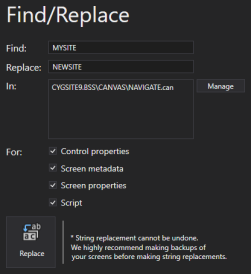
Find/Replace
- Click File (or
 ) to access the Backstage view.
 - In the Backstage view, click Find/Replace.
- Type the string you want to find in the Find box. Strings are case sensitive.
- Type the replacement string in the Replace box.
- Tell Canvas where to make the changes. Click Manage to access the Open Files dialog box, where you can find the Canvas file(s) you want to edit.
- Choose the location of the files you want to edit, either a CygNet APPS or BSS folder or a local Windows file-system folder.
- Browse for the files(s) and click OK to add them to the In box. You can select multiple files using Ctrl+Click or Shift+Click.
- Tell Canvas where to search for the find string. There are four check-box options:
- Control properties — Find and replace any string found in a Canvas control property
- Screen metadata — Find and replace any string found in a screen's Metadata.xml file
- Screen properties — Find and replace any string found in a screen (or object) property
- Script — Find and replace any string found in a screen's Script file
- Click
 (Replace) to replace the found string with the replacement string in the selected files. A message will display if the find and replace was successful.
Notes:
- There is no undo for Find/Replace. Make a backup of your files.
- Find/Replace works on closed files. If you edit an open file, you must close the file without saving any changes, and then reopen the file to see the replacement text.
- If you change certain strings, such as “Canvas”, you will break your screen
- Find strings are case sensitive
- You can find and replace in multiple screens, saved in an APPS or BSS, or on a local file system
- There is also a Find and Replace option available from within the Canvas Script editor.


