Canvas supports a command-line interface (CLI) to find and replace strings in Canvas files stored in either a CygNet APPS or BSS folder or a local folder. Domain ID support is also available to edit files in a BSS in a different domain. Be aware that there is no undo for find and replace. Make a backup of your files before editing. See other important notes here.
Note: You cannot combine the Find and Replace CLI parameters and the other Canvas CLI parameters in the same command line. But you could do a find and replace and then open the file on the next command line. See the CLI topics for more information:
To find and replace a string in a Canvas file
- Open a Command Prompt window.
- Navigate to the directory where the Canvas application is installed, typically CygNet\Bin.
- Type the command using the syntax described below.
Usage
Canvas -Find=[FindString] -Replace=[ReplacementString] -Files=[File1;File2;File3] -Source=[BSS|Local] -Domain=[DomainId] -Options=[Controls;Metadata;Screen;Script]
Note: CLI parameters are not case sensitive.
Parameters
All parameters require additional data; follow each parameter with "=additional data"; see usage and examples.
| Parameter | Required | Description | |||||||||
|---|---|---|---|---|---|---|---|---|---|---|---|
|
-Find |
Yes |
Specify the string you want to find. Wrap multiple words in quotation marks. Example
|
|||||||||
|
-Replace |
Yes |
Specify the replacement string. Wrap multiple words in quotation marks. Example
|
|||||||||
|
-Files |
Yes |
Specify the full path and file name of any file(s) you want to edit in a semi-colon separated list wrapped in quotation marks. Do not use -Path to specify the path to a file. The presence of both -Path and -Files invalidates the command line. Example
|
|||||||||
|
-Source |
Yes |
Specify the source type for the file you want to edit. Options include:
Examples
|
|||||||||
|
-Domain |
No |
Specify a CygNet domain ID to override the ambient domain for the specified BSS to edit files on a different domain. The -Domain parameter is optional, and if not specified, the ambient domain is used for the specified BSS. Example
|
|||||||||
|
-Options |
Yes |
Specify where in the file you want to make the substitution. These options can be combined in any order; they can be separated with any separator (a semi-colon (;) or a pipe (|)) or no separator at all. Options include:
Examples
|
|||||||||
|
-Help |
No |
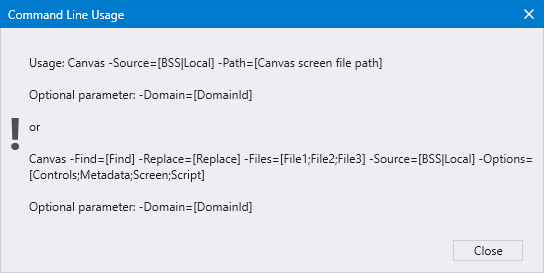
Displays a dialog box showing command-line usage. "help", "\help", "/help", and "?" are also valid. The Command Line Usage dialog box will be displayed when any invalid options are typed at the command line. Examples
|
Command-Line Usage
You can get user assistance for the relevant CLI options for Find and Replace.
|
Type "canvas help" at the command-line prompt to see usage tips |
Examples
C:\CygNet\Bin>Canvas -Find=YYYYY -Replace=ZZZZZ -Files=C:\Canvas_Screens\MyScreen.can -Source=Local -Options=Controls;Screen;Script
C:\CygNet\Bin>Canvas -Find=YYYYY -Replace=ZZZZZ -Files=CYGDEMO.BSS\Canvas_Screens\MyScreen.can -Source=BSS -Options=Script Controls Screen
C:\CygNet\Bin>Canvas -Find=YYYYY -Replace=ZZZZZ -Files=CYGSITE2.BSS\Screens\MyOtherScreen.can -Source=BSS -Domain=5488 -Options=Script Controls Screen
C:\CygNet\Bin>Canvas -Find=YYYYY -Replace=ZZZZZ -Files=C:\Canvas_Screens\MyScreen.can -Source=Local -Options=Metadata|Script
C:\CygNet\Bin>Canvas Help


