KPI Detail Screen
The KPI Detail screen (KPI Detail.csf) shows a trend of the KPI value for the selected section as well as a listing of the alarms for the time frame selected. The alarms listed are filtered based on the Priority Sort drop-down menu and only represents "SET" alarms.
|
Click the thumbnail to see |
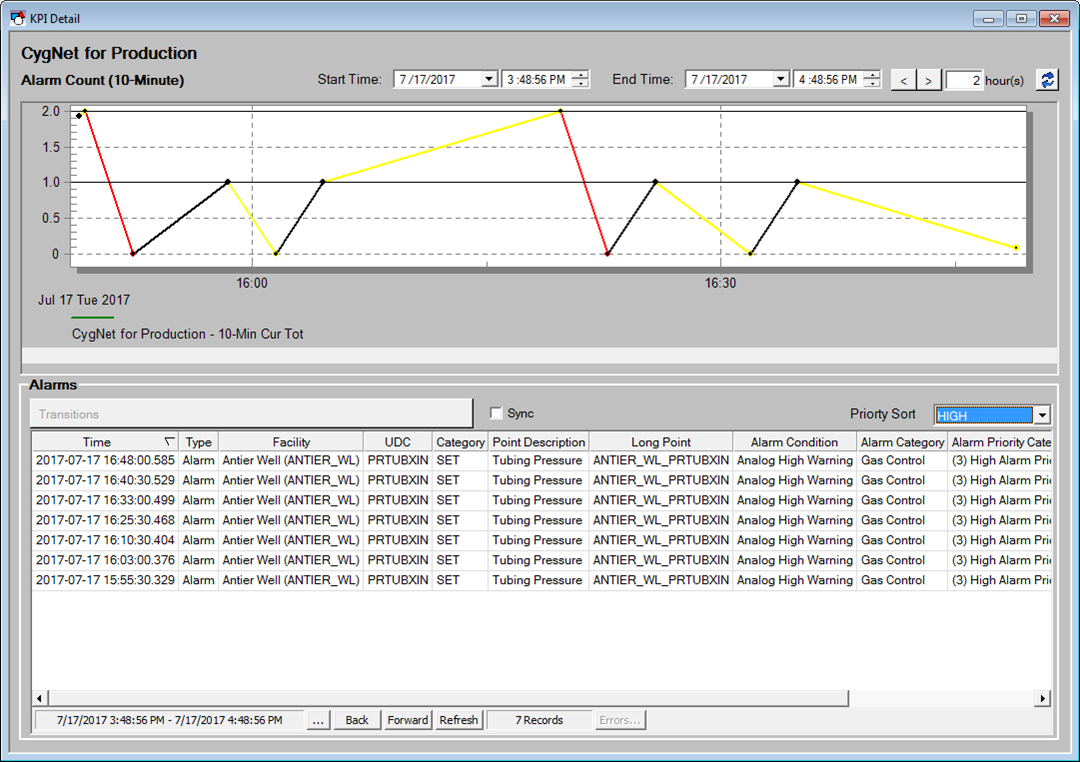
The Alarms list can be additionally thinned by either selecting an individual point in the Trend or by zooming in on the trend. When a point on the Trend is selected, the alarms that were used to calculate the KPI value are displayed. Additional time jog buttons are available to move the time range. The Alarms section of the screen uses the CygNet Event Summary Control and its configuration is populated at runtime.
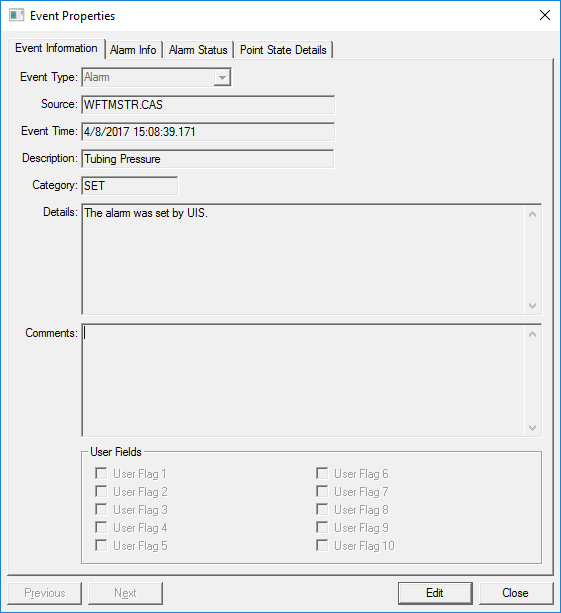
When an event in the Alarms list is double-clicked, the standard CygNet Event Properties dialog box is displayed and can be used for additional information about the individual event.
|
Event Properties dialog box |
When an event (or point) is selected in the list, the View Transitions button will be enabled and display the associated point to that particular Alarm.
|
View Transitions button |

Select View Transitions to open the Point Transition Detail screen for more detailed information about the particular point. This screen shows not only the "SET" alarms, but "RESETS", "ACKS", and other states.
If the Sync check box  is selected and the Point Transition Detail screen is opened, when a new Alarm is selected in the KPI Detail screen and represents a new point, then that new point will be displayed in the Point Transition Detail screen.


