Building a Blueprint to Configure Points
In this topic you will configure the points you want defined in your CygNet system.
|
Point Definitions |
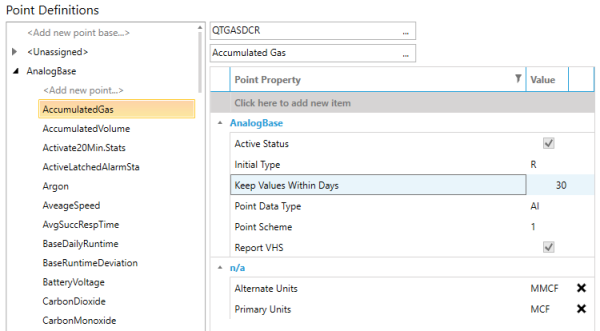
The Point Definitions work area is broken into two sections: the tree on the left and the controls on the right. From the tree on the left, you can select either a point base or a point definition.
Point bases are at the root of the tree and are used to mass configure similar point attributes. All point definitions that appear below a point base will inherit its attributes. Wisely using point bases will help you avoid repeatedly specifying the same attribute and value for multiple points.
- To add a new point base, click <Add new point base…> and enter a unique name.
Point definitions are the actual points in your system. For point definitions, you need to specify the UDC, UDC description, and point attributes and values.
- To add a new point definition, click <Add new point…> and enter a unique name.
In the example above, we have a point base called AnalogBase. We have configured that point base with the following attributes:
| Attribute | Value |
|---|---|
|
Active Status |
Yes |
|
Initial Type |
R |
|
Keep Values Within Days |
30 |
|
Point Data Type |
AI |
|
Point Scheme |
1 |
|
Report VHS |
Yes |
Under AnalogBase, we created a point definition called AccumulatedGas. It has a UDC of QTGASDCR and a UDC description of Accumulated Gas. Because it inherits from AnalogBase, it automatically gets all of its attributes. In addition, we configured the following attributes unique to this point definition:
| Attribute | Value |
|---|---|
|
Alternate Units |
MMCF |
|
Primary Units |
MCF |
As you can see, this inheritance model can be used to quickly group like points so that you can configure their similar attributes once.
Import Points
To import attributes for a point definition, select your point definition or point base from the left then click Import in the bottom right.
Note: Importing for point definitions is done per point definition. If you want to mass import point definitions, see the Import section for Facilities for more options.
In the Import Points dialog box, confirm your UDC in the top left, then select the CVS you want to import point attributes from. You will then see a list of all points in that service with the specified UDC. Select the point or points you wish to use as your model, then you will see the values for their point attributes. Select the attributes you want to include in your blueprint.
|
Import Points |
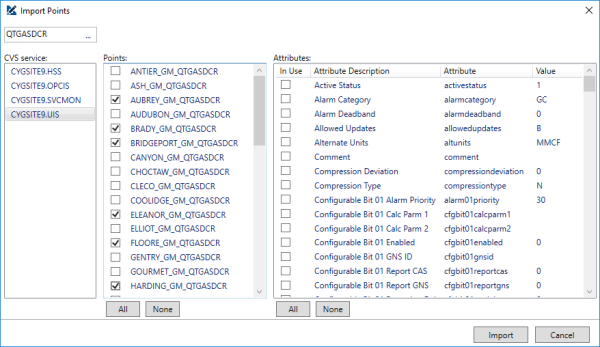
If you select multiple points and they have different values for the same attribute you will see a value of <Mixed>. If you attempt to import this attribute, you will be prompted to select which point’s value you want to use. Click Import to add the selected attributes to your blueprint.


