Using CygNet Designer
CygNet Designer is a tool to help you describe the rules that define your system, validate one or more CygNet sites against your rules, find and fix deviations from the rules, and create new facilities and points using your rules. This topic describes the user interface of CygNet Designer. CygNet Designer is stored in the CygNet\Utilities\Designer folder (CygNetDesigner.exe) on the host server.
Starting CygNet Designer
Installing and Launching
To install and launch (start) the application or utility using version management:
- Use CygNet Client Installer to install and launch the application. Once installed you can use CygNet Client Installer to start the application.
-OR-
- If previously installed, click Start > All Programs > CygNet > <name of the application or utility> or double-click the desktop shortcut.
Alternatively, browse to the CygNet\Utilities directory using Windows Explorer and double-click the program icon. You can also start an application or utility from a command line. These methods do not provide version management.
The CygNet Designer dialog box appears.
CygNet Designer User Interface
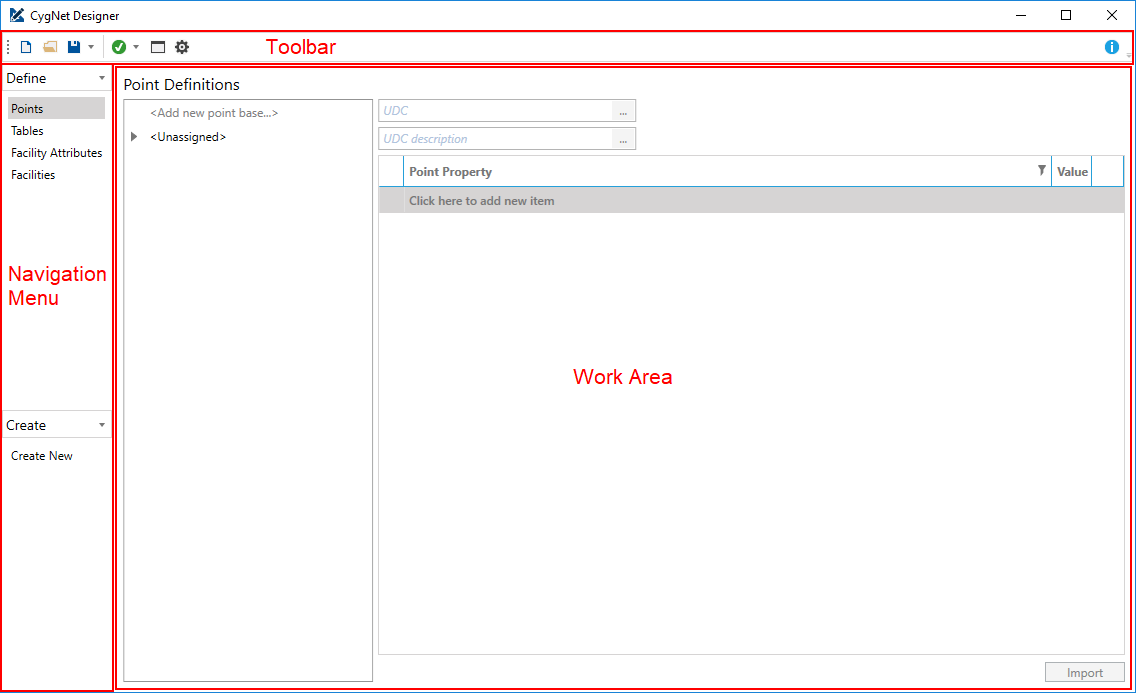
This topic describes the CygNet Designer user interface and how to use its features. The Designer has three main areas: the toolbar, the navigation menu, and the work area.
|
Click the thumbnail to see the |
Toolbar
The toolbar has six buttons:
| Button | Name | Tooltip | Description |
|---|---|---|---|
|
|
New |
Create a new blueprint |
Creates a new blueprint. This operation will clear your current blueprint. |
|
|
Open |
Load a blueprint from a file |
Opens an existing blueprint (.blu) file from your local file system or a Group service. This operation will clear your current blueprint. |
|
|
Save blueprint / Save blueprint as… |
Save changes to the current blueprint |
Saves your current blueprint under its current name, or a new one, respectively. |
|
|
Validate CygNet system / Validate blueprint |
Validate your system against the current blueprint |
Validates either just your blueprint (to check for any inconsistencies created during manual modification of the file, for example). -OR- Validates a CygNet system against the current blueprint. Validating your system will validate your blueprint first. |
|
|
Show Results |
Toggle validation results dialog |
Toggles the Validation Results dialog box. |
|
|
Options |
Configure Designer options |
Shows the Designer Options dialog box so you can configure the following options:
|


Navigation Menu
The navigation menu on the left has two sections: Define and Create.
- Define — In this section you will create and modify your blueprint. It is divided into into four areas to match the four main sections of your blueprint:
- Points
- Tables
- Facility Attributes
- Facilities
For more information on creating and editing your blueprint, see the Building a Blueprint Using CygNet Designer.
- Create — In this section you can create facilities (and their related points) from your blueprint.
Note: The creation step will not handle any device configuration for your new facility and points.
For more information on using the creation interface, see Creating New Facilities from a Blueprint.
Work Area
This area of the CygNet Designer is driven by the navigation menu. For more information about how to use the various interfaces that can appear in the work area, see the appropriate topics after Building a Blueprint Using CygNet Designer.
Logging
The CygNet Designer log file, CygNetDesigner001.log, is found in the CygNet\Utilities\Designer folder.


