Configuring the Report Module Template File
The format for published Excel and PDF reports is determined in part by the template file. This is an .XLSX file that is used to determine report header information, default column sizing, number of supported columns, logos, color, font, and other formatting. This file must be stored in the GRP (also known as STORAGE) service so it can be accessed by any client running reports.
The location for the template file is stored in the Report Module configuration. For more information on configuring the Report Module, see Configuring the Report Module.
|
Template file — template.xlsx |
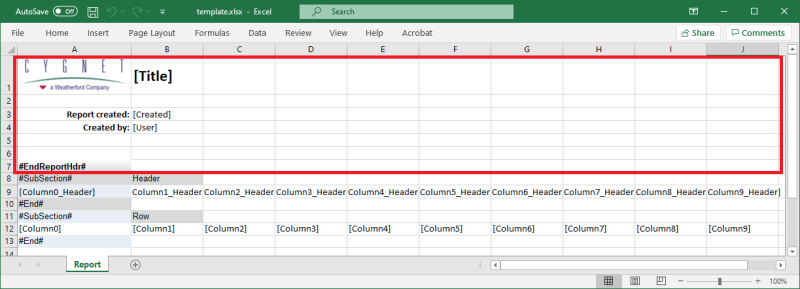
Report Header
Everything that appears in the template.xlsx file above the #EndReportHdr# token will be added to the top of every generated report. This includes images (such as a company logo) and text. Any text you enter in the template file will be included in your report in the font and style used.
Tokens
Some text can be dynamically replaced at report generation time by using replacement tokens. The following replacement tokens are supported by the Report Module. When a report is created, the token will be replaced with its associated value.
| Token | Description |
|---|---|
|
[Title] |
The report's title as defined in the report definition file. |
|
[Created] |
The date and time when the report was created. |
|
[Type] |
The type of report: CVS or VHS. |
|
[User] |
The Windows user who created the report. |
|
[Services] |
The list of CygNet Facility services used to populate the report's data. |
|
[RangeStart] |
The start date for a historical report's time range. |
|
[RangeEnd] |
The end date for a historical report's time range. |
Column Headers and Rows
The lower portion of the template determines the format for the report's column headers and rows. The cell background colors will be used in the report.
The default template has only 10 columns. If you want to create a report with more than 10 columns you will have to modify the template file following the existing format.

