Configuring the Report Module
The configuration for the Report Module is stored as an XML string in the Script field of a dedicated HSS point. This point will be created if it does not exist when you set the options via the ReportModuleConfiguration.csf CygNet Studio screen. The Long Point ID for the configuration point is RPTMODULE_CONFIG.
We do not recommend direct modification of the XML string.
General Options
The General options that can be configured for the Report Module are:
| General Options | Description |
|---|---|
|
Default Excel template file |
The path to the report template file (.XLSX) that is used to customize the look of your reports. The recommended location for this file is in the Report Module-dedicated GRP service. See Configuring the Report Module Template File for more information. |
|
Default report definition location |
The path to the default folder for report definitions. This can be a local file path, network file path, or GRP service path. See Configuring Reports for more information. |
|
Point scheme |
The Point Scheme of the module configuration point. This is used for all subsequent schedule points created. See Point Scheme for more information. |
|
Default style sheet file location |
The path to the style sheet file that is used to customize the look of your HTML reports. The recommended location for this file is in the Report Module-dedicated GRP service. See Configuring the Style Sheet File for more information. |
Email Options
The Email server configuration options are required if you want to be able to email reports when they are run.
Server
The SMTP server host name or IP Address of the server sending the report email.
Port
The port number used by the SMTP server. Usually port 25.
Enable SSL
Indicate whether SSL encryption is enabled for the SMTP server.
User
The username for the email server, if required.
Password
The user password for the email server, if required.
Address
The email address sending the report email.
Subject
The subject line for the emailed report. Click … to open the Email Subject Line Configuration dialog box.
|
Email Subject Line Configuration |
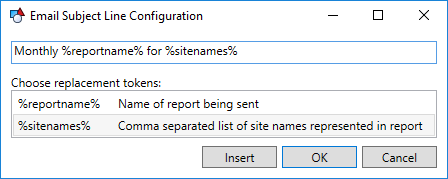
The following replacement tokens are supported by the Report Module for the email subject line. When a report is emailed, the token will be replaced with its associated value. Select one of the tokens and click Insert to add it to the subject line.
| Token | Description |
|---|---|
|
%reportname% |
The name of the report. |
|
%sitenames% |
The site.services represented in the report. |
See Configuring Reports — Storage for more information about emailing reports.
Message
The body of the email.


