Data Group Page
Note: The Data Group page provides limited data group control; familiarity with your device template file (.dtf) is also essential for the use of data groups.
Use the Data Group page to view, select, and modify data group settings for a remote device.
|
Click the thumbnail to see an example |
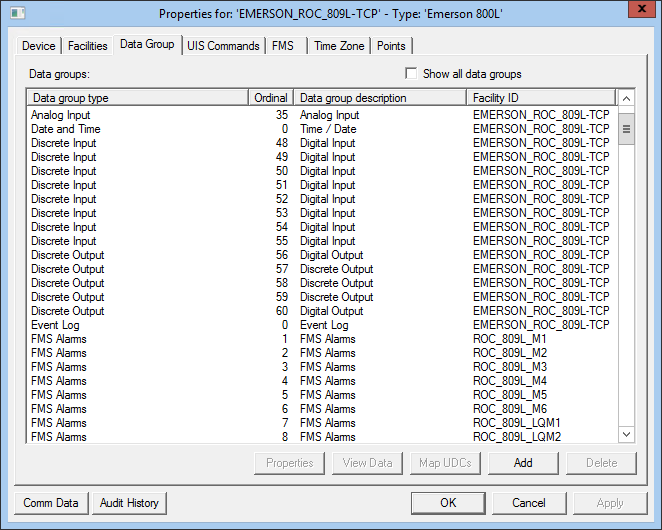
For more-detailed information about data groups, see also Data Groups and specific data group topics on a per-device basis in Remote Devices.
Data Group Properties
The following table lists and describes Data Group page properties.
| Property | Description |
|---|---|
|
Show all data groups |
Check this box to show all added data groups. There are situations where you might want to check the Hide Data Group box in the data group's properties. The Show All Data Groups check box exposes these hidden data groups. |
|
Data group type |
This column displays the nice name of a data group added to a remote device. |
|
Ordinal |
This is the ordinal for an instance of a data group added to a remote device. It is a generic identifier. The value of an ordinal is manufacturer, device, and data group specific. An ordinal could represent a flow computer number, meter number, point number, channel number, or analog/digital number, among other possibilities. It might also simply represent multiple instances of a single data group type when more than one is used. For more information, see Data Group Ordinals and Facility Ordinals. |
|
Data group description |
The free-form description of an instance of a data group. Note: Some remote devices return a description from the field device when data for the group is retrieved. In such instances, the text you enter here is overwritten. |
|
Facility ID |
The name of the facility that the instance of a data group is associated with. When you add a data group to a remote device, you must identify the facility to which the data group is associated. If the data group is generic (that is, it contains data for multiple facilities) it is usually associated with the remote device facility. This field cannot be altered in the data group's properties if only one facility is used by a remote device. Other options appear when a remote device has more than one facility associated with it. For more information, see Data Group Ordinals and Facility Ordinals. |
|
Properties |
Highlight a data group and click Properties to view and modify properties for a data group. |
|
View Data |
Highlight a data group and click View Data to view relevant live data for this data group. |
|
Map UDCs |
Highlight a data group and click Map UDCs to map remote device data group elements of the data group to CygNet UDCs (or points). |
|
Add |
Click Add to generate the list of all available data groups for this remote device. Select data groups one at a time from this list, then add each by clicking OK. |
|
Delete |
Highlight a data group and click Delete to remove the data group from your remote device. This permanently deletes the data group and all its data from your remote device. |
|
Comm Data |
Enables you to open a modeless Communications Data Viewer dialog box. |
|
Audit History |
Enables you to view the audit trail for the device. |
Data Group Dialog Box Scripting
The following scripting options are available for data interface functions related to the Data Group dialog box.
| COM API | Description and Link |
|---|---|
|
CxDialogs CxScript |
The ShowDataGroupDialog method shows the Data Group dialog box.
|


