Alarm Notifier Overview

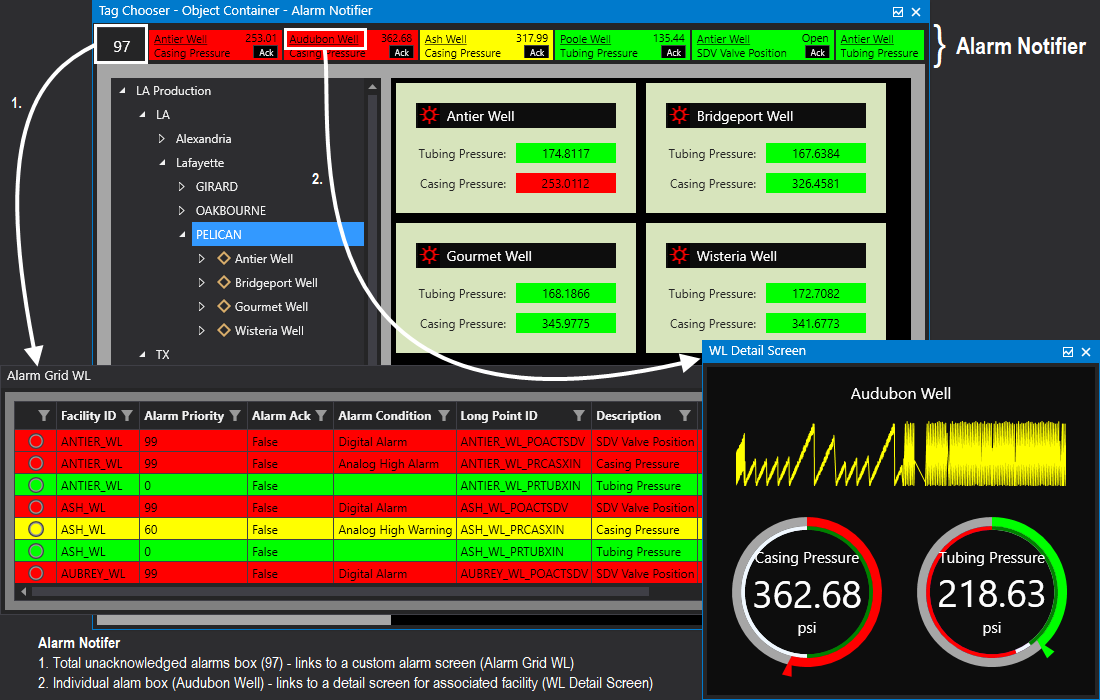
The Alarm Notifier is an optional real-time interactive banner that displays along the top of any Canvas screen configured to show it when the screen is opened in Canvas.View and Canvas.View.Lite. The notifier pulls its information from the Common Alarm Services (CAS) where centralized alarm processing for the current value services (CVSs) takes place. It displays all unacknowledged alarms in the configured services and can be used to monitor and acknowledge alarms, and view additional information about facilities and points in alarm. Alarms are displayed in priority order, with the highest priority on the left. Alarms can be filtered, and the background and text colors configured as desired. The alarm notifier can be configured to play an alarm sound (a WAV file) to signify unacknowledged alarms based on an alarm priority range, although alarm sounds can be disabled via a -NoAudio command-line parameter for the instance of Canvas.View or Canvas.View.Lite.
Note: The Alarm Notifier only displays on screens opened in Canvas.View and Canvas.View.Lite; it does not display on screens opened in Canvas or in a Nested View.
|
Alarm Notifier |
|
Click the thumbnail to see an |

Work with the Alarm Notifier
The alarm notifier provides both visual and audio alarm notification:
- Visual Notification — A banner displays across the top of any screen or object viewed in Canvas.View and Canvas.View.Lite. The banner includes two elements:
- a black box on the left displays the total number of unacknowledged alarms, which can be linked to a custom alarm screen configured in the Backstage view
- individual alarm boxes display each unacknowledged alarm and contain the following items:
- three configurable items, which are defined by tokenized point or facility attributes. The default tokens for the three items are facility description (%FacilityDescription%), point value (%Value%), and point description (%Description%); but you can define any desired static text or tokens. The top left item in the alarm box will link to a screen of your choice for the associated facility. The navigation mode is determined by the Navigation by Facility feature.
- an ACK button, which allows you to acknowledge the alarm, removing it from the notifier. If an alarm is acknowledged from a control on the screen, or from another Canvas screen, or from another CygNet client, the alarm will disappear from the notifier.
- Audio Notification — The banner notifies users of alarms in the alarm banner via an audio cue. Alarm sounds are based on a priority range and are configured in the Backstage view.
Configure the Alarm Notifier on a Screen
Display of the alarm notifier on each Canvas screen is optional and governed by the Show alarm notifier property (Screen.ShowAlarmBanner).
The Show alarm notifier property indicates whether the alarm notifier is visible on this screen when opened in Canvas.View and Canvas.View.Lite. This property is set to true (On) by default and the alarm banner will always appear at the top of a screen in run mode, unless you turn it off in design mode.
Note: Alarm sounds will still play in the screen, even if Show alarm notifier property is disabled (Off).
Configure the Alarm Notifier in the Backstage
Global configuration is done in the Backstage view on the Alarm Notifier page.
Use the Alarm Notifier page in the Backstage view to configure the global settings for the Alarm Notifier, including the following:
- Alarm service — Configure the Common Alarm Services (CAS) from where the alarm notifier will retrieve its alarm information
- Alarm filter — Click to open the Alarm Filter configuration dialog box to create filtering rules to limit the alarms displayed
- Alarm sounds — Click to open the Alarm Sounds configuration dialog box to configure the alarm priority ranges and associated sound files
- Alarm colors — Click to open the Alarm Colors configuration dialog box to configure the background text color displayed in the alarm box
- Alarm attributes — Configure the attributes for the three items that appear in the alarm box on the Alarm Notifier
- Alarm screen file — Configure the path to the custom alarm screen that will display when the total number of unacknowledged alarms in the alarm banner is clicked
Configure the Alarm Notifier Links
The Alarm Notifier uses navigation by facility to link to a facility's associated screen. The banner provides two links to related screens:
- Total unacknowledged alarms box — You can link to a custom alarm screen from this box. Configuration for this link is done in the Backstage view.
- Individual alarm box — You can link to a detail screen for an associated facility from each alarm box. Configuration for this link is done in the Canvas global settings and in the facility record in your CygNet system. See Screen Navigation Mode for more information.
The navigation mode for both links is determined by the Facility navigation mode property setting on the screen displaying the Alarm Notifier. Any linked screens must be stored in an APPS or BSS folder.
See Navigation by Facility for more information.


