Starting Canvas.View from a Command Line
Canvas.View supports a command-line interface (CLI) to open a specific screen from either an APPS or BSS folder or a local or network file-system folder. Domain ID support is also available to override the ambient domain when starting the application via the command line. Optional parameters allow you to start Canvas.View in full-screen mode and to turn off audio for an Alarm Notifier on the screen.
To open Canvas.View via command-line
- Open a Command Prompt window.
- Navigate to the directory where the application is installed, typically CygNet\Bin.
- Type the desired command using the syntax described below.
Usage
Canvas.View -Source=[BSS|Local] -Path=[Canvas screen file path] -Domain[DomainId] -FullScreen -NoAudio
Note: CLI parameters are not case sensitive.
Parameters
Some parameters require additional data, if required, follow each parameter with =additional data. See Usage and Examples for more information.
| Parameter | Required | Description | |||||||||
|---|---|---|---|---|---|---|---|---|---|---|---|
|
-Path |
Yes |
Specify the path to the file you want to open wrapped in quotation marks. Options include an APPS or BSS folder or a local or network file-system folder. The -Path parameter is required when opening a screen. The -Path parameter can be used without the -Source parameter. If no -Source parameter is specified, it is assumed to be local. Note: Do not use -Files to specify the path to a file. The presence of both -Files and -Path invalidates a command line. The -Files parameter is used with Find and Replace. Examples
|
|||||||||
|
-Source |
No |
Specify the source type for the file you want to open. Options include:
The -Source parameter is optional, and if not specified, the -Source is assumed to be local. Examples
|
|||||||||
|
-Domain |
No |
Specify a CygNet domain ID to override the ambient domain. The -Domain parameter is optional, and if not specified, the ambient domain is used for all screens and data displayed. Example
|
|||||||||
|
-FullScreen |
No |
Canvas.View gives you the option to view the application in full-screen mode, hiding all elements other than the main application window itself. Full-screen mode is especially handy when you are viewing rich screens and you want to view data without the distraction of surrounding elements. Note: You can toggle Canvas.View full-screen mode on and off using the keyboard shortcut F11. Add the optional -FullScreen parameter to open Canvas.View in full-screen mode. Example
|
|||||||||
|
-NoAudio |
No |
This parameter forces this instance of Canvas.View or Canvas.View.Lite to not play any alarm sounds, even if the Alarm Notifier is configured to display on the screen and alarm sounds are configured to play. Add the optional -NoAudio parameter to disable audio for the screen. Example
|
|||||||||
|
-Help |
No |
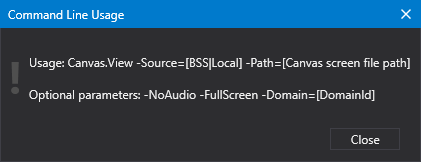
Displays a dialog box showing command-line usage. "help", "\help", "/help", and "?" are also valid. The Command Line Usage dialog box will be displayed when any invalid options are typed at the command line. Examples
|

Command-Line Usage
You can get user assistance for the relevant CLI parameters for Canvas.View.
|
Type "canvas.view help" at the command-line prompt to see usage tips |
Examples
C:\CygNet\Bin>Canvas.View
C:\CygNet\Bin>Canvas.View help
C:\CygNet\Bin>Canvas.View MyChart.can
C:\CygNet\Bin>Canvas.View -Source=BSS -Path="CYGDEMO.BSS\SCREENS\MyChart.can" -FullScreen
C:\CygNet\Bin>Canvas.View -Source=BSS -Path="CYGSITE2.BSS\SCREENS\MyOtherChart.can" -Domain=5488 -FullScreen
C:\CygNet\Bin>Canvas.View -Source=Local -Path="D:\Screens\MyChart.can" -FullScreen -NoAudio
Other Canvas Applications
To start the other Canvas applications from a command line, see:


