Screen Pane — Script View


 The Script view of the Screen pane contains a scripting environment where you can create or edit screen content. In this environment you can write script, add and remove references, and introduce custom elements to further refine the objects in your screens. Supported script languages are C# and VB.NET. The Script view has a context menu and a toolbar, which contains options to validate script and manage assemblies for the currently selected screen.
See Scripting in Canvas for more information about using this view.
Validate Script
On the Script view toolbar in the Screen page, click  (Validate script) to compile the script for the screen currently open in your application window. The compiled results appear in the Output pane. Use the validate script feature to find any syntax errors with your script so that you can fix them before running it.
Manage Assemblies
|
On the Script view toolbar, click |
|
|
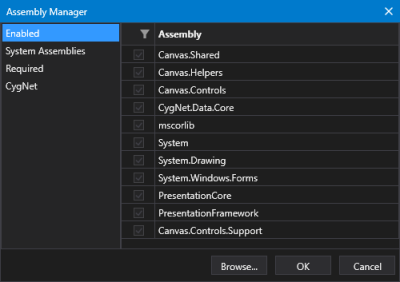
 (Manage external assemblies loaded for script) to access the Assembly Manager where you can view and select assemblies you have loaded into your system, to make them available for use in the current script. These can include several types of assemblies available to link in for use in your
|
Assembly Manager |
Note: If you don’t see a list of assemblies, your system may be misconfigured. See Configure Canvas for the First Time.
Use the list on the left to filter the types of assemblies:
- Enabled — View the list of assemblies currently enabled for your selected screen
- System Assemblies — View the list of .NET Framework assemblies available on your system that can be used when scripting Canvas controls or screens.
- Required — View the list of assemblies required (all check boxes for required files are selected by default and cannot be cleared) to support your selected screen
- CygNet — View the list of CygNet and third-party .NET assemblies available on your system that can be used when scripting Canvas controls or screens.
Using the Assembly Manager
-
Click
 in the column header to filter the rows as needed. Click here for more information about using the Canvas filter tool.
 - Click Browse to look for assembly files. See the notes below about assembly storage.
- Click the check box next to the assemblies you want to use.
- Click OK to save changes.
- Click Cancel to exit the Assembly Manager without saving changes.
Assembly Storage
How you store your assembly files matters, so that the files are accessible at runtime. Preferably locate all your assembly files in your Canvas application folder, the same folder as your Canvas.exe application file. For most usages this is the CygNet\Bin folder. Alternatively, you can share assemblies by installing them into the Global Assembly Cache (GAC) of your .NET Framework, if necessary. If you have access to the Windows Software Development Kit (SDK), you can use the Global Assembly Cache tool (Gacutil.exe) to facilitate deployment of system assemblies to your GAC.
Note: Custom assemblies do not have to be stored in the CygNet\Bin folder or the GAC.


