Getting Started with Canvas
Once you are ready to create some screens, you can try a variety of options to experiment with Canvas, including but not limited to the following:
- Configure Canvas for the first time
- Make a simple screen
- Retrieve CygNet data
- Link to an external API such as CygNet COM, .NET, or system assemblies
- Build your own controls using the Canvas Custom Control framework
Configure Canvas for the First Time
- Before you start creating Canvas screens we highly recommend that you install the latest Microsoft .NET Developer Pack and configure the system locations for .NET Framework and CygNet .NET API assemblies. See the Canvas System Requirements for more information.
- Install the Microsoft .NET Developer Pack.
- In Canvas, create a new screen, select the Script view tab, click Enable scripting for this screen.
- On the Script view toolbar, click
 to access the Assembly Manager. See the Assembly Manager for more information on managing assemblies.
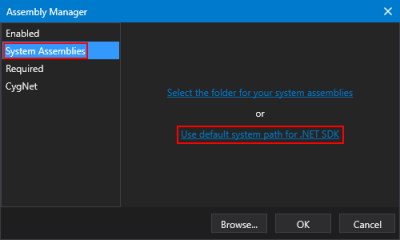
- Select System Assemblies in the left pane, and click Use default system path for .NET SDK. Browse to search for assembly files. Click the check box next to the assemblies you want to use.
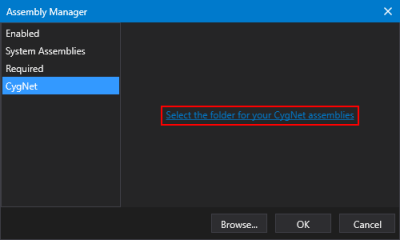
- Select CygNet in the left pane, and click Select the folder for your CygNet assemblies. Browse to local \CygNet\Bin directory for the CygNet and third-party .NET assemblies. Click the check box next to the assemblies you want to use.
|
|
|
- Create or choose a Global Settings File. The Canvas Global Settings File is an XML-based file (<name>.gsf) containing a compilation of underlying configuration settings globally available to Canvas and Canvas.View. Global settings apply to all screens and objects and are automatically associated with a screen when it is created. Global settings include, for example, relative facility definitions, object library location, style sheets (describing colors, fonts, etc. for controls), facility navigation settings, color palettes, default date format, and blink interval. See Global Settings for information on how to create a new global settings file.
Make a Simple Screen
- Drag a Text Tool onto your screen.
- Drag a button onto your screen.
- Open a Properties pane to set some control properties.
- Rename the Text Tool and assign its text.
- Click the Text Tool to view its properties.
- Find the control Name, below the Properties header, and rename it, for example, TextTime.
- Find the Text property of the Text Tool and type the desired text into the text field to give it a new value, for example, NoTimeYet.
- Rename the button tool and assign its text.
- Click the button to view its properties.
- Find the control Name, below the Properties header, and rename it, for example, ButtonTime.
- Find the Text property of the button and type the desired text into the text field to give it a new value, for example, GetTime.
- Open an Events pane to assign an event.
- Click the button to view its events.
- Find the Click event and click the check box to enable the event. The Script view opens, with the cursor in the click event section of script.
- In the script view, set what you want the text field to show (the current time) when the button click event is called. To do so, type the following line of code:
Objects.TextTime.Text = DateTime.Now.ToString();
Retrieve CygNet Data
- Drag a Text Tool onto your Screen.
- Open a Properties pane.
- Click the Text Tool to view its properties in the Properties pane.
- Modify the Point configuration properties to point to a current value in your CygNet system.
- Select Facility tag.
- Set Facility Source to <Self> and choose a SiteService and facility.
- Set a Long point ID.
- Modify the Text property and change Text Tool to Current Values > %Value%.
Once you've started getting comfortable with the Canvas basics, you might want to try some more advanced options. In Canvas you can choose to use outside assemblies, such as CygNet COM or .NET API library files, using the Canvas Assembly Manager to add new assembly references.
Link to an External or Custom API
- Use the Assembly Manager to locate and link to your target .dll file, as describe above.
- Once an assembly is linked, it is available for use in scripting your screens.
If you'd like to get even more adventurous, you can try building your own Canvas controls using our Canvas Custom Control framework.
Build Your Own Custom Controls
-
See the example custom control assembly at the Canvas GitHub Repository.
- If you have access to Microsoft Visual Studio, several helpful building tools are available to help you effectively create custom controls.
- If you do not have access to Microsoft Visual Studio, please contact us for help. Contact information is shown on the Feedback page.
Start Canvas Via the Command Line
See Starting Canvas from a Command Line for more information.


