Preparing your system is necessary prior to installing the CygNet Thin Web Client. Complete the following steps.
1. Servers/Computers
The following computers are required to operate the CygNet Thin Web Client:
- CygNet host — An existing CygNet host running CygNet v9.7 or later.
- Update the host to the latest version and install any patches. See the
 CygNet v9.8 Upgrade Procedure for upgrade instructions.
- Update the host to the latest version and install any patches. See the
- Thin Web Client host — A dedicated host where the TWC servers are installed. The standard CygNet host requirements should be sufficient. See the CygNet v9.8 System Requirements for more information. A TWC installation consists of two servers, which are usually installed on the same computer:
- TWC.Service.Server — the main web service is a web application and contains the Web/Rest functionality.
- TWC.PublishingService.Server — the publishing service is for processing and publishing Canvas files into the web application.
- Canvas client computer — We recommended a stand-alone computer where Canvas is running separately from other CygNet clients, but not a virtual computer. Canvas is required to configure screens and communicate with the Publishing service. The system requirements for CygNet Canvas can be found here. Exit Canvas before installing or upgrading CygNet Thin Web Client.
2. Install the TWC License
-
Acquire and install the valid license CygNet.lic file containing the appropriate CygNet Thin Web Client license keys.
-
See CygNet Thin Web Client Licensing Requirements for more information.
3. Run CygConn
Use the CygNet Domain Connection utility (CygConn.exe) to add a CygNet Domain ID for the TWC services to connect to.
- Start CygConn using the CygNet Client Installer or from the C:\CygNet\Utilities directory.
- Click Add.
- In the Default Domain box, add the Domain ID to which the TWC services will connect. Optionally add a Domain description.
- If the CygNet Host is not in the same network as the TWC services, specify the IP address of the Preferred ARS.
- Click OK.
- Click Test Domain to verify the connection.
4. Allow Access in the CygNet ACS
- Create a TWC application and ACCESS event in the CygNet Access Control Service (ACS).
- Configure authorization of at Level 1 (read) in the TWC / ACCESS event for your user. See User Access for more information.
5. Install an SSL (Secure Sockets Layer) Certificate
An SSL Certificate is required to ensure the transfer of secure, encrypted information.
- Obtain an SSL Certificate — There are many SSL certificate providers, so we encourage you to use the one with which you are most comfortable. If you are running the TWC main web service and the publishing service on the same computer, you only need a single SSL Certificate.
- Install the SSL Certificate — Follow the SSL certificate provider’s instructions to download the certificate and install it to the "Personal" store on the computer where the TWC services will be installed. The SSL certificate providers should provide instructions for installing the certificate on various web servers, such as IIS or Apache. Note that you should choose the option for PFX import/export or equivalent. It is recommended that you log into the server as the user the TWC services will be running as, to ensure proper installation of the SSL certificate.
- Right-click on the pfx certificate file and select InstallPFX.
- For the Store location, select "Local Machine".
- Enter the Password assigned to the certificate.
- For the Certificate Store, select "Place all certificates in the following store", click Browse and select "Personal" (it will be the first choice).
- Click on Next and Finish.
- Repeat for "Current User". Note: We are installing the pfx certificate in both Local Machine and Current User, however, this is more of a precaution, and not necessarily a requirement.
Note: If the certificate is not installed properly and the user account used to run the services cannot access the certificate the services will not run.
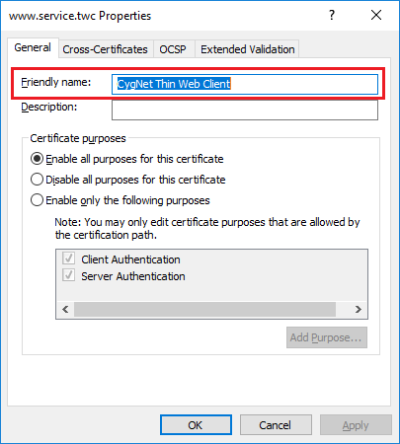
- Add a Friendly name to the certificate — Once installed, a friendly name can be manually added to the certificate, which can be useful for wildcard certificates. These certificates contain a wildcard character (*) in the domain ID field and allows the certificate to secure multiple sub-domain names in the same base domain. A wildcard certificate for *.<domain>.com can be used for www.<domain>.com, mail.<domain>.com, twc.<domain>.com. If you have a wildcard certificate, you will need to add a Friendly name to the certificate. To add a Friendly name:
- Open the Certificate Manager by running either certlm.msc or certmgr.msc.
- Find your certificate in the Personal > Certificates group.
- Right-click on the certificate and select Properties.
- In the General tab, type "CygNet Thin Web Client" in the Friendly name property.
- Click OK.
|
Friendly Name for the Certificate Manager |
6. Create a User to run TWC services
The TWC Installer (TWC.Installer.SetUp.exe) will require a Windows user that can access CygNet data and run Windows services. See Installing TWC > User Credentials.
-
Make sure the user has proper ACS permissions.
-
Make sure the user has proper "Logon as a Service" permissions.
Note: The TWC Installer (TWC.Installer.SetUp.exe) will add the user specified during installation to the Windows "Logon as a Service" policy, ensuring the TWC services can run under the supplied user account.
7. Firewall Settings
The TWC services run on well-known ports and those ports should be made accessible by the clients to ensure proper functionality. The following are the port assignments:
- TWC.PublishingService.Server — uses https on port 7301
- TWC.Service.Server — uses https on port 5001
Firewall Notes
- It is not likely that you will need to open a firewall port to the PublishingService.Server. This is because Canvas is used for publishing and also used to test screens requiring more than just the TWC port open. So, most users will use Canvas on their local network, meaning that an SSL certificate is only needed for the TWC.Service.Server.
- Typically, the web Service.Server will be accessible via the internet and the PublishingService.Server will be used internally. It is likely they will be located on the same computer in the DMZ. If so, the firewall rules will need to account for that setup.


