
Blackouts are user-configured periods of time during which a task is not executed even if it is scheduled to do so. The blackout option enables the use of secondary schedules to run during periods when a primary schedule is inappropriate. Blackouts are used by both the Master Scheduling Service (MSS) for scheduling tasks and the General Notification Service (GNS) for scheduling notifications.
To see a list of the blackouts currently applied to a specific task, view the task properties from the Tasks pane. The Schedule page includes a blackouts section that lists all blackouts that have been assigned to the selected task. See Scheduling a Blackout for more information.
Note: Ctrl+Click and Shift+Click shortcuts are enabled on the Blackouts pane to make multiple changes simultaneously.
|
|
| Sample MSS Blackouts Page |
For more information, see the subsections below:
The following table lists and describes properties found on the Blackouts page.
| Property | Description |
|---|---|
| Name | The user-defined name of a blackout. |
| Type |
Indicates one of the following types of task:
|
| Days | Indicates the specific days for which a blackout is effective. |
| Start Date | The start date for a blackout, if applicable. |
| End Date | The end date for a blackout, if applicable. |
| Start Time | The start time for a blackout, if applicable. |
| End Time | The end time for a blackout, if applicable. |
| Active | Indicates that a task is active (Y) or inactive (N). |

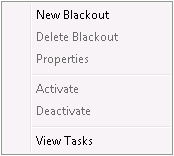
The following table lists and describes options available from the Blackouts context menu.
| Property | Description |
|---|---|
| New Blackout | Select this option to create a new blackout. |
| Delete Blackout | Select this option to delete the highlighted blackout. |
| Properties | Select this option to open a blackout's property sheet. You can also just double-click a blackout to open its property sheet. |
| Activate |
Select this option to activate a highlighted task without opening its property sheet. |
| Deactivate |
Select this option to deactivate a highlighted task without opening its property sheet. |
| View Tasks |
Select this option to view the Tasks page of the MSS. |
More:
|
|
|


