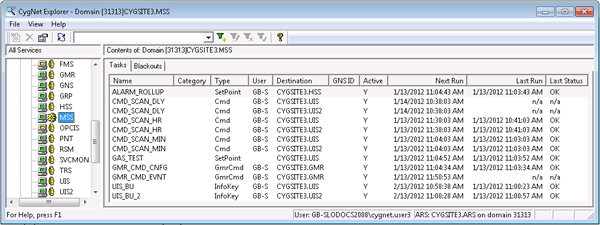
Tasks are predefined actions exercised against a connected service under certain conditions. Conditions are typically time-based conditions or setpoint conditions. Tasks include polls of field devices and equipment start/stop messages scheduled for specific dates, intervals, and durations, or if a value limit is met. For example, you could create a task that recurs every fifteen minutes (interval), one that starts at 7:00 a.m. and runs once per hour until 7:00 p.m. (duration), or one that runs only if a certain tag reaches a critical value (value limit).
To display defined scheduled tasks, click the Tasks page. The Tasks page enables you to create, view, edit, manage, and delete scheduled tasks in the MSS.
Note: Ctrl+Click and Shift+Click shortcuts are enabled on the Tasks pane to make multiple changes simultaneously.
|
|
| Sample MSS Tasks Page |
For more information, see the subsections below:
The following table lists and describes properties found on the Tasks page.
| Property | Description |
|---|---|
|
Name |
The user-defined name of a task. |
|
Category |
The user-defined category of a task. This is optional. |
|
Type |
Indicates one of the following types of task:
|
|
User |
The first four characters of the user who scheduled the task. |
|
Destination |
The Site.Service of the destination of the scheduled task. |
|
GNS ID |
Indicates the GNS ID notified on failure of the scheduled task. This is optional. |
|
Active |
Indicates that a task is active (Y) or inactive (N). |
|
Next Run |
The date/time of the next scheduled execution of the task. |
|
Last Run |
The date/time of the last scheduled execution of the task. |
|
Last Status |
The most recent status of the scheduled task. |

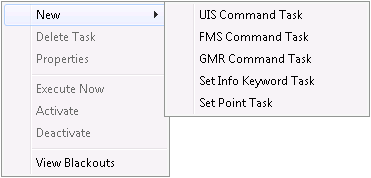
The following table lists and describes options available from the Tasks context menu.
| Property | Description |
|---|---|
|
New |
Select this option to create a new task of the type indicated. Options are as follows: |
|
Delete Task |
Select this option to delete the highlighted task. |
|
Properties |
Select this option to open a task's property sheet. You can also just double-click a task to open its property sheet. |
|
Execute Now |
Select this option to execute an MSS task immediately. For one instance only, Execute Now issues the selected task to its respective service. The task's priority determines when the task will initiate an actual poll. After the task executes, polling returns to the task's scheduled routine. Note: You must either have administrative access to the service or have "update" level access to the security event EXECNOW to run this task. |
|
Activate |
Select this option to activate a highlighted task without opening its property sheet. |
|
Deactivate |
Select this option to deactivate a highlighted task without opening its property sheet. |
|
View Blackouts |
Select this option to view the Blackouts page of the MSS. |
More:
|
|
|


