 (Display logs) to display a Log Viewer pane in the Canvas workspace or to hide the currently open pane.
On the Canvas toolbar, click (Display logs) to display a Log Viewer pane in the Canvas workspace or to hide the currently open pane.
The Log Viewer pane is where you view the contents of the Canvas log files while inside the application. Errors can be viewed directly without opening another application, such as Microsoft Excel.
Logged information for the Canvas applications is written to comma separated files, (CanvasDebug001.csv, Canvas.View001.csv, and Canvas001.csv), which are stored by default in the Users\<CurrentUser>\AppData\Local\CygNet\LogFiles\Canvas folder on the host server. The logging process writes to each file until it reaches 100MB. As each new log file is created, it is incremented with a new number, for example, Canvas002.csv, Canvas003.csv, etc. The lowest number is the most recent log file.
The Log Viewer will load all Canvas.csv log files, not just the most current version. The logs can be set to automatically refresh, refreshed at any time, searched, grouped, sorted, and filtered.
The Log Viewer displays the following columns of information: Timestamp, Type, Category, Log Message, and Assembly. If you want to view all logged content, such as the Managed Thread ID, Source Name, Method, or Line, you will need to open the log file in another application, such as Microsoft Excel.
Note: Logging settings, which include the location of the log files folder and logging level configuration, are found on the Backstage view. Canvas supports three logging levels: Normal, Detailed, and Debug. See Configuring Logging Settings for more information.
In the pane title bar, you can select how to display the pane by default (whether to float, dock, auto-hide, or hide it), pin the pane in place, or close the pane. Unpinning (or hiding) a pane when not in use gains extra space for viewing your current screen or another open pane. Closing a pane can also occur from the pane title bar. The following icons are available:
 (menu chooser) to display a context menu from where you can float, dock, auto hide, or hide the pane.
 (pin) on the pane title bar to hide the pane (or "pinned" to the edge of the application window).
 (x) on the pane title bar to close the pane.
See Customizing the Workspace for more information.
The Log Viewer pane contains the following columns:
| Column | Description |
|---|---|
|
Timestamp |
The date and time when the log entry occurred. |
|
Type |
The type of log entry: Debug, Error, or Info. |
|
Category |
The category of log entry, giving you more context for the part of the code that generated the log entry. |
|
Log Message |
The log message. |
|
Assembly |
The assembly with which the log message is associated: for example, Canvas, Canvas.File, Canvas.Script.Editor, Canvas.Shared. |
|
Other Columns |
Other columns are available, such as the Managed Thread ID, Source Name, Method, or Line, but you will need to open the log file in another application, such as Microsoft Excel to view these columns. |
The contents of the Log Viewer pane can be refreshed, searched, grouped, sorted, and filtered to limit the content of the pane, aiding in log message analysis.
|
Log Viewer Pane |
| Column | Description |
|---|---|
|
Automatically refresh |
Check to optionally refresh the Log Viewer automatically when you select the Log Viewer pane after another pane has been selected. |
|
Refresh now |
Click Refresh now to initially load the Canvas log file into the Log Viewer pane or click Refresh now periodically to reload the Canvas log file as you work. |
|
Search |
Search for any word or phrase by typing in the Search tools box. The search operation is case insensitive. Any matching strings will be shown in red text. There are three additional search operators available: Quoted stringsWhen a word or a phrase is typed in quotation marks (""), the found results will contain only the exact same value. For example, "tank level", will yield only instances of tank level.
Additive searchWhen a word or a phrase is typed after a plus sign (+), the found results will contain both the value before the operator and the one after it. For example, tank +level, will yield all instances of tank, plus all instances of tank level.
Negative searchWhen a word or a phrase is typed after a minus sign (-), the found results will contain the value before the operator, but not the one after it. For example, tank -level, will yield all instances of tank, but no instances of tank level.
Note that the search operators can be concatenated to yield desired results, for example, string -string -string. Click |
|
Grouped |
Drag any column header to the area above the column headers to group rows by that column. You can group by any number of columns.
|
|
Sort |
Click any column header to sort that column in ascending or descending order. |
|
Filter columns |
Click |
|
|
|
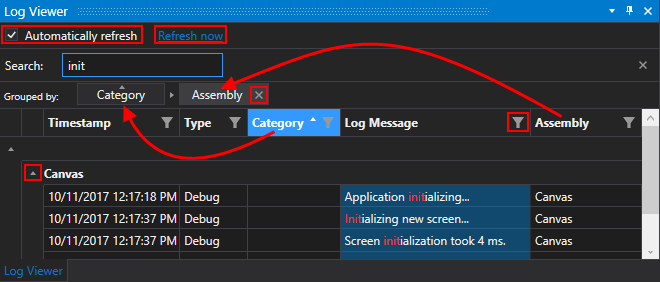



 to remove the search term from the Search box.
 in the column header to filter the rows as needed. Click
