Canvas > Using Canvas > Using the Backstage View > Configuring Logging Settings

Configuring Logging Settings

Use the Help page in the Backstage view to view and configure basic logging settings, including:

Logs can be viewed in the Log Viewer pane, or by opening each file in a text editor such as Notepad.

Each option is described below in greater detail.

Log files folder

Log files icon

The Log files folder contains log files created by the Canvas applications during each working session. Logged information is written to a comma separated file, for example, Canvas001.csv. As each new log file is created, it is incremented with a new number, for example, Canvas002.csv, Canvas003.csv, etc. The lowest number is the most recent log file.

  • On the Help page in the Backstage view, click Log files folder to view the location of the Canvas logs, which is usually the Users\<CurrentUser>\AppData\Local\CygNet\LogFiles\Canvas folder on the host server. The files include the following:
    • Canvas.Debug001.csv — Stores logs for the Canvas debugger application
    • Canvas.View001.csv — Stores logs for the Canvas View application
    • Canvas001.csv — Stores logs for the Canvas application
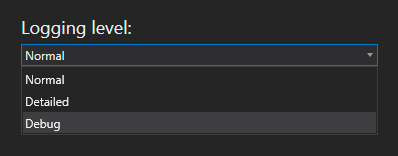
Logging level

Canvas and Canvas View support configurable logging levels:

Logging level

Logging level configuration

Five log message types are supported, from least verbose to most verbose:

There are three configurable logging levels for the Canvas applications:

Log Message Level


Description

Normal

1

Includes Info and Error log messages. This is the default logging level.

Detailed

3

Includes the following log message types: Info, Error, Warning, and Detailed.

Debug

4

Includes all log message types: Info, Error, Warning, Detailed, and Debug.

This is the highest level of logging available.

If Debug logging is selected, exceptions will always write out the stack trace.

The screen load times are also available via the log file if Debug logging is enabled.

The selected logging level is saved and applied next time you open Canvas and Canvas View.


Let us know how we can improve this topic.

CygNet at weatherford.com

© 2020 Weatherford. All rights reserved.