 (Show drop-down text) at the top of the online help window.
 This topic provides information about how best to use the Canvas Help, including various tips and tricks to help you better find the information you need.
The Canvas Help describes how to configure and use the Canvas application.
(Show drop-down text) at the top of the online help window. The online help includes several time-saving features, as described below:
| Feature | Description |
|---|---|
|
Help buttons |
To get the most out of help, use these buttons, located at the top of the Help frame. From left to right, they are:
To go back to the last or next topic that you viewed, use your browser's Back and Forward buttons. |
|
Drop-down text |
If a heading has a When a topic is first displayed, only the drop-down’s heading and red arrow next to it are visible.
|
|
Home button |
To return to the Welcome page, click the CygNet logo in the upper left corner. |
|
Search features |
To find information in the online help, enter a search term in the bar on the top right side of the help page. Search results include topic descriptions to help you quickly find the best match. To find a definition, enter text in the Search bar at the top of the Glossary tab. |
|
Related topic suggestions |
Looking for other topics that are related to the current one? Click Related Topics at the bottom of the page you are viewing, and then click on one of the topic names that is displayed. |
Canvas provides some in-application user assistance to help as you build screens.
|
|
|
 (Launch help (F1)) to open the
  (Launch Help) to open the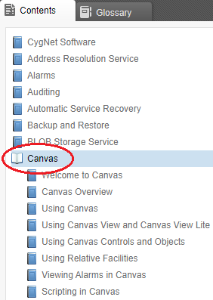
 Print — Click to print the current topic.
 Hide drop-down text — Double-click the icon to toggle between expanding and collapsing all drop-down text in a topic.
 Remove highlights — Click to remove highlights from text after performing a search.
 Previous topic — Click to view the previous topic in the online help.
 Next topic — Click to view the next topic in the online help.
 (red arrow) to its left, you can click the heading to reveal information.
