Accessing General Settings
Use the Settings page in the Backstage view to configure basic application settings, including the following:
- Settings
- Settings folder — Click to open the folder where the Canvas settings files are stored
- Object library — Click to open the Object Library configuration dialog box
- Facility navigation — Click to open the Facility Navigation configuration dialog box
- Map — Click to open the Map configuration dialog box
- Relative facilities — Click to open the Relative Facilities configuration dialog box
- Style sheets — Click to open the Style Sheets configuration dialog box
- Color palettes — Click to open the Color Palettes configuration dialog box
- General
- Default script language — Configure the default script language used for new screens
- Default date format — Configure the default date and time format for timestamps displayed on screens
- Canvas theme — Change the Canvas user interface to a different color theme
- Canvas.View theme — Change the Canvas View and Canvas View Lite user interface to a different color theme
- Global settings
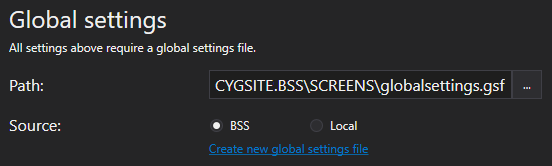
- Path — Configure the path to the global settings file
- Source — Configure the source of the global settings file
- Create a new global settings file
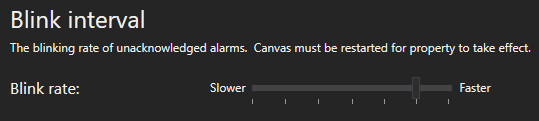
- Blink interval
- Blink rate — Configure the blink rate of unacknowledged alarm
These settings are saved in XML format as part of the global settings file (.gsf) for your Canvas application and applied to all instances of Canvas. If no global settings file is available, none of these settings will be configurable, but a message will provide a link to the Backstage view where you can configure one.
Settings
Several miscellaneous settings are grouped at the top of the page. Each setting is described below.
|
Settings |

Settings folder

|
The Settings folder contains application files used by Canvas during each working session, which save information about global settings, control plugins, user settings, and workspace layouts, and are generated each time you close the application. If the current file is deleted, a new file will be generated upon closing Canvas. Note:
|
Object library

|
The object library is configured on the Backstage view, Settings page.
|
 An Object is a simple
 Facility navigation

|
Canvas supports navigation to a specific screen by selecting a CygNet facility. You can also specify optional facility record properties to be included when the navigation is triggered. This Navigation by Facility feature requires global configuration of the facility attribute that contains the path to the screen that will be displayed when the navigation via facility is requested.
|
Map

|
Canvas supports a Map control, which requires the configuration of some global settings: the name of the map provider, its API key, the facility attribute(s) where the associated latitude and longitude location coordinates are stored so that facilities can be identified on the map, and the delimiter character, if only one attribute is used.
|
Relative facilities

|
For any given facility you can configure a relationship to define a path to another facility in your CygNet environment.
|
Style sheets

|
A Canvas style consists of a set of properties with preconfigured property values for a particular control type. Style sheets allow you to quickly apply a predetermined style to any control added to a screen or object. By designing and using style sheets consistently you can make changes in one place and cascade those changes down to all Canvas screens in the CygNet environment. Style sheets allow for the creation of unique style guidelines for your enterprise, making screen design faster, easing the burden of screen maintenance, and improving operator experience. If you create more than one object with the same properties, it's a good idea to use styles to ensure consistency in design. The style sheets are configured on the Backstage view, Settings page.
|
Color palettes

|
Canvas supports custom color palettes, which can be configured in the Canvas settings and then applied to any screen containing CygNet-aware controls. CygNet supports a dual mode for point state color; that is, each point type allows both a background color and a foreground color to be set. The point state definition colors are configured in the CVS metadata file for each point scheme. In CygNet-aware controls the color configuration for point state supports either background color or foreground color:
In Canvas you can create a custom color palette to override the default point state colors for any point type. If a custom color palette is selected for a screen, any CygNet-aware controls using point state for color will apply the selected color palette in run mode. The color palettes are configured on the Backstage view, Settings page.
|
General
Canvas has some general default settings that apply to all application and screens. Each setting is described below.
|
General settings |
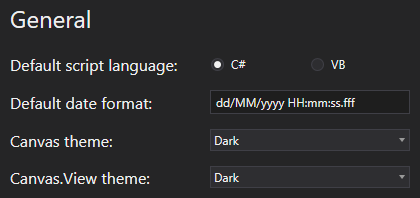
Default script language
- C# — By default, the Canvas application uses the C# script language
- VB.NET
Default date format
Configure the default date format used when displaying timestamps on Canvas screens. The default format is YYYY/MM/DD HH:MM:SS.fff, which corresponds to 2019/01/01 10:20:30.0001. The format can be overwritten at the control level via the Date and time format property.
Note:
You can also use the Microsoft .NET Standard Date and Time Format Strings to define the text representation of a date and time value in Canvas. For example, "d" is the short date pattern and corresponds to 1/1/2019, "F" is the full date/time pattern and corresponds to Monday, January 1, 2019 1:45:30 PM.
Canvas theme
You can customize the Canvas user interface to choose a color theme for the entire development environment, options include: dark, light, or blue. The theme can be changed at any time while Canvas is running in the Backstage view, Settings page, and is stored in the Canvas workspace settings. The default color theme is Dark.
- See Changing the Canvas Color Theme for more information.
Canvas.View and Canvas View Lite theme
You can customize the user interface to choose a color theme for the entire application, options include: dark, light, or blue. The theme is configured on the Canvas Backstage view, Settings page, and is stored in the Canvas workspace settings. The application must be restarted to pick up the new theme from the workspace settings. The default color theme is Dark.
- See Changing the Canvas View Color Theme for more information.
Note:
Canvas View and Canvas View Lite share the same configuration setting for color theme on the Canvas Backstage view. See Changing the Canvas View Lite Color Theme for more information.
Global Settings
The Canvas Global Settings File is an XML-based file (<name>.gsf) containing a compilation of underlying configuration settings globally available to Canvas and Canvas View. Global settings apply to all screens and objects and are automatically associated with a screen when it is created. Global settings include, for example, relative facility definitions, object library location, style sheets (describing colors, fonts, etc. for controls), facility navigation settings, color palettes, default date format, and blink interval.
The Global settings is where you specify the path and source of this file. This is also where you can create a new global settings file.
|
Global settings |
Path
The Path property specifies the path to the global settings file. Depending on the selection in the source property the type of path is different. Click  to access either the:
- Open File dialog box — To access a local or network Windows file-system folder
- Select File dialog box — To access a CygNet APPS or BSS folder
Source
The Source property specifies the source of the global settings file. Select from the following options:
- BSS — Indicates that the file is stored in a CygNet APPS or BSS folder
- Local — Indicates that the file is stored in a local or network Windows file-system folder
The default value is BSS.
Create a new global settings file
To create a new, empty global settings file, perform the following steps. Note that all current global settings (relative facilities, object library location, style sheet, color palettes, blink interval, etc.) will be lost when you choose to use the new file. You can create as many global settings files as you wish.
- Click Create a new global settings file to open the Save dialog box, so that you can navigate to a designated location, optionally add a new folder, provide a file name for the new file, and then save the file. You can save to a CygNet APPS or BSS folder or to a local or network Windows file-system folder. You do not need to specify the ".gsf" extension when naming the file, as Canvas will automatically add this when the file is created.
- Saving to a CygNet APPS or BSS folder — In the Save dialog box, click BSS. Click the desired APPS or BSS. Find the desired folder location, type a File name, and click OK.
- Saving to a Windows file-system folder — In the Save dialog box, click Local. Find the desired folder location, type a File name, and click OK. Right-click to view the context menu to make a New folder as necessary.
- Tell Canvas where to find the new global settings file. Select the Source and Path of the new global settings file, as described above.
- Close and reopen the Canvas application for the change to take effect.
- Configure new global settings as necessary.
Blink Interval
You can specify the blink interval for any control that supports blinking to indicate the associated point is in alarm and unacknowledged.
- Move the slider to the right or left to change the interval.
The default value is 750 milliseconds (0.75 seconds). Canvas must be restarted to change the interval. Note that making the blink rate too fast may cause performance issues on your screens. The following controls (and elements) support blinking:
| Control | Background | Border | Text |
|---|---|---|---|
|
Alarm Grid cell |
|
|
|
|
|
|
|
|
|
CygNet Grid cell — Point column only |
|
|
|
|
|
|
|

|
Blink interval |