CygNet Alarm Manager Dashboard Screen
The CygNet Alarm Manager (CAM) Dashboard screen (CRM Dashboard.csf) provides a launch point into the alarm analysis process and aids in visualizing alarm activity. This screen is used by the CAM.csf screen.
The following example is what the CAM Dashboard looks like within the CAM.csf framework.
|
Click the thumbnail to see |
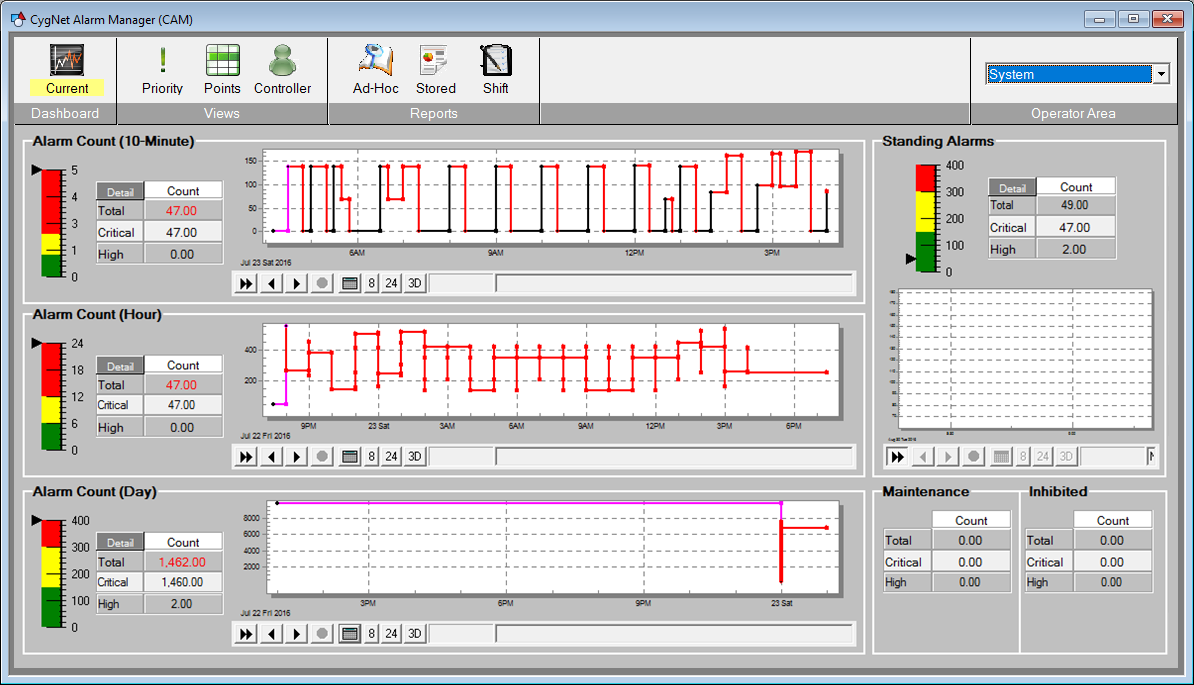
The CAM Dashboard screen is a typical CygNet templated screen and assumes that the only two Alarm Priority Categories of interest are "Critical" and "High".
The three sections along the left-hand side of the screen are historical Alarm Count sections for 10-Minute, Hour, and Day. These sections directly reflect the KPI calculated by the KPI engine. Each of the "points" in each section can be configured for alarming to give a color visualization of the KPI as shown in the example above. There are three Detail buttons, one in each section. Selecting this button opens up the KPI Detail screen with the appropriate Alarm Count KPI in view.
The top-right section of the CAM Dashboard screen represents the current alarm counts and also assumes the same two Alarm Priority Categories of interest. There is a Detail button in this section. Selecting this button opens up the KPI Detail Count screen.
The bottom-right section of the CRM Dashboard.csf screen represents current counts for points that are in Maintenance Mode and Inhibited/Suppressed Mode.


