KPI Detail Count Screen
The KPI Detail Count screen (KPI Detail Count.csf) is similar to the KPI Detail screen; however, instead of a CygNet Event Summary Control a CygNet CAS View Control is used. This is because, the KPI Detail Count screen is based on the current state of alarms and not a historical view. The screen is accessed through the Detail button located on the Dashboard screen in the Standing Alarms section.
|
Click the thumbnail to see |

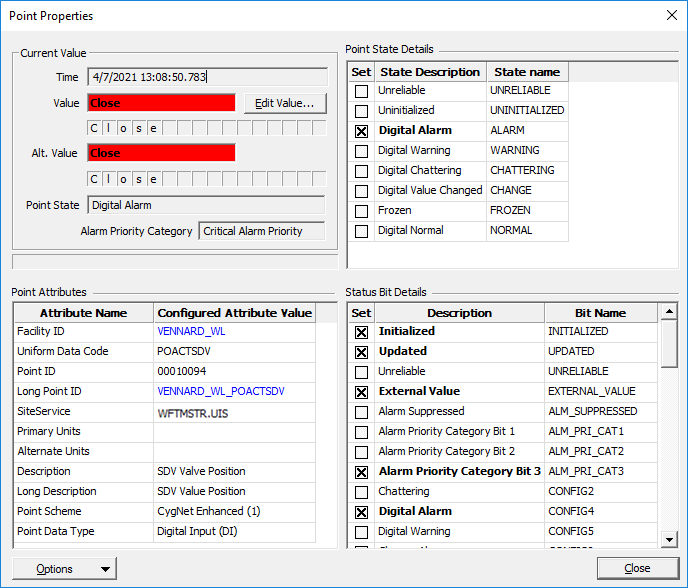
Double-clicking on an item in the Alarms section will display the standard CygNet Point Properties dialog box.
|
Point Properties dialog box |
When an event (or point) is selected in the list, the View Transitions button will be enabled and display the associated point to that particular Alarm.
|
View Transitions button |

Select View Transitions to open the Point Transition Detail screen for more detailed information about the particular point. This screen shows not only the "SET" alarms, but "RESETS", "ACKS", and other states.


