Using CygNet Depot
CygNet Depot is a utility used to simplify interaction with CygNet file storage services. This topic describes the features of CygNet Depot. CygNet Depot is stored in the CygNet\Utilities directory (CygNetDepot.exe) on the host server.
Starting CygNet Depot
Installing and Launching
To install and launch (start) the application or utility using version management:
- Use CygNet Client Installer to install and launch the application. Once installed you can use CygNet Client Installer to start the application.
-OR-
- If previously installed, click Start > All Programs > CygNet > <name of the application or utility> or double-click the desktop shortcut.
Alternatively, browse to the CygNet\Utilities directory using Windows Explorer and double-click the program icon. You can also start an application or utility from a command line. These methods do not provide version management.
The CygNet Depot dialog box appears.
CygNet Depot User Interface
This topic describes the CygNet Depot user interface and how to use its features. The four main areas of the UI include, the Browsing Tree the primary navigation control for your storage services, View Area, Path Area, and Status List.
|
CygNet Depot User Interface |
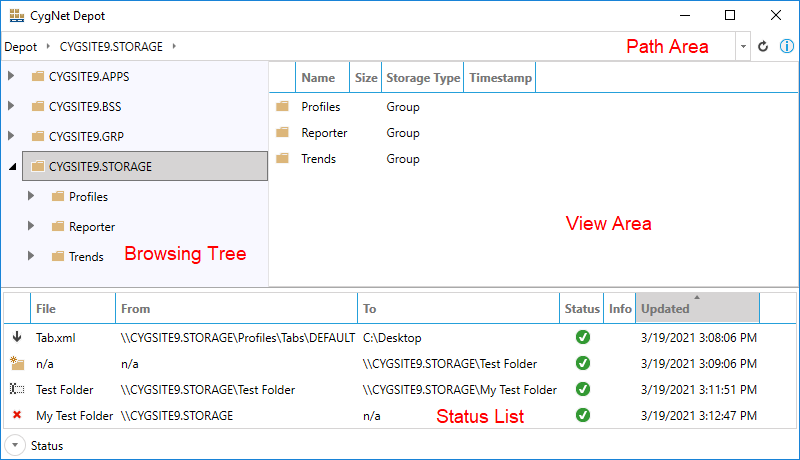
Browsing Tree
This is the primary navigation control for your storage services. When the Depot starts, you will see all Blob Storage and Group services running on the current CygNet domain in the Browsing Tree. By double-clicking or expanding each service, you can load the folders and files stored there.
Selecting a file or folder in the browsing tree will change the View Area. If you select a folder, the View Area will show the contents of the folder. If you select a file, the View Area will show the contents of the file, if possible. For more information on supported file types see View Area.
Context menu
You can also right-click on any item in the browsing tree to access a context menu:
|
CygNet Depot Context Menu |
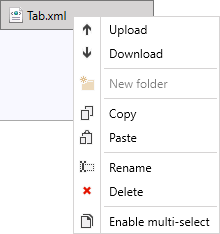
The context menu actions include the following:
| Icon | Name | Supported Items | Action | Supports Multi-Select |
|---|---|---|---|---|
|
|
Upload |
Folders Files |
Uploads file(s) from local file system to specified location. |
No |
|
|
Download |
Files |
Downloads selected file(s) to local file system. |
Yes |
|
|
New folder |
Services Folders |
Creates a new folder on service. For BSS services, a file must also be uploaded when folder is created and folders cannot contain other folders. |
No |
|
|
Copy |
Files |
Adds selected file(s) to the clipboard. |
Yes |
|
|
Paste |
Folders Files |
Uploads file(s) in the clipboard to the specified location. Can be used with Copy to move files between services. |
No |
|
|
Rename |
Folders Files |
Renames file or folder. |
No |
|
|
Delete |
Folders Files |
Deletes file(s) or folder(s) from a service. If a folder is deleted, this action will delete all files contained within the folder. |
Yes |
|
|
Touch BSS |
Services (BSS) Folders (BSS) Files (BSS) |
Updates the timestamp. For services and folders, this action will update the timestamp for all files contained within. Used to trigger version management. |
Yes |
|
|
Enable / disable multi-select |
n/a |
Switches tree to multi-select mode which allows for multiple items to be downloaded, copied, touched, or deleted. |
n/a |


Multi-select mode
The Browsing Tree has two modes: single-select and multi-select. When in single-select mode, all context menu actions will be executed against the currently selected tree item. When in multi-select mode, some actions will be executed against the currently selected item and some will be executed against all items that have been checked:
|
Multi-select mode |
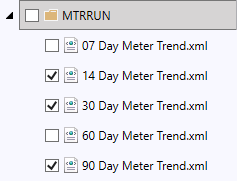
This feature allows you to download, copy, delete, or update timestamps for multiple files in a single step.
Drag-and-drop
You can also download and upload files using drag-and-drop.
In single-select mode, any file you select can be dragged out of the Depot into your local file system. In multi-select mode, all files you have checked will be dragged out of the Depot. You can select multiple files and drag them into the Depot. They will be uploaded to the currently selected folder.
View Area
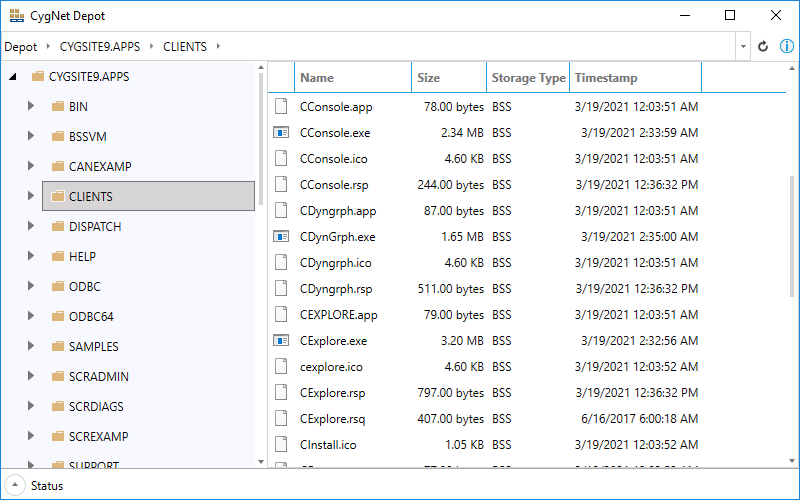
The View Area is driven by the selection in the Browsing Tree. If you select a folder, you will see its contents in the View Area. If you select a file, you will see a preview of that file if it is a supported file type.
Folder View
In the Folder View, you still see the contents of the folder, including the file size and timestamp.
|
Folder View |
File View
Previewing a file in the File View is supported for the following file formats:
- Text files
- XLSX
- CSF
- JPG / BMP / PNG
|
File View |
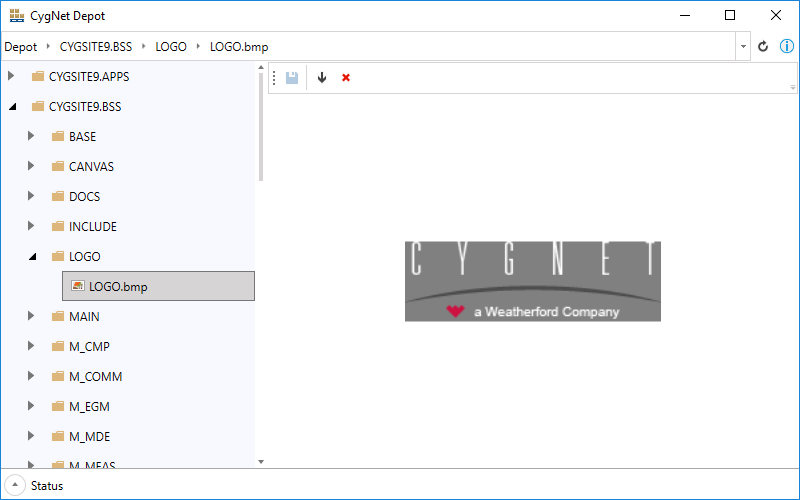
In the toolbar in the File View, you can download or delete the selected file. See Previewing Files for more information.
In-place editing
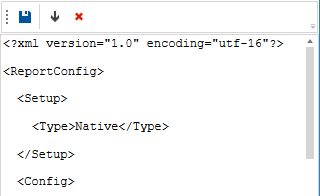
For text files, you can make changes to the text directly in the Depot and save them without having to download and upload the file yourself. See Editing Text Files for more information.
|
In-place editing |
Path Area
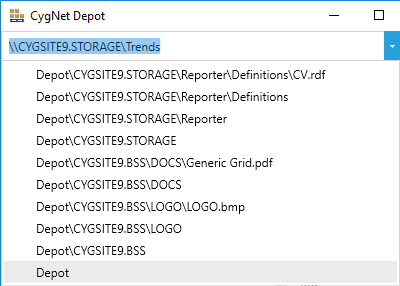
The Path Area is linked to the Browsing Tree such that selections made in one place will affect selections made in the other. You can drive selection using the arrows at each level of the path control or by typing in a path like you would in Windows Explorer. You can also choose from previous selections by clicking the arrow at the right side of the control.
|
Path area |
Status List
The Status List shows the status of each action taken in the Depot since it was opened, including downloads, uploads, deletions, renames, and so on. If an error occurred when attempting one of these actions, the details will be available here.
Logging
The CygNet Depot log file, CygNetDepot001.log, is found in the CygNet\Utilities\ folder.


