Configuring Reports — SQL Reports
The SQL Reports page of the New/Edit Report Configuration dialog box defines the SQL query to use for the report.
SQL reports will use the same Format and Storage options as described in those topics. However you won't specify services to run against, or filter the rows using facility attributes, or define columns using UDCs or facility values. Instead all row and column information will be contained in an SQL query.
|
SQL reports |
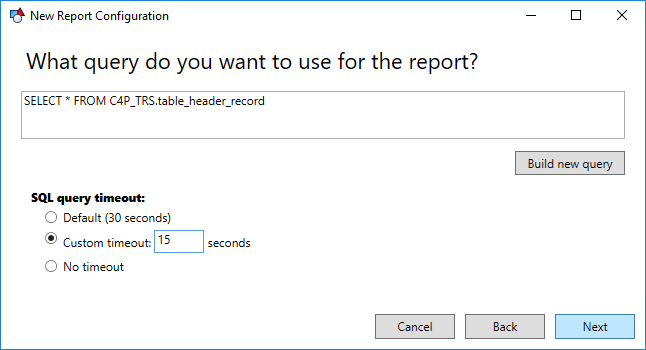
You can optionally use the Build CygNet ODBC SQL Query dialog box to compose a SQL query from the available CygNet ODBC tables and fields. Click Build new query to launch the SQL builder.
|
Build CygNet ODBC SQL Query |
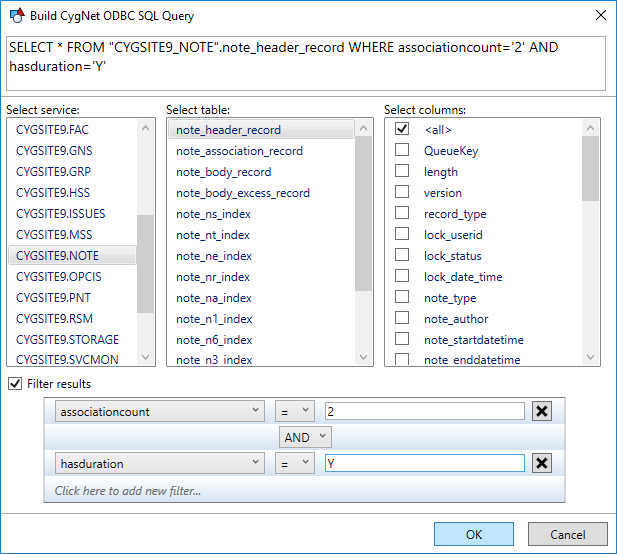
From the Build CygNet ODBC SQL QUery dialog box, you can select a service, which will then show you the available tables for that service. Select a table and then the columns you want to show from that table. Optionally, you can choose to filter your results based on the values of those columns.
The SQL builder can help you quickly create simple SQL queries. There are many powerful features in SQL that it does not cover, such as JOINs, but that does not mean you cannot use them. You can use the CygNet SQL Executor tool or Microsoft Access to help build more complex queries and then paste them into your SQL report.
SQL Query Timeout
SQL queries executed via the CygNet ODBC driver have a default timeout. If a query takes longer than this time limit to complete, it will not be successful. You can configure a custom timeout for your report if you have reason to believe the default timeout of 30 seconds will not be long enough.
Click Next to move to the next page of the New/Edit Report Configuration dialog box.


