The DDS Edit Box is DDS-aware control that can be used to get and send data group transaction data (data group element Ids (DEIDs)) from and to a remote device for display on a screen.
By default, data group transaction records are saved only in the DDS for a short time, unless you've mapped one or more data group elements from a data group to UDCs and points for retention in the UIS and historicization in the VHS. Canvas supports three DDS-based controls that can read and write data group transactions:
These DDS-based controls are an efficient way to create transaction-based screens for displaying and manipulating data group information for remote devices. Use these controls to implement a scriptless solution for creating screens where data is encapsulated in a transaction, but not mapped to a CygNet point. For example, you could make a lift management screen for plungers or other device types in your CygNet environment.
The DDS Edit Box has two purposes, configured via two separate data sources:
- Get — Retrieve data group transaction data from a remote device, via the DDS Button (using a Get transaction), which is then populated in the DDS Edit Box.
- Send — Send edited data group transaction data to the remote device, via the DDS Button (using a Send transaction).
The DDS-based controls can be used as a template, meaning they are multiple device-type aware. For example, Device Type A may have a data group called "BasicPoll", but Device Type B may have a similar data group called "Status." In the case where the data group "function" is the same, but the name is different, the controls can handle this difference. The normalization process (handled in other controls via UDC specification) is handled via the Device type specification:
- The DDS Button control supports configuration of Device type, Data group type, and Ordinal.
- The DDS Edit Box controls support configuration of Device type, and Data element Id. The display type is assumed to be the DEID Value.
- The DDS Text Tool controls support configuration of Device type, and Data element Id, and Display type (Value or Description).
Other supported configurable properties include: vertical alignment within the confines of the edit box, a text or label that will display on the edit box, other explanatory text can be displayed (as a gray watermark) when no other text has been entered. The DDS Edit Box shares some properties, events, and methods with the standard Canvas Edit Box control.
This control is supported in the Canvas Native view and the CygNet TWC web view.
DDS Button and DDS Edit Box Examples
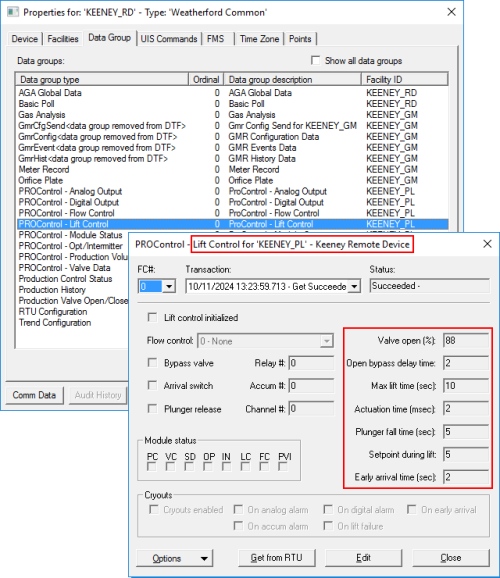
The following images show a sample Plunger Lift Management screen using the DDS-based controls to read and write data from an associated facility:
|
Sample Plunger Management screen shown in Canvas Native view |
Sample Plunger Management screen shown in CygNet TWC web view |
|
|
|
||
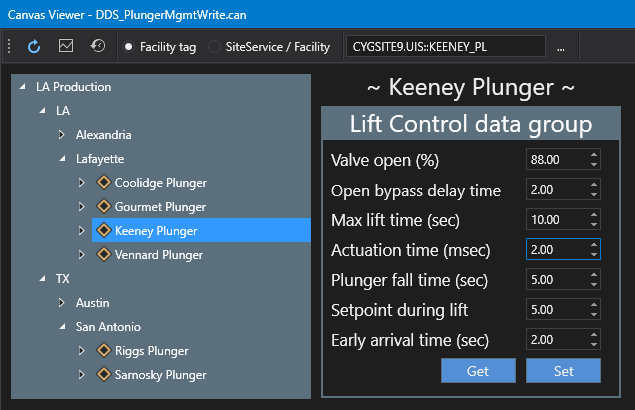
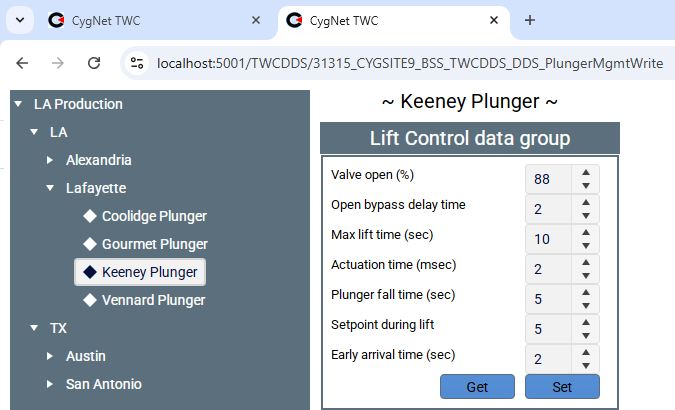
Thee sample screens above include a Tag Chooser, a DDS Button (Get), a DDS Button (Set), and eight DDS Edit Boxes. Other controls include some regular Text Tools and a Shape.
- The two DDS Buttons are receiving their facility (Keeney Plunger) from the Tag chooser on the left.
- The Get DDS button on the left is configured to do a Get transaction (Read) for the Lift Control data group from the facility.
- The Set DDS Button on the right is configured to do a Send transaction (Write) for the Lift Control data group from the facility.
- Each DDS Edit Box is configured to Get the data group (LiftCtrl) from the Get DDS Button and display a specified data element Id (ValveOpen, DelayTime, MaxLift, etc.) and its value when the DDS Button is clicked.
- When any DDS Edit Box is edited the new data element Id value is written to the facility when the Set DDS Button is clicked.
|
CygNet Explorer Data group tab and View Data dialog boxes |