The Map has numerous run-mode options:
-
You can dynamically resize your screen and any controls within. See Resizing Screens for more information about resizing Canvas screens.
 Map user controls in the Canvas Native view
In the Canvas Native view the Map control supports Bing Maps and OpenStreetMap, configured in the Canvas Backstage view. Canvas offers several user controls to allow you to interact with the mapped area.
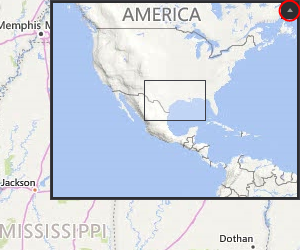
Mini-map
The mini-map control allows you to see the desired region on your map at a larger zoom level and is enabled by default. Click the expander arrow in the top right of the map to expand and collapse the mini map.
|
Mini map |
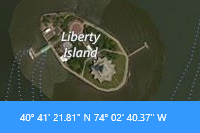
Mouse position coordinates
The mouse position coordinates are located in the lower left corner of the map's toolbar, and display the current mouse position on the map.
|
Mouse position coordinates |
Map controls to change the view, pan, and zoom
Several map controls are grouped at the center of the map's toolbar, which allow you to zoom, navigate, and change the view.
|
Map controls |
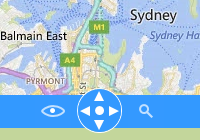
From left to right:
|
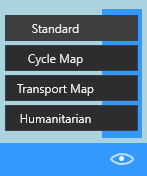
Map Mode Control Use the eye ( The map mode control differs for each map provider. See Configuring Map Settings for more information about providers. Move the mouse over the eye to expand the control.
|
Navigation Control
Click the four arrows on the Tip: Use the keyboard arrows to move around the map
Click the circle in the
|
Zoom Level Control Use the magnifier ( Move the mouse over the magnifier to expand the control.
Click the + and - icons or drag the slider Tip: Use the keyboard + and - keys to zoom. Click the buttons to zoom to the regions: World, State, |
||||||||||
 ) to switch between the map modes (views).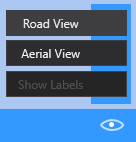


 ) to switch between the zoom levels of the map.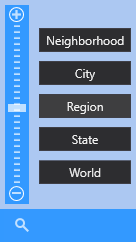
Map scale
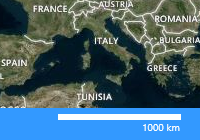
The map scale is shown on the lower right corner of the map's toolbar, and allows you to track the distance on the currently selected zoom level.
|
Map scale |
 Map user controls in the CygNet TWC web view
In the CygNet TWC web view the Map control supports Azure Maps and OpenStreetMap, configured in the Canvas Backstage view. A limited number of user controls are available to move around the mapped area.
Azure Maps user controls to pan and zoom
Use the mouse to pan and zoom and move about the map. A pan and zoom control is provided in the upper right corner of the map.
|
Zoom Control
Click the + and - icons |

OpenStreetMap user controls to pan and zoom
Two map controls are provided in the upper left corner of the map, which allow you to pan and zoom.
|
Pan Control
Click the four arrows on the Tip: Use the keyboard arrows to move around the map |
Zoom Control
Click the + and - icons |

 To show or hide different visual items at different zoom levels
Both the Canvas Native view and the CygNet TWC web view support a feature where you can show or hide different visual items on a map layer. You can also restrict a map layer’s visual items, (e.g., an image marker, or a small custom shape), to a zoom range, meaning you can display different visual items as you zoom in and out of a map. Note the following:
-
The Canvas Native view supports all visual items: images, shapes, and objects.
-
The CygNet TWC web view supports only images.
Zoom-based visibility is supported by configuring the Visibility property on the Visuals tab of the Map Layer Configuration dialog box —
The Visibility property specifies the visibility mode and zoom level of a visual item on a map layer. Use this property to restrict the item to a zoom range. By assigning different zoom ranges to different visuals you can change what is displayed as you zoom in and out of the map. For example, you could display an small image (e.g., a well icon) to designate facility locations when zoomed out to a state level, which could then change to display a Canvas object displaying additional facility information as you zoom into a neighborhood where facilities are located.
The Visibility options include:
- On — Visibility for the visual item is always on and is based on the configured Zoom level property.
- Zoom — Specify the zoom range for the visual item. Type a value to indicate the minimum and maximum zoom level for this visual. See Restrict a Visual Item to a Zoom Range for more information.
- Minimum zoom — The Minimum zoom level where this visual item will be displayed on the map layer. For reference, the following values approximate the zoom levels: World = 2, State = 4, Region = 10, City = 14, Neighborhood = 18.
- Maximum zoom — The Maximum zoom level where this visual item will be displayed on the map layer. For reference, the following values approximate the zoom levels: World = 2, State = 4, Region = 10, City = 14, Neighborhood = 18.
Once the visual items and the zoom levels are properly configured, and the screen is viewed in the desired client, click on the Zoom controls on the map (described above) to zoom in and zoom out of the map. The configured visual items with change as you zoom.
To hyperlink to another screen in the Canvas Native view and the CygNet TWC web view
Click an image or shape ( ) on a map to open another screen using the desired hyperlink mode and pass the facility to other controls on the screen configured to receive it AND to the receiving screen. Depending on the option selected the following will happen:
- Open — Open a designated screen in a new window (default).
- Modal open — Open a designated screen in a new modal window. A modal window is a type of popup that is subordinate to a parent window that appears in front of the parent and usurps the parent’s control. You cannot interact with the parent window until the modal window has been closed. This type of window is used when you want a user to focus on or interact with information in the popup.
- Replace — Replace the current screen with the designated screen.


