This topic provides some basic information about paths, Scalable Vector Graphics (SVG), and how to create your own custom shapes, which can be used in the Shape control or as a Shape visual item on a Map layer.
The Shape control and the Shape visual item on a Map layer use the Windows Presentation Foundation (WPF) Path control to create predefined and custom shapes. The underlying path data is specified using a subset of the Path Markup Syntax. Using the related Move and Draw commands, users can create their own custom graphics. For examples of this abbreviated syntax, inspect the value of the Shape Geometry property in the Shape control after choosing one of the predefined shapes in the Shape Type property.
Scalable Vector Graphics (SVG) technology is a text-based, open web standard for describing images that uses a geometric syntax or path to cleanly render lines, curves, and arcs at any size. SVG defines the graphics in an XML-based markup language, which can be leveraged to define the path required to draw two-dimensional vector graphics on a Canvas screen.
You can create your own custom SVG images (using a third-party tool or SVG editor), extract the path information from the SVG file, and then add the path data to Canvas to create the shape. Canvas then interprets the path data (and other configurable properties) to render the custom shape on your screen.
 To create a custom SVG shape
While Canvas uses WPF paths to create custom Shapes, the syntax is similar to that used for SVG paths. Any tools or editors available for editing an SVG can be used to extract the path data which Canvas uses to draw the shape.
There are numerous resources on the web about SVG, SVG image creation, and path syntax. A quick search will yield many educational web pages and free drawing tools that allow you to create your own images and save them in the appropriate format.
Some helpful links to get started:
- Microsoft .NET WPF — Path Markup Syntax
- W3schools.com — SVG Tutorial, Introduction
- W3schools.com — SVG Tutorial, SVG Path
- Web-based shape editor — Paths
SVG images can be created with any text editor, but it may be more convenient to create your SVG images with a drawing program, such as Inkscape, a free and open-source vector graphics editor for creating images. You can also import, convert, and export various file formats, including .svg, .ai, .eps, .pdf, .ps and .png.
To extract the path data from an .svg file
-
Use a third-party tool or SVG editor to create a custom Shape and save it as an .svg file.
-
Open the .svg file in a text editor such as Notepad and find the <path> element in the xml code. This is the syntax Canvas needs to draw the Shape.
-
Copy the path between the quotes in the d attribute to the clipboard.
Example
The following code is revealed when opening an .svg file in a text editor:
<?xml version="1.0" encoding="utf-8"?>
<svg version="1.1" id="glyph" xmlns="http://www.w3.org/2000/svg"
xmlns:xlink="http://www.w3.org/1999/xlink" x="0px" y="0px"
width="16px" height="16px" viewBox="0 0 16 16"
style="enable-background:new 0 0 16 16;" xml:space="preserve">
<path d="M8,1C4.134,1,1,1.895,1,3v10c0,1.105,3.134,2,7,2s7-0.895,7-2V3C15,1.895,11.866,1,8,1zM8,4C4.863,4,2.845,3.416,2.171,3C2.845,2.584,4.863,2,8,2c3.137,0,5.155,0.584,5.829,1C13.155,3.416,11.137,4,8,4z"/>
</svg>The following shape is created by copying the path data from the .svg file (the text between the quotes in line 6 above) and pasting it into the Shape geometry property in a Shape control or map layer visual:
|
A custom shape generated with path data |
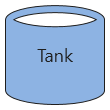
Note: The path data only draws the shape. The other components of the path: the fill color, border color, line style, line width, stretch, and the text ("Tank") have been configured separately in other properties of the shape.
Path Syntax
Simple shape outlines are drawn with curved or straight lines that can be used as a clipping path. Paths use a compact coding with alphanumeric commands to indicate meaning. For example, M (for "move to") precedes initial numeric x and y coordinates, and L (for "line to") precedes a point to which a line should be drawn. Further command letters (C, S, Q, T, and A) precede data that is used to draw various Bézier and elliptical curves. The Z command is used to close a path. Follow the hyperlinks above to learn more about path syntax.
To configure a custom shape
- Create a new screen and add a Shape control.
- In the Properties pane, do the following:
- Find the Shape category.
- In the Shape type property, select Custom shape.
- Paste the path data for your custom shape into the Shape geometry property.
- Configure other custom shape properties as desired: Custom line style, Line style, Line width, and Stretch.
- Find the Value category.
- Configure the Fill color, Text color, and Line color properties, as desired.
- Configure any other general shape properties as desired (Font, Tooltip, Display, Value, Context menu, etc.)
- Find the Shape category.
- Save the screen.
- Run the screen to test your configuration.
To configure a custom shape as a visual on a Map layer
- Before adding a map control to a Canvas screen, you must first configure the global map settings in the Backstage view. Global map settings include the map provider, API key, and the facility attributes where latitude and longitude coordinates are stored. See Configuring Map Settings for more information.
- Create a new screen and add a map control.
- Click
 next to the Layers property to open the Map Layer Configuration dialog box.
 - Configure a layer. See To configure a map layer for more information.
- Add a Shape visual to the layer. See To configure a shape visual for more information.
- Select the shape visual item and expand the Advanced category in the right pane.
- Find the Shape category.
- In the Shape type property, select Custom.
- Paste the path data for your custom shape into the Shape geometry property.
- Configure other custom shape properties as desired: Custom line style, Line style, Line width, and Stretch.
- Configure any other general shape properties as desired (Value, Color configuration, Display, Font, and Tooltip).
- Click OK.
- Find the Shape category.
- Save the screen.
- Run the screen to test your configuration.


