Layers Pane

On the Canvas toolbar, click  (Display layers) to display a Layers pane in your application window or to hide the currently open pane.
|
Layers Pane |
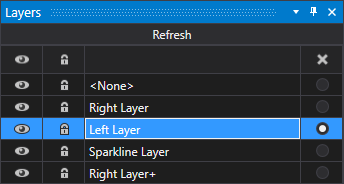
A Canvas screen can be comprised of one or more layers. You can create and edit specific content on your screen, assign content (controls and objects) to different layers, change the properties of controls on a layer without affecting other layers on the screen.
Layers are helpful for organizing objects on a screen into logical divisions. For example, a layer called "Wells" can be created on which well-related objects are placed. On top of that, you could create a layer called "Controls," which might contain other controller-related objects. Layers provide an easy way to select, show, hide, and change properties and attributes of objects contained on a layer.
The Layers pane lists all configured layers for the screen that is currently open in the Screen pane and is used to manage the visibility of the layers on a screen in Design mode and Run mode. Any layer can be hidden from view in design or run mode by clicking  (Hide layer) in the Layer pane. Any layer can be locked in place in design or run mode by clicking
  (Lock layer) in the Layer pane. You can also rename and copy layers. All layer management elements are described in the following table.
Layers Pane User Interface
The following table describes the elements in the Layers pane interface.
| Column or Button | Tooltip | Description |
|---|---|---|
|
Refresh button |
|
Click Refresh to load the Layers pane, or click Refresh periodically to reload the pane as you work. If you added a control to a new layer in design mode, click Refresh to see the new layer name. |
|
|
Hide all layers Hide layer |
This icon toggles the visibility of all layers or the selected layer on the screen.
|
|
|
Lock all layers Lock layer |
This icon toggles the lock for all layers or the selected layer on the screen.
|
| <Name of layer> |
|
Each layer is listed in a separate row and is assigned in the Layer property on each control. <None> includes all controls not assigned to any layer. You can hide or lock any controls assigned to <None>, but it cannot be deleted. |
|
Rename layer |
|
Any layer can be renamed on the Layers pane.
|
|
|
Delete selected layer |
Use this icon to delete selected layers. All controls on the layer will be removed from the screen.
|
|
|
Select all controls |
Use the radio buttons on each row to select all controls on a layer.
|
 to accept the name change
  to cancel the name change as necessary
 (Select all controls) to select all controls on the selected layer
Assigning Controls to Layers
All controls (except the Screen and the Object) have a Layer property where you can add the control to a layer.
The Layer property specifies the name of the layer to which this object is assigned. Layers can be used to show, hide, and edit multiple controls on one layer without affecting controls on another layer.
- Type the name of the layer into the Layer field (the name can be a previously created layer or a new layer).
- All layers are listed on the Layers pane, where you can manage the layers for the screen in design mode and run mode.
Tip: You can also edit a control's Layer on the Controls view of the Screen pane.
Note: Layer visibility can be controlled at runtime via the AddLayer, HideLayer, SetLayerVisibility, and ShowLayer methods on the Screen object.
Create a new layer by typing a unique layer name.
Choosing How to View the Layers Pane
In the pane title bar, you can select how to display the pane by default (whether to float, dock, auto-hide, or hide it), pin the pane in place, or close the pane. Unpinning (or hiding) a pane when not in use gains extra space for viewing your current screen or another open pane. Closing a pane can also occur from the pane title bar. The following icons are available:
- Click
 (menu chooser) to display a context menu from where you can float, dock, auto hide, or hide the pane.
 - Click
 (pin) on the pane title bar to hide the pane (or "pinned" to the edge of the application window).
 - Click
 (x) on the pane title bar to close the pane.
See Customizing the Workspace for more information.
Scripting Layers
Adding a control to a layer via script will not automatically update its visibility to match that of the layer. Instead the control will maintain its existing visibility until the layer visibility is modified. When scripting layers the following order of operation is required:
- Add controls to the layer.
- Modify the visibility of the layer.
Note: Layer visibility can be controlled at runtime via the AddLayer, HideLayer, SetLayerVisibility, and ShowLayer methods on the Screen object.
See Scripting Layers.


