This topic lists all properties, which are available via the Properties pane and the Canvas script editor, for all Canvas controls, tools, and objects.
Browse by letter: [A] [B] [C] [D] [E] [F] [G] [H] [I] [L] [M] [N] [O] [P] [Q] [R] [S] [T] [U] [V] [W] [X] [Y] [Z]
| UI Property | Script Property | Control | Description | |||||||||||||||||||||||||||||||||||||||
|---|---|---|---|---|---|---|---|---|---|---|---|---|---|---|---|---|---|---|---|---|---|---|---|---|---|---|---|---|---|---|---|---|---|---|---|---|---|---|---|---|---|---|
A
|
||||||||||||||||||||||||||||||||||||||||||
|
Accepts return |
ControlName.AcceptsReturn |
The Accepts return check box indicates that the Edit Box will accept the return key to create a new line in the text block in run mode. |
||||||||||||||||||||||||||||||||||||||||
|
Alarm attribute |
|
Alarm Grid (Alarm column) |
The Alarm attribute property specifies the alarm attribute that will be displayed in the column. Click
|
|||||||||||||||||||||||||||||||||||||||
|
Alarm column |
N/A |
An alarm column presents data for a point by an alarm attribute. |
||||||||||||||||||||||||||||||||||||||||
|
Alarm filter |
AlarmGrid.AlarmFilter |
Alarm Grid (grid filter) |
The Alarm filter property is used to limit the data that is presented in the Alarm Grid by configuring alarm filtering rules. Click |
|||||||||||||||||||||||||||||||||||||||
|
Alarm filter |
AlarmGrid.ToolbarFilters |
Alarm Grid (toolbar filter) |
|
|||||||||||||||||||||||||||||||||||||||
|
Alarm icon column |
AlarmGrid.IconColumn AlarmGrid.IconColumn.ColorSource AlarmGrid.IconColumn.Ranges AlarmGrid.IconColumn.ShowIcon |
|
||||||||||||||||||||||||||||||||||||||||
|
Alarm icon configuration |
ControlName.IconConfiguration ControlName.IconConfiguration.ColorSource ControlName.IconConfiguration.Ranges ControlName.IconConfiguration.Ranges.Count |
Click |
||||||||||||||||||||||||||||||||||||||||
|
Alarm toolbar filters |
AlarmGrid.ToolbarFilters |
The Alarm filter property specifies the filter rules for each toolbar filter. Configure the filter rule using the standard CygNet Alarm Filter dialog box. |
||||||||||||||||||||||||||||||||||||||||
|
Animate marker |
ValueIndicator.IsAnimated |
|
||||||||||||||||||||||||||||||||||||||||
|
Arrow size |
Shape.ArrowSize |
The Arrow size property specifies the size of the arrowheads at the end of the line shapes. Select a number using the spin control. The default value is 20. The Shape type must be one of the arrow shapes to take effect. |
||||||||||||||||||||||||||||||||||||||||
|
Auto close |
TagChooser.AutoCloseOnNodeSelection |
The Auto close property hides the Tag Chooser when any node in the hierarchy is selected. Click the header row to show the Tag Chooser again to make a new selection. The Auto close property is visible and configurable only when the Collapsible mode is enabled. |
||||||||||||||||||||||||||||||||||||||||
|
Auto range x-axis |
ControlName.AutoRangeX |
|
||||||||||||||||||||||||||||||||||||||||
|
Auto range y-axis |
ControlName.AutoRangeY |
|
||||||||||||||||||||||||||||||||||||||||
| B
|
||||||||||||||||||||||||||||||||||||||||||
|
Background color |
AlarmGrid.ColorConfiguration.BackgroundSelfColor AlarmGrid.ColorConfiguration.BackgroundSource |
Alarm Grid (cell) |
The Background color property specifies the color used for the background of the grid cell. The color can be sourced from one of several options provided in the Source drop-down menu: a) the color will automatically follow the selected application theme regardless of the underlying color palette and cannot be customized (by selecting Auto); b) the color will be sourced from the point state of the associated alarm (by selecting BackgroundColor, ForegroundColor, or SingleColor); or c) the color can be customized (by selecting Self). The default value is BackgroundColor. Options include: For each color property select the Source and Color:
Note: You can override the default point state colors for this element by creating a custom color palette. See Configuring Color Palettes and Color palette for a screen or object for more information. |
|||||||||||||||||||||||||||||||||||||||
|
Background color |
|
CygNet Grid (column) |
The Background color property specifies the color used for the background of the grid cell. For a Facility and Generic column The color can be sourced from one of two options provided in the Source drop-down menu:
Options include: For each color property select the Source and Color:
For a Point column The color can be sourced from one of three options provided in the Source drop-down menu:
Options include:
For each color property select the Source and Color:
Note: You can override the default point state colors for this element by creating a custom color palette. See Configuring Color Palettes and Color palette for a screen or object for more information. |
|||||||||||||||||||||||||||||||||||||||
|
Background color |
ControlName.ColorConfiguration.BackgroundSelfColor ControlName.ColorConfiguration.BackgroundSource
Dynagraph.DynagraphColorConfiguration.BackgroundSelfColor Dynagraph.DynagraphColorConfiguration.BackgroundSource |
Note Grid (column) |
The Background color property specifies the color used for the background of the control. The color can be sourced from one of two options provided in the Source drop-down menu:
Options include:
For each color property select the Source and Color:
Note: You can override the default point state colors for this element by creating a custom color palette. See Configuring Color Palettes and Color palette for a screen or object for more information. Note Grid — The Background color property specifies the color used for the background of the Note Grid cell. The color can be sourced from one of two options provided in the Source drop-down menu:
Options include: For each color property select the Source and Color:
|
|||||||||||||||||||||||||||||||||||||||
|
Background color |
ControlName.ColorConfiguration.BackgroundSelfColor ControlName.ColorConfiguration.BackgroundSource |
The Background color property specifies the color used for the background of the control. The color can be sourced from one of three options provided in the Source drop-down menu:
Options include:
For each color property select the Source and Color:
Note: You can override the default point state colors for this element by creating a custom color palette. See Configuring Color Palettes and Color palette for a screen or object for more information. |
||||||||||||||||||||||||||||||||||||||||
|
Background color (screen, object, control) |
ControlName.BackgroundColor |
Combo Box (header) |
The Background color property specifies the background color of the screen, object, or control. Click Combo Box —
The Background color property specifies the background color of the Combo Box header. Click |
|||||||||||||||||||||||||||||||||||||||
|
Backgound color source |
ControlName.BackgroundColorSource |
Combo Box (header) |
The Background color source property specifies the color source for the background color of the screen, object, or control. Two options are available:
The default option is Auto. |
|||||||||||||||||||||||||||||||||||||||
|
Bar color |
ControlName.ColorConfiguration.BarSelfColor ControlName.ColorConfiguration.BarSource |
The Bar color property specifies the color used for the bar that represents the point value in the Linear Gauge control. The color can be sourced from one of three options provided in the Source drop-down menu:
Options include:
For each color property select the Source and Color:
Note: You can override the default point state colors for this element by creating a custom color palette. See Configuring Color Palettes and Color palette for a screen or object for more information. |
||||||||||||||||||||||||||||||||||||||||
|
Base node |
TagChooser.GroupBaseNodeDescription |
|
||||||||||||||||||||||||||||||||||||||||
|
Start Start date (Grid) |
ControlName.DateStart  DateStart. properties DateStart. properties
DateStart.Date DateStart.Day DateStart.DayOfWeek DateStart.DayOfYear DateStart.Hour DateStart.Kind DateStart.Millisecond DateStart.Minute DateStart.Month DateStart.Second DateStart.Ticks DateStart.TimeOfDay DateStart.Year TreeMap.StartingDate StartingDate. properties
StartingDate.Date StartingDate.Day StartingDate.DayOfWeek StartingDate.DayOfYear StartingDate.Hour StartingDate.Kind StartingDate.Millisecond StartingDate.Minute StartingDate.Month StartingDate.Second StartingDate.Ticks StartingDate.TimeOfDay StartingDate.Year |
CygNet Grid (History column) |
The Begin date or Start or Start date property specifies the start date and time for a control (or screen or chart or column) for an absolute date and time view window. The format is MM/DD/YYYY hh:mm:ss AM/PM. The default value is the system date and time at which the control was first added to the screen. Click Tree Map —
The Begin date property specifies the start date and time to use when rolling up historical data. Data between the Begin relative date and the Begin date will be rolled up and displayed in the Tree Map. The format is MM/DD/YYYY hh:mm:ss AM/PM. The default value is the system date and time at which the control was first added to a screen. Click |
|||||||||||||||||||||||||||||||||||||||
|
Start Relative start date (Grid) |
ControlName.RelativeStartDate
TreeMap.RelativeStartingDate |
CygNet Grid (History column) |
The Begin relative date or Relative start date or Start property specifies a wildcard string defining the amount of time by which to adjust the start date and time. The space-separated elements in this string must be of the form: "x-#", "x+#", or "x=#" where # is an integer and x is one of the following unit specifiers: y — Year, m — Month, d — Day, H — Hour, M — Minute, S — Second, and # is an integer. T wildcard is also supported and must be in the form: T, T+#, T-#, where T represent today at midnight, T-1 is yesterday at midnight, and T+1 is tomorrow at midnight, etc. Any integer can be used. For example, H-8 represents data from the 8 hours before the current hour, d+3 represents data 3 days after the current day, and d+2 H+1 M+30 represents data 2 days, 1 hour and 30 minutes after the current date and time. d-4 H=6 sets the relative start date and time to four days ago (d-4) at 6:00 a.m. (H=6). See Date and Time Wildcards for more information about adjusting relative time. Tree Map —
The Begin relative date property specifies a wildcard string defining the amount of time by which to adjust the start date and time. The space-separated elements in this string must be of the form: "x-#", "x+#", or "x=#" where # is an integer and x is one of the following unit specifiers: y — Year, m — Month, d — Day, H — Hour, M — Minute, S — Second, and # is an integer. T wildcard is also supported and must be in the form: T, T+#, T-#, where T represent today at midnight, T-1 is yesterday at midnight, and T+1 is tomorrow at midnight, etc. Any integer can be used. For example, H-8 represents data from the 8 hours before the current hour, d+3 represents data 3 days after the current day, and d+2 H+1 M+30 represents data 2 days, 1 hour and 30 minutes after the current date and time. d-4 H=6 sets the relative start date and time to four days ago (d-4) at 6:00 a.m. (H=6). See Date and Time Wildcards for more information about adjusting relative time. |
|||||||||||||||||||||||||||||||||||||||
|
Blink |
||||||||||||||||||||||||||||||||||||||||||
|
Border color |
AlarmGrid.ColorConfiguration.BorderSelfColor AlarmGrid.ColorConfiguration.BorderSource |
Alarm Grid (cell) |
The Border color property specifies the color used for the border of the grid cell. The color can be sourced from one of several options provided in the Source drop-down menu: a) the color will automatically follow the selected application theme regardless of the underlying color palette and cannot be customized (by selecting Auto); b) the color will be sourced from the point state of the associated alarm (by selecting BackgroundColor, ForegroundColor, or SingleColor); or c) the color can be customized (by selecting Self). The default value is Auto. Options include: For each color property select the Source and Color:
Note: You can override the default point state colors for this element by creating a custom color palette. See Configuring Color Palettes and Color palette for a screen or object for more information. |
|||||||||||||||||||||||||||||||||||||||
|
Border color |
|
CygNet Grid (column) |
The Border color property specifies the color used for the border of the grid cell. For a Generic and Facility column The color can be sourced from one of two options provided in the Source drop-down menu:
Options include: For each color property select the Source and Color:
For a Point column The color can be sourced from one of three options provided in the Source drop-down menu:
Options include:
For each color property select the Source and Color:
Note: You can override the default point state colors for this element by creating a custom color palette. See Configuring Color Palettes and Color palette for a screen or object for more information. |
|||||||||||||||||||||||||||||||||||||||
|
Border color |
ControlName.ColorConfiguration.BorderColorSource ControlName.ColorConfiguration.BorderSelfColor |
Note Grid (column)
|
The Border color property specifies the color used for the background of the Note Grid cell. The color can be sourced from one of two options provided in the Source drop-down menu:
Options include: For each color property select the Source and Color:
|
|||||||||||||||||||||||||||||||||||||||
|
Border color |
ControlName.ColorConfiguration.BorderSelfColor ControlName.ColorConfiguration.BorderSource
ControlName.BorderSelfColor |
|
Button, Navigation Button, SetPoint Button, Text Tool, UIS Command Button —
The Border color property specifies the color used for the border of the control. The color can be sourced from one of three options provided in the Source drop-down menu:
Options include: For each color property select the Source and Color:
Note: You can override the default point state colors for this element by creating a custom color palette. See Configuring Color Palettes and Color palette for a screen or object for more information. Media Viewer, Nested View — The Border color property specifies the color used for the border of the Media Viewer or the Nested View. Click Note: If no color is specified, the border color will automatically follow the theme color. If your choose a color, but later want to revert back to the theme color, choose the "Transparent" option, and the color will default to the theme color. |
|||||||||||||||||||||||||||||||||||||||
|
Border width |
ControlName.BorderWidth |
The Border width property specifies the width of the Text Tool's border. |
||||||||||||||||||||||||||||||||||||||||
|
Bottom information text |
ControlName.BottomInformationText |
The Bottom information text property specifies the text that will appear on the bottom information area on the control. The control can display a static text string, such as a label, legend, tooltip, or a dynamic text string based on point or facility attributes. Dynamic text is built using tokens, which can represent real-time CVS point properties, point configuration properties, and facility properties. In run mode, the tokens are replaced with the attribute's value. Click |
||||||||||||||||||||||||||||||||||||||||
|
Broadcast facilities |
Screen.IsBroadcastingFacilities |
The Broadcast facilities check box indicates whether to notify other screens when this screen's facility selection changes. When enabled, and when a screen's facility selection changes, Canvas will broadcast the list of facilities out to all other screens open in the application that are configured to source their facility from <Broadcast>. |
||||||||||||||||||||||||||||||||||||||||
|
Broadcast SiteService |
Screen.IsBroadcastingSiteService |
The Broadcast SiteService check box indicates whether to notify other screens when this screen's SiteService selection changes. When enabled, and when a screen's SiteService selection changes, Canvas will broadcast the SiteService out to all other screens open in the application that are configured to source their SiteService from <Broadcast>. |
||||||||||||||||||||||||||||||||||||||||
| C
|
||||||||||||||||||||||||||||||||||||||||||
|
Card view |
Dynagraph.CardView |
The Card view property determines which dynagraph card types to display. Options include:
The default value is Surface. |
||||||||||||||||||||||||||||||||||||||||
|
Cell padding |
HeatMap.CellPadding |
The Cell padding property specifies the size of the padding around each Heat Map cell in pixels. |
||||||||||||||||||||||||||||||||||||||||
|
Center |
Map.Center |
The Center property represents the center point of the map view when first displayed in run mode and is indicated by location coordinates. If no value is entered (default), the map is centered at 0°N 0°E, a point where the Prime Meridian intersects with the Equator, in the Gulf of Guinea off the coast of West Africa. Type the desired latitude and longitude location coordinates, for example, 29.76045,-95.36978, which represents the city of Houston, TX. |
||||||||||||||||||||||||||||||||||||||||
|
Chart drop mode |
Chart.ChartDropFacilityMode |
The default value is Use dropped facility. |
||||||||||||||||||||||||||||||||||||||||
|
Checked |
CheckBox.IsChecked |
The Checked property indicates whether the check box initially displays as checked. |
||||||||||||||||||||||||||||||||||||||||
|
Click mode |
TextTool.ClickMode |
Map (image on layer) Map (shape on layer) |
Map — The Click mode property determines the type of click to use when clicking on an image or a shape visual item on a map. Any associated facility will be passed to the specified screen (or script). Options are:
None is the default value.
Text Tool —
The Click mode property determines the type of click to use when clicking on a control. Any associated facility will be passed to the specified screen (or script). Options are:
None is the default value.
|
|||||||||||||||||||||||||||||||||||||||
|
Collapsible mode |
TagChooser.CollapsibleMode |
The Collapsible mode property configures a collapsible Tag Chooser. When enabled the Tag Chooser will collapse or hide from view when a node in the hierarchy is selected, and the selected node will be displayed in a header row above the Tag Chooser. The Collapsible mode works with the Auto close property, which appears only when the Collapsible mode is enabled. If Collapsible mode is enabled is enabled without Auto close, the Tag Chooser remains visible at all times. Click the header row to collapse the Tag Chooser. |
||||||||||||||||||||||||||||||||||||||||
|
Color |
|
Chart (series point) |
|
|||||||||||||||||||||||||||||||||||||||
|
Color |
|
Chart (series) |
The Color property specifies the color of the chart series. Click Note: The default colors used for a Chart series are drawn from a set palette and are therefore not theme-specific. See themes for more information. |
|||||||||||||||||||||||||||||||||||||||
| Color | CygNet Grid (Sparkline in History column) |
The Sparkline color (or Color) property specifies the color of the sparkline. Click Note: The default colors used for a Sparkline series are drawn from a set palette and are therefore not theme-specific. See themes for more information. |
||||||||||||||||||||||||||||||||||||||||
|
ControlName.ColorConfiguration ControlName.ColorConfiguration.BackgroundSelfColor ControlName.ColorConfiguration.BackgroundSource ControlName.ColorConfiguration.BorderSelfColor ControlName.ColorConfiguration.BorderSource ControlName.ColorConfiguration.TextSelfColor ControlName.ColorConfiguration.TextColorSource
AlarmGrid.ColorConfiguration.BackgroundBlink AlarmGrid.ColorConfiguration.BorderBlink AlarmGrid.ColorConfiguration.GridBackgroundSelfColor AlarmGrid.ColorConfiguration.GridBackgroundSource AlarmGrid.ColorConfiguration.HeaderBackgroundSelfColor AlarmGrid.ColorConfiguration.HeaderBackgroundSource AlarmGrid.ColorConfiguration.HeaderTextSelfColor AlarmGrid.ColorConfiguration.HeaderTextSource AlarmGrid.ColorConfiguration.TextBlink
Button.ColorConfigurationBlinkBorder Button.ColorConfigurationBlinkText
CygNetGrid.GridColorConfiguration CygNetGrid.GridColorConfiguration.HeaderBackgroundSource CygNetGrid.GridColorConfiguration.HeaderBackgroundSelfColor CygNetGrid.GridColorConfiguration.HeaderTextSource CygNetGrid.GridColorConfiguration.HeaderTextSelfColor CygNetGrid.GridColorConfiguration.GridBackgroundSource CygNetGrid.GridColorConfiguration.GridBackgroundSelfColor
Donut.ColorConfiguration.EmptyRingColorSource Donut.ColorConfiguration.EmptyRingSelfColor Donut.ColorConfiguration.MarkerColorSource Donut.ColorConfiguration.MarkerSelfColor Donut.ColorConfiguration.RingColorSource Donut.ColorConfiguration.RingSelfColor
Dynagraph.DynagraphColorConfiguration Dynagraph.DynagraphColorConfiguration.BackgroundSelfColor Dynagraph.DynagraphColorConfiguration.BackgroundSource Dynagraph.DynagraphColorConfiguration.TextSelfColor Dynagraph.DynagraphColorConfiguration.TextColorSource
ControlName.ColorConfiguration.BarSelfColor ControlName.ColorConfiguration.BarSource ControlName.ColorConfiguration.EmptyBarSelfColor ControlName.ColorConfiguration.EmptyBarSource
NavigationButton.ColorConfigurationBlinkBorder NavigationButton.ColorConfigurationBlinkText
NoteGrid.GridColorConfiguration NoteGrid.GridColorConfiguration.HeaderBackgroundSource NoteGrid.GridColorConfiguration.HeaderBackgroundSelfColor NoteGrid.GridColorConfiguration.HeaderTextSource NoteGrid.GridColorConfiguration.HeaderTextSelfColor NoteGrid.GridColorConfiguration.GridBackgroundSource NoteGrid.GridColorConfiguration.GridBackgroundSelfColor
Shape.ColorConfiguration.FillSelfColor Shape.ColorConfiguration.FillSource Shape.ColorConfiguration.LineColorSource Shape.ColorConfiguration.LineSelfColor
TextTool.ColorConfiguration.BlinkBackground TextTool.ColorConfigurationBlinkBorder TextTool.ColorConfigurationBlinkText
ValueIndicator.ColorConfiguration.MarkerBorderColorSource ValueIndicator.ColorConfiguration.MarkerBorderSelfColor ValueIndicator.ColorConfiguration.MarkerFillColorSource ValueIndicator.ColorConfiguration.MarkerFillSelfColor ValueIndicator.ColorConfiguration.UseRangeColor |
Alarm Grid (grid) Alarm Grid (columns) CygNet Grid (grid) CygNet Grid (columns) Map (shape on layer) Note Grid (grid) Note Grid (columns) |
The Color configuration drop-down contains all options required to specify the color properties of the control. Click See each control for more information about configuring color properties.
|
||||||||||||||||||||||||||||||||||||||||
|
Screen.ColorPalette Screen.ColorPalette.ColorPaletteId Screen.ColorPalette.ColorPaletteDescription |
See Configuring Color Palettes for more information. |
|||||||||||||||||||||||||||||||||||||||||
|
Column configuration |
ControlName.ColumnDefinitions ControlName.ColumnDefinitions.Count ControlName.ColumnProperties ControlName.ColumnTypes |
|
Alarm Grid —
The Grid Column Configuration dialog box contains all properties required to configure columns in your grid. There are five types of columns that can be configured in an Alarm Grid: an Alarm icon column (configured separately), an Alarm column, a Facility column, a Generic column, and a Point column. The number of defined columns is listed on the property label once defined. You can create your own columns or select from 11 default columns: four Alarm columns (Alarm Priority, Alarm Acknowledge, Primary Value, Timestamp), and seven Point columns (Alarm Condition, SiteService, Long Point ID, Primary Units, Description, Facility ID, Uniform Data Code). Notes:
Click CygNet Grid —
The Grid Column Configuration dialog box contains the properties required to configure each column in your grid. There are five types of columns that can be configured in a CygNet Grid: a Facility column, a Generic column, a History column, a Point column, and an Image column. The number of defined columns is listed on the property label once all are configured. Click Note Grid — The Grid Column Configuration dialog box contains the properties required to configure each column in your Note Grid. There are two types of columns that can be configured in a Note Grid: a Facility column and a Note column. The number of defined columns is listed on the property label once all are configured. Click |
|||||||||||||||||||||||||||||||||||||||
|
Command |
UISCommandButton.UISCommandDialog.Command UISCommandDialog. properties
UISCommandDialog.Command UISCommandDialog.IsStatusPointButtonEnable UISCommandDialog.Parameters UISCommandDialog.StatusPointUDC UISCommandDialog.ValueParameterName |
The Command property specifies the name of the UIS command for the facility as defined in the DDS. Click  to select a UIS Command using the Select UIS Command dialog box. to select a UIS Command using the Select UIS Command dialog box. |
||||||||||||||||||||||||||||||||||||||||
|
Command prompt |
UISCommandButton.UISCommandPromptConfigurationCommand UISCommandPromptConfiguration. properties
UISCommandPromptConfiguration.DefaultValue UISCommandPromptConfiguration.IsSetDefaultValue UISCommandPromptConfiguration.IsShowCommandConfirmationMessage UISCommandPromptConfiguration.PromptType |
The Command prompt drop-down box contains the properties required to configure the prompt for value popup optionally required by the UIS Command Button: the type of prompt to display, whether to set a default value, the default value, and whether to display a confirmation that the command is sent. Click |
||||||||||||||||||||||||||||||||||||||||
|
Configuration |
TagChooser.SiteService TagChooser.FacilityFilter TagChooser.FacilityLevels |
Tag Chooser (Facility) |
The Configuration drop-down box contains the properties required to configure the Tag Chooser using a Facility hierarchy: Collapsible mode and Auto close, a Facility service, an optional Facility filter, and the facility attribute hierarchy levels. |
|||||||||||||||||||||||||||||||||||||||
|
Configuration |
TagChooser.GroupSiteService TagChooser.GroupBaseNodeDescriptor TagChooser.GroupHierarchyFacilityType |
Tag Chooser (Group) |
|
|||||||||||||||||||||||||||||||||||||||
|
ControlName.CustomContextMenuItems |
The custom context menu options will appear at the bottom of the fixed context menu options, separated by a line. Each custom context menu item has a title and an event script ID; items can be designated as a separator; and custom context menus support nested menu items. Click |
|||||||||||||||||||||||||||||||||||||||||
|
Control margin |
ObjectContainer.ControlMargin |
The Control margin property specifies the size of the whitespace between displayed objects in pixels. |
||||||||||||||||||||||||||||||||||||||||
|
Custom line style |
Shape.CustomLineStyle |
Map (shape on layer) |
|
|||||||||||||||||||||||||||||||||||||||
|
ControlName.CygNetConfiguration ControlName.CygNetConfiguration.Facility
CygNetConfiguration.Facility. properties
CygNetConfiguration.Facility.FacilityID CygNetConfiguration.Facility.FacilityID.IsBroadcastSourced CygNetConfiguration.Facility.FacilityID.IsOrderInType CygNetConfiguration.Facility.FacilityID.IsOrderInTypeAttributeConfigured CygNetConfiguration.Facility.FacilityID.IsRelative CygNetConfiguration.Facility.FacilityID.IsSelfSourced CygNetConfiguration.Facility.FacilityID.OrderInType CygNetConfiguration.Facility.FacilityID.RelativeFacilityLink CygNetConfiguration.Facility.FacilityID.ResolveRelativeFacility CygNetConfiguration.Facility.FacilityID.Source CygNetConfiguration.Facility.FacilityID.SourceFacilityID ControlName.CygNetConfiguration.FacilityTag
CygNetConfiguration.FacilityTag. properties
CygNetConfiguration.FacilityTag.FacilityId CygNetConfiguration.FacilityTag.Service CygNetConfiguration.FacilityTag.Site CygNetConfiguration.FacilityTag.SiteService CygNetConfiguration.FacilityTag.SiteService.Service CygNetConfiguration.FacilityTag.SiteService.Site ControlName.CygNetConfiguration.SelectionMode ControlName.CygNetConfiguration.SiteService
CygNetConfiguration.SiteService. properties
CygNetConfiguration.SiteService.DisplayString CygNetConfiguration.SiteService.DomainSiteService CygNetConfiguration.SiteService.DomainSiteService.DomainId CygNetConfiguration.SiteService.DomainSiteService.Service CygNetConfiguration.SiteService.DomainSiteService.Site CygNetConfiguration.SiteService.DomainSiteService.SiteService CygNetConfiguration.SiteService.DomainSiteService.SiteService.Service CygNetConfiguration.SiteService.DomainSiteService.SiteService.Site CygNetConfiguration.SiteService.IsBroadcastSourced CygNetConfiguration.SiteService.IsSelfSourced CygNetConfiguration.SiteService.SiteService CygNetConfiguration.SiteService.SiteService.Service CygNetConfiguration.SiteService.SiteService.Site CygNetConfiguration.SiteService.Source ControlName.CygNetConfiguration.SourceFacilityTag
CygNetConfiguration.SourceFacilityTag. properties
CygNetConfiguration.SourceFacilityTag.FacilityId CygNetConfiguration.SourceFacilityTag.Service CygNetConfiguration.SourceFacilityTag.Site CygNetConfiguration.SourceFacilityTag.SiteService CygNetConfiguration.SourceFacilityTag.SiteService.Service CygNetConfiguration.SourceFacilityTag.SiteService.Site CygNetConfiguration.SourceFacilityTagString |
The CygNet connection property is used to configure the facility and SiteService associated with this control or screen. Two selection modes are available: a) by Facility tag or b) by SiteService / Facility. This split configuration allows for the inheritance of these properties from other controls, or the specific configuration of the SiteService or the facility, while dynamically changing the other. This use case may be rare; therefore, the Facility tag option is the default. Click See each control for more information about configuring the CygNetconnection. |
|||||||||||||||||||||||||||||||||||||||||
| D
|
||||||||||||||||||||||||||||||||||||||||||
|
Data group configuration Data groups Data group |
DDSButton.DataGroupConfiguration DDSButton.DataGroupConfiguration.DeviceDataGroups |
All CygNet communication to and from a remote device is performed using data groups. A data group is a collection of data group elements (DEIDs) logically grouped together for a specific purpose. Its primary function is to organize data received from and sent to field devices. All remote device and data group configuration information is stored in the CygNet DDS. Additional Resources For more information about data groups, see Data Groups. The Data group configuration property is used to configure the source facility and the CygNet data group to be polled when the DDS Button is clicked. Click Note: The source facility configured for the DDS Button is used to determine the associated remote device, and from the remote device, the device type can be ascertained. Then based on the resolved device type, the associated data group configuration (device type, data group, and ordinal) is used to issue the appropriate request to the remote device and complete the operation at runtime. See Data group for Device type, Data group and Ordinal configuration options. The Data group property is where you specify the data group(s) to be polled for transaction data by the DDS Button. Click The Data group property specifies the data group(s) to poll to get data from or to send data to a remote device. |
||||||||||||||||||||||||||||||||||||||||
|
Data element Id |
ControlName.TransactionConfiguration.DeviceDataElements |
DDS Edit Box — The Data element Id property specifies the DEID(s) (value or description) to be displayed and edited. Click DDS Text Tool — The Data element Id property specifies a single data group element as defined in the device template file. The DDS Text Tool supports two DEID types: Value and Description. |
||||||||||||||||||||||||||||||||||||||||
|
Data source |
|
Map (layer) |
Chart —
Map — The Data source specifies the source of the data used in the map layer. Only one option is available:
|
|||||||||||||||||||||||||||||||||||||||
|
ControlName.DateTimeFormat |
Map (image on layer) Map (shape on layer) |
The Date and time format property specifies the format for a point's timestamp using any of the valid .NET standard or custom numeric format strings. The date and time format applies to any point's timestamp property. Use this property to override the Default date format, which is configured in the Application settings page of the Backstage view. The default date format is YYYY/MM/DD HH:MM:SS.fff, which corresponds to 2024/01/01 10:20:30.0001. All timestamps are local client time. If an invalid format is configured for the Date and time format, the control will automatically use the format configured for the Default date format saved in the global settings file, and configured in the Backstage view. Note: You can also use the Microsoft .NET Standard Date and Time Format Strings to define the text representation of a date and time value in Canvas. For example, "d" is the short date pattern and corresponds to 1/1/2024, "F" is the full date/time pattern and corresponds to Monday, January 1, 2024 1:45:30 PM. |
||||||||||||||||||||||||||||||||||||||||
|
Date range configuration |
ControlName.DateConfig ControlName.RelativeRanges ControlName.SelectedRelativeRange |
The Date range configuration property is used to configure the range of dates to be trended in the chart or sparkline, whether to enable live data updates, the live update rate, the starting time for a trend, whether to use relative or absolute dates, and the actual date range. Click |
||||||||||||||||||||||||||||||||||||||||
|
Default chart file |
Screen.DefaultChartFile |
|
||||||||||||||||||||||||||||||||||||||||
|
Default chart file source |
Screen.DefaultChartFileSource |
This property specifies the source of the file, object file, screen file, image file, or video file. Options include:
|
||||||||||||||||||||||||||||||||||||||||
|
Default to first item |
ComboBox.DefaultToFirstItem |
The Default to first item check box indicates whether the first item configured will be the default selected item when starting a screen, instead of showing the Watermark. |
||||||||||||||||||||||||||||||||||||||||
|
Default value |
UISCommandButton.UISCommandPromptConfiguration.DefaultValue |
The Default value property is used to optionally specify the default value for the prompt. This can be a static value or the current value of a point. If specifying a current value it must be a fully qualified tag string. Enter a default value in the field. |
||||||||||||||||||||||||||||||||||||||||
|
Delay loading |
ControlName.DelayLoading |
Chart —
Relative Facility Tree — The Delay loading property indicates whether to delay data loading for the control. Use this to stop unwanted messaging to the service, for example, if you don't want the control to load when the screen first opens. You can turn off the DelayLoading flag via script, then use Refresh to trigger data loading after the delay. Tag Chooser —
|
||||||||||||||||||||||||||||||||||||||||
|
Device type |
DDSButton.DataGroupConfiguration.DeviceDataGroups ControlName.TransactionConfiguration.DeviceDataElements |
DDS Button — The Device type property specifies the device type of the remote field device. This corresponds to the deviceType attribute in the device template’s device definition, and is the same value that appears in the Device Type column in the DDS view in CygNet Explorer. DDS Edit Box — The Device type property specifies the device type of the remote field device. This corresponds to the deviceType attribute in the device template’s device definition, and is the same value that appears in the Device Type column in the DDS view in CygNet Explorer. DDS Text Tool — The Device type property specifies the device type of the remote field device. This corresponds to the deviceType attribute in the device template’s device definition, and is the same value that appears in the Device Type column in the DDS view in CygNet Explorer. |
||||||||||||||||||||||||||||||||||||||||
|
Dialog box configuration |
SetPointButton.Dialog SetPointButton.Dialog.Message SetPointButton.Dialog.Title
|
The Dialog box configuration box contains the options required to specify a title and instructional message on the dialog box that appears when you click the SetPoint button, and where you can enter a new point value. The title and message can display a static text string, such as a label, legend, tooltip, or a dynamic text string based on point or facility attributes. Dynamic text is built using tokens, which can represent real-time CVS point properties, point configuration properties, and facility properties. In run mode, the tokens are replaced with the attribute's value. Click |
||||||||||||||||||||||||||||||||||||||||
|
ControlName.ColorConfiguration.BackgroundBlink ControlName.ColorConfiguration.TextBlink ControlName.ColorConfiguration.BorderBlink
Button.ColorConfiguration.BlinkBackground Button.ColorConfiguration.BlinkBorder Button.ColorConfiguration.BlinkText
NavigationButton.ColorConfiguration.BlinkBackground NavigationButton.ColorConfiguration.BlinkBorder NavigationButton.ColorConfiguration.BlinkText
SetPointButton.ColorConfiguration.BlinkBackground SetPointButton.ColorConfiguration.BlinkBorder SetPointButton.ColorConfiguration.BlinkText
TextTool.ColorConfiguration.BlinkBackground TextTool.ColorConfiguration.BlinkBorder TextTool.ColorConfiguration.BlinkText
UISCommandButton.ColorConfiguration.BlinkBackground UISCommandButton.ColorConfiguration.BlinkBorder UISCommandButton.ColorConfiguration.BlinkText |
Alarm Grid, CygNet Grid, Text Tool —
The Display alarm acknowledgment property enables the cell or Text Tool's background, text, and border to blink when the associated point is in alarm. Check each box to configure the:
If none of these options are selected, no visual indication of a point in alarm will be presented. However, if the point is in alarm, an Acknowledge alarm option will be available from the context menu in run mode. Note: The blink interval is configurable in the Canvas Settings page in the Backstage view. Button — The Display alarm acknowledgment property enables the button's background, text, and border to blink when the associated point is in alarm. Check each box to configure the:
If none of these options are selected, no visual indication of a point in alarm will be presented. However, if the point is in alarm, an Acknowledge alarm option will be available from the context menu in run mode. Note: The blink interval is configurable in the Canvas Settings page in the Backstage view. |
|||||||||||||||||||||||||||||||||||||||||
|
Display alarm ranges |
Donut.DisplayAlarmRanges Donut.Ranges |
The Display alarm ranges check box indicates whether to display alarm ranges for the setpoints for the associated point on the Donut. The colors depicted for the ranges are randomly chosen from a predefined set of colors. |
||||||||||||||||||||||||||||||||||||||||
|
Display mode |
Navigator.DisplayMode |
The Display mode property specifies how to display the navigation menu when the screen is in run mode. By default, the navigation menu and the control's contents will adapt depending on the amount of available space. Options include:
The default value is Compact. |
||||||||||||||||||||||||||||||||||||||||
|
Display mode |
TileView.DisplayMode |
The Display mode property specifies the method for displaying the data elements in the Tile View. Options include:
The default value is Single UDC. |
||||||||||||||||||||||||||||||||||||||||
|
Display mode |
TreeMap.DisplayMode |
The Display mode property specifies the method for displaying the data elements in the Tree Map. Options include:
The default value is Best fit. |
||||||||||||||||||||||||||||||||||||||||
|
Distance unit |
Map.DistanceUnit |
|
||||||||||||||||||||||||||||||||||||||||
|
CygNetGrid.DoubleClickBehavior
Note: The script property for Double click mode is DoubleClickBehavior. |
The Double click mode property determines the action to take when you double-click a row in run mode. The Facility sender mode must be set to Double click. Options are:
The default value is Hyperlink. Notes:
|
|||||||||||||||||||||||||||||||||||||||||
|
Drag mode |
Chart.DragMode |
The default value is None. |
||||||||||||||||||||||||||||||||||||||||
| E
|
||||||||||||||||||||||||||||||||||||||||||
|
Earliest |
ControlName.AutoUpdateEarliestSpan |
The Earliest (span) property specifies the starting date for a trend; that is, the amount of time in the past from when to start the trend. Enter a number in the text box and select a time period from the drop-down menu. For example, 8 Hours ago or 2 Days ago. |
||||||||||||||||||||||||||||||||||||||||
|
Earliest |
ControlName.AutoUpdateEarliestUnit |
The Earliest (unit) property specifies the unit of time in the past from when to start the trend. After entering a number in the text box, select a time period from the drop-down menu. The options include: Seconds, Minutes, Hours, Days, and Years. For example, 60 Seconds ago or 2 Hours ago. The default value is Hours. |
||||||||||||||||||||||||||||||||||||||||
|
Empty bar color |
ControlName.ColorConfiguration.EmptyBarSelfColor ControlName.ColorConfiguration.EmptyBarSource |
The Empty bar color property specifies the color used for the empty or inner background bar in the Linear Gauge control. The color can be sourced from one of three options provided in the Source drop-down menu:
Options include:
For each color property select the Source and Color:
Note: You can override the default point state colors for this element by creating a custom color palette. See Configuring Color Palettes and Color palette for a screen or object for more information. |
||||||||||||||||||||||||||||||||||||||||
|
Empty ring color |
Donut.ColorConfiguration.EmptyRingColorSource Donut.ColorConfiguration.EmptyRingSelfColor |
The Empty ring color property specifies the color used for the empty or unused ring in the Donut. The color can be sourced from one of three options provided in the Source drop-down menu:
Options include:
For each color property select the Source and Color:
Note: You can override the default point state colors for this element by creating a custom color palette. See Configuring Color Palettes and Color palette for a screen or object for more information. |
||||||||||||||||||||||||||||||||||||||||
|
Enable live updates |
ControlName.AutoUpdate |
The Enable live updates check box indicates whether this chart or sparkline will request new data at a specified interval allowing the chart to trend data at a real-time pace. When live updates are enabled and the next poll occurs, the series line will update to reflect the slope change, if any. The interval at which the trend moves forward is defined in the Update rate. If disabled, a trend is populated once with data from the Value History Service (VHS). You can disable live updates /enable live updates for any chart in run mode via an icon on the chart toolbar. See Live Update Changed for related event. |
||||||||||||||||||||||||||||||||||||||||
|
Enabled |
ControlName.IsEnabled
UISCommandButton.IsUISButtonEnable |
|
The Enabled check box indicates whether the control is enabled. The default value is True. When set to False, the control is visible in run mode, but grayed out and disabled from use.
DDS Button, DDS Edit Box, Navigation Button, UIS Command Button —
Image — The Enabled check box indicates whether the image on the control is enabled. The default value is True. |
|||||||||||||||||||||||||||||||||||||||
|
End End date |
ControlName.DateEnd DateEnd. properties
DateEnd.Date DateEnd.Day DateEnd.DayOfWeek DateEnd.DayOfYear DateEnd.Hour DateEnd.Kind DateEnd.Millisecond DateEnd.Minute DateEnd.Month DateEnd.Second DateEnd.Ticks DateEnd.TimeOfDay DateEnd.Year |
Chart (absolute date) CygNet Grid (History column) |
The End date or End property specifies the end date and time for a control (or screen or chart or column) for an absolute date and time view window. The format is MM/DD/YYYY hh:mm:ss AM/PM. The default value is the system date and time at which the control was first added to the screen. Click |
|||||||||||||||||||||||||||||||||||||||
|
End End relative date |
ControlName.RelativeEndDate |
Chart (relative date) |
The End relative date or Relative end date or End property specifies a wildcard string defining the amount of time by which to adjust end date and time. The space-separated elements in this string must be of the form: "x-#", "x+#", or "x=#" where # is an integer and x is one of the following unit specifiers: y — Year, m — Month, d — Day, H — Hour, M — Minute, S — Second, and # is an integer. T wildcard is also supported and must be in the form: T, T+#, T-#, where T represent today at midnight, T-1 is yesterday at midnight, and T+1 is tomorrow at midnight, etc. Any integer can be used. For example, H-8 represents data from the 8 hours before the current hour, d+3 represents data 3 days after the current day, and d+2 H+1 M+30 represents data 2 days, 1 hour and 30 minutes after the current date and time. d-4 H=6 sets the relative end date and time to four days ago (d-4) at 6:00 a.m. (H=6). See Date and Time Wildcards for more information about adjusting relative time. |
|||||||||||||||||||||||||||||||||||||||
| F
|
||||||||||||||||||||||||||||||||||||||||||
|
Facility |
ControlName.CygNetConfiguration.Facility CygNetConfiguration.Facility. properties
CygNetConfiguration.Facility.FacilityID CygNetConfiguration.Facility.FacilityID.IsBroadcastSourced CygNetConfiguration.Facility.FacilityID.IsOrderInType CygNetConfiguration.Facility.FacilityID.IsOrderInTypeAttributeConfigured CygNetConfiguration.Facility.FacilityID.IsRelative CygNetConfiguration.Facility.FacilityID.IsSelfSourced CygNetConfiguration.Facility.FacilityID.OrderInType CygNetConfiguration.Facility.FacilityID.RelativeFacilityLink CygNetConfiguration.Facility.FacilityID.ResolveRelativeFacility CygNetConfiguration.Facility.FacilityID.Source CygNetConfiguration.Facility.FacilityID.SourceFacilityID ControlName.FacilitySender ControlName.PointConfiguration.Facility PointConfiguration.Facility. properties
PointConfiguration.Facility.FacilityID PointConfiguration.Facility.FacilityID.IsBroadcastSourced PointConfiguration.Facility.FacilityID.IsOrderInType PointConfiguration.Facility.FacilityID.IsOrderInTypeAttributeConfigured PointConfiguration.Facility.FacilityID.IsRelative PointConfiguration.Facility.FacilityID.IsSelfSourced PointConfiguration.Facility.FacilityID.OrderInType PointConfiguration.Facility.FacilityID.RelativeFacilityLink PointConfiguration.Facility.FacilityID.ResolveRelativeFacility PointConfiguration.Facility.FacilityID.Source PointConfiguration.Facility.FacilityID.SourceFacilityID DDS Button.DataGroupConfiguration.Facility DataGroupConfiguration.Facility. properties
DataGroupConfiguration.Facility.FacilityID DataGroupConfiguration.Facility.FacilityID.IsBroadcastSourced DataGroupConfiguration.Facility.FacilityID.IsOrderInType DataGroupConfiguration.Facility.FacilityID.IsOrderInTypeAttributeConfigured DataGroupConfiguration.Facility.FacilityID.IsRelative DataGroupConfiguration.Facility.FacilityID.IsSelfSourced DataGroupConfiguration.Facility.FacilityID.OrderInType DataGroupConfiguration.Facility.FacilityID.RelativeFacilityLink DataGroupConfiguration.Facility.FacilityID.ResolveRelativeFacility DataGroupConfiguration.Facility.FacilityID.Source DataGroupConfiguration.Facility.FacilityID.SourceFacilityID ControlName.FacilitySender ControlName.FacilitySource ObjectContainer ObjectContainer.GetCygNetFacilitySenders ObjectContainer.GetCygNetFacilitySenders.Method ObjectContainer.GetCygNetFacilitySenders.Target ObjectContainer.GetParentLinkAttribute ObjectContainer.GetParentLinkAttribute.Method ObjectContainer.GetParentLinkAttribute.Target ObjectContainer.GetRelativeFacilityLinks ObjectContainer.GetRelativeFacilityLinks.Method ObjectContainer.GetRelativeFacilityLinksTarget ObjectContainer.RelativeFacilitiesEnabled ObjectContainer.RelativeFacilitiesEnabled.Method ObjectContainer.RelativeFacilitiesEnabled.Target ObjectContainer.RelativeFacilityLinks ObjectContainer.RelativeFacilityLinks.Capacity ObjectContainer.RelativeFacilityLinks.Count ObjectContainer.ResolveRelativeFacilityTag |
CygNetConfiguration PointConfiguration Other Alarm Grid (row) CygNet Grid (row) DDS Button (data group) Map (layer) Note Grid (row) |
The Facility property specifies the facility for which the control (or screen) is to display data. Click |
|||||||||||||||||||||||||||||||||||||||
|
Facility |
CygNetGrid.FacilitySender CygNetGrid.FacilitySource CygNetGrid.FacilityTagListFilter CygNetGrid.FacilityTagListFilterCommand |
The Facility property specifies the source facility for the CygNet Grid's rows. Options include:
|
||||||||||||||||||||||||||||||||||||||||
|
Facility attribute |
|
Alarm Grid (Facility column) CygNet Grid (Facility column) Note Grid (Facility column) |
The Facility attribute property specifies the facility attribute that will displayed in the column. Click
Click |
|||||||||||||||||||||||||||||||||||||||
|
Facility attribute: Primary |
SearchBox.SearchBoxResultPrimary |
The Facility attribute: Primary property specifies the facility attribute that will be displayed as text in the left position of a search result. Click |
||||||||||||||||||||||||||||||||||||||||
|
Facility attribute: Secondary |
SearchBox.SearchBoxResultSecondary |
The Facility attribute: Secondary property specifies the facility attribute that will be displayed as text in the right position of a search result. Click |
||||||||||||||||||||||||||||||||||||||||
|
Facility column |
N/A |
A facility column presents data for a point by a facility attribute. You can choose to resolve the facility to a relative facility if desired. |
||||||||||||||||||||||||||||||||||||||||
|
Facility filter |
ControlName.FacilityFilter ControlName.FacilityTagListFilter TagChooser.FacilityLevels TagChooser.FacilityLevels.Count
|
Alarm Grid (row) CygNet Grid (row) Map (layer) Note Grid (row) |
Grids, Map — The Facility filter option is visible only if the Facility Source is <Self>. Use the Facility filter property to limit the data presented in the control (or row or layer) to any CygNet facility attribute set up for your CygNet installation. Click Facility Emitter, Object Container, Relative Facility Tree, Tag Chooser — Use the Facility filter property to limit the data presented in the control to any CygNet facility attribute set up for your CygNet installation. Click Search Box — Use the Facility filter property to limit the data presented in the control to any CygNet facility attribute set up for your CygNet installation. A search will be executed against the facilities that are described by this filter. Click |
|||||||||||||||||||||||||||||||||||||||
|
Facility mode |
ObjectContainer.FacilityMode |
The Facility mode property specifies how to handle facilities provided to the Object Container. Options include:
The default value is Resolve children. |
||||||||||||||||||||||||||||||||||||||||
|
Facility navigation mode |
Screen.FacilityNavigationMode |
The default value is Hyperlink - Open. See Navigation by Facility for more information about using this property. |
||||||||||||||||||||||||||||||||||||||||
|
Facility sender |
ControlName.FacilitySender |
A list of sender controls that have been configured with a facility will be displayed. Select the name of the control that will send its facility to this control. By default, the sender is the Screen control if no other senders have been configured. Once a sender control has been specified its name will display in the Source field. |
||||||||||||||||||||||||||||||||||||||||
|
AlarmGrid.FacilitySender AlarmGrid.FacilitySource AlarmGrid.FacilityTagListFilter
CygNetGrid.GridFacilitySenderMode
NoteGrid.GridFacilitySenderMode |
The Facility sender mode property determines how facilities are sent to other controls. There are four options:
Note: If Double click is selected for the Facility sender mode property, and Hyperlink is selected for the Double click mode property, and a Hyperlink mode and Screen path are configured, two actions will be performed when a row is double-clicked:
Script Event If Double click is selected for the Facility sender mode property, and Script is selected for the Double click mode property, the selected facility will be sent to any control(s) on the screen configured to receive its facility from the grid, and the script event Double Click Cell will fire using the facility received from the grid. Sending and receiving facility tagsSome controls on the same screen allow for the sending of facility information from one control to another.
ExampleAdd a control to a screen (e.g., a Tag Chooser or Grid) and configure it as a facility sender to send a facility to the screen. Add another control to the screen (e.g., a Text Tool or Donut) and configure it to receive the facility from the screen. In this scenario the Tag Chooser or Grid will send a facility to the screen and the screen will then send the facility to a Text Tool or the Donut. |
|||||||||||||||||||||||||||||||||||||||||
|
Facility service |
TagChooser.SiteService |
The Facility service property specifies the service to use for this Tag Chooser. Click |
||||||||||||||||||||||||||||||||||||||||
|
Facility source |
Map (layer) |
The Facility property specifies the facility source for the map layer. Options include:
|
||||||||||||||||||||||||||||||||||||||||
|
Facility tag |
ControlName.CygNetConfiguration.FacilityTag
CygNetConfiguration.FacilityTag. properties
CygNetConfiguration.FacilityTag.FacilityId CygNetConfiguration.FacilityTag.Service CygNetConfiguration.FacilityTag.Site CygNetConfiguration.FacilityTag.SiteService CygNetConfiguration.FacilityTag.SiteService.Service CygNetConfiguration.FacilityTag.SiteService.Site ControlName.CygNetConfiguration.SourceFacilityTag
CygNetConfiguration.SourceFacilityTag. properties
CygNetConfiguration.SourceFacilityTag.FacilityId CygNetConfiguration.SourceFacilityTag.Service CygNetConfiguration.SourceFacilityTag.Site CygNetConfiguration.SourceFacilityTag.SiteService CygNetConfiguration.SourceFacilityTag.SiteService.Service CygNetConfiguration.SourceFacilityTag.SiteService.Site CygNetConfiguration.SourceFacilityTagString ControlName.PointConfiguration.FacilityTag
PointConfiguration.FacilityTag. properties
PointConfiguration.FacilityTag.FacilityId PointConfiguration.FacilityTag.Service PointConfiguration.FacilityTag.Site PointConfiguration.FacilityTag.SiteService PointConfiguration.FacilityTag.SiteService.Service PointConfiguration.FacilityTag.SiteService.Site ControlName.PointConfiguration.SourceFacilityTag
PointConfiguration.SourceFacilityTag. properties
PointConfiguration.SourceFacilityTag.FacilityId PointConfiguration.SourceFacilityTag.Service PointConfiguration.SourceFacilityTag.Site PointConfiguration.SourceFacilityTag.SiteService PointConfiguration.SourceFacilityTag.SiteService.Service PointConfiguration.SourceFacilityTag.SiteService.Site ControlName.PointConfiguration.SourceFacilityTagString ControlName.FacilityTag
FacilityTag. properties
FacilityTag.FacilityId FacilityTag.Service FacilityTag.Site FacilityTag.SiteService FacilityTag.SiteService.Service FacilityTag.SiteService.Site DDSButton.DataGroupConfiguration.FacilityTag
DataGroupConfiguration.FacilityTag. properties
DataGroupConfiguration.FacilityTag.FacilityId DataGroupConfiguration.FacilityTag.Service DataGroupConfiguration.FacilityTag.Site DataGroupConfiguration.FacilityTag.SiteService DataGroupConfiguration.FacilityTag.SiteService.Service DataGroupConfiguration.FacilityTag.SiteService.Site DDSButton.DataGroupConfiguration.SourceFacilityTag
DataGroupConfiguration.SourceFacilityTag. properties
DataGroupConfiguration.SourceFacilityTag.FacilityId DataGroupConfiguration.SourceFacilityTag.Service DataGroupConfiguration.SourceFacilityTag.Site DataGroupConfiguration.SourceFacilityTag.SiteService DataGroupConfiguration.SourceFacilityTag.SiteService.Service DataGroupConfiguration.SourceFacilityTag.SiteService.Site |
CygNetConfiguration PointConfiguration DataGroupConfiguration
|
The Facility tag property specifies the full facility tag identifier for which the control (or screen) is to display data. Click |
|||||||||||||||||||||||||||||||||||||||
|
Facility type filter |
TagChooser.GroupHierarchyFacilityType |
|
||||||||||||||||||||||||||||||||||||||||
|
File path |
ControlName.FilePath ControlName.IsValidImage ControlName.ScreenPath
|
This property specifies the path to the file, image file, video file, object file, or screen file. Depending on the selection in the source property the type of path is different. Click
|
||||||||||||||||||||||||||||||||||||||||
|
File source |
ControlName.FileSource |
This property specifies the source of the file, object file, screen file, image file, or video file. Options include:
|
||||||||||||||||||||||||||||||||||||||||
|
Fill color |
Shape.ColorConfiguration.FillSource Shape.ColorConfiguration.FillSelfColor |
Map (shape on layer) |
The Fill color property specifies the color used for the internal body of the Shape. The color can be sourced from one of three options provided in the Source drop-down menu:
Options include:
For each color property select the Source and Color:
Note: You can override the default point state colors for this element by creating a custom color palette. See Configuring Color Palettes and Color palette for a screen or object for more information. |
|||||||||||||||||||||||||||||||||||||||
|
Filter type |
TreeMap.FilterType |
Tree Map |
The Filter Type property allows you to limit the number of facilities displayed in the Tree Map. By configuring a value in the Items to filter property, and selecting Top or Bottom in this property, only the top or bottom number of facilities will be displayed, no matter how many facilities are sent to the Tree Map from the sending control. Options include:
The default value is None. Filtering ValuesThe Tree Map will not display a rectangle for negative, zero, and non-numeric values. These unsupported values are converted to a value of 0.0 prior to being added to the Tree Map, effectively removing them from the control’s display, but not from the underlying data set. If the facilities in a Tree Map are driven by another control (such as a Tag Chooser or CygNet Grid) the source control will still display the facilities and their unsupported values, even though the facilities will not be displayed in the Tree Map. This might lead to some confusion when filtering a Tree Map by Top or Bottom values because the filter will consider all available values, including those that may not be visible in the control. For example, if a Tree Map is filtered to show the bottom 5 facilities, and 2 of the facilities have unsupported values, the control will only display 3 facilities. |
|||||||||||||||||||||||||||||||||||||||
|
Flip enabled |
ControlName.EnableFlip |
The Flip enabled property indicates whether to enable flipping of the Detail control when clicked. |
||||||||||||||||||||||||||||||||||||||||
|
Font size |
ControlName.FontSize |
Map (image on layer) Map (shape on layer) |
The Font size property specifies the font size of the text on the control or map visual. |
|||||||||||||||||||||||||||||||||||||||
|
Font size |
ControlName.FontSizeBottom |
The Font size (bottom) property specifies the font size of the bottom text on the control. Only applies if Font size mode is set to Fixed. |
||||||||||||||||||||||||||||||||||||||||
|
Font size |
ControlName.FontSizeMain |
Detail |
The Font size (main) property specifies the font size of the main text on the control. Only applies if Font size mode is set to Fixed. |
|||||||||||||||||||||||||||||||||||||||
|
Font size |
ControlName.FontSizeTop |
Detail |
The Font size (top) property specifies the font size of the top text on the control. Only applies if Font size mode is set to Fixed. |
|||||||||||||||||||||||||||||||||||||||
|
Font size mode |
ControlName.FontSizeMode |
The Font size mode property specifies the method used to size the text on the control. Options include:
The default value is Auto. The default value for the Text Tool is Fixed. |
||||||||||||||||||||||||||||||||||||||||
|
Foreground color |
Dynagraph.DynagraphColorConfiguration.TextSelfColor Dynagraph.DynagraphColorConfiguration.TextColorSource |
|
The Foreground color property specifies the color used for some of the foreground elements of the Dynagraph control. For the Dynagraph this includes the axis legends and labels. Foreground color configuration does not include the axis lines, tic marks, or grid lines. Nor does it include the card plot lines, POC point, dotted lines (max load, mean load, stroke length), which are auto-colored. The color can be sourced from one of two options provided in the Source drop-down menu:
Options include: For each color property select the Source and Color:
Note: You can override the default point state colors for this element by creating a custom color palette. See Configuring Color Palettes and Color palette for a screen or object for more information. |
|||||||||||||||||||||||||||||||||||||||
| G
|
||||||||||||||||||||||||||||||||||||||||||
|
General data field value bound |
See Value bounds, Lower value bound and Upper value bound. | |||||||||||||||||||||||||||||||||||||||||
|
Generic column |
N/A |
Alarm Grid —
A generic column can display any kind of scripted data of your choosing using C# or VB.NET at runtime. First configure the column in Canvas and then reference the column by name to pull in CygNet or other values. A generic column can be used to discover data defined in a supporting script. If the column is defined, but no data is defined, then the column is hidden by default. The cells in a generic column can be configured to be editable in run mode, so that, for example, users could make quick data changes to facilities in a grid format. Changed values are not saved anywhere but in the grid, but they can be saved or otherwise manipulated via script. CygNet Grid —
A generic column can display any kind of scripted data of your choosing using C# or VB.NET at runtime. First configure the column in Canvas and then reference the column by name to pull in CygNet or other values. A generic column can be used to discover data defined in a supporting script. If the column is defined, but no data is defined, then the column is hidden by default. The cells in a generic column can be configured to be editable in run mode, so that, for example, users could make quick data changes to facilities in a grid format. Changed values are not saved anywhere but in the grid, but they can be saved or otherwise manipulated via script. Note that when a generic column is set to editable the Color properties are not configurable. |
||||||||||||||||||||||||||||||||||||||||
|
Get transaction on facility change |
DDSButton.GetTransactionOnFacilityChange |
The Get transaction on facility change check box indicates whether to get new transaction data whenever a source facility changes. |
||||||||||||||||||||||||||||||||||||||||
|
Grid background color |
AlarmGrid.ColorConfiguration.GridBackgroundSource AlarmGrid.ColorConfiguration.GridBackgroundSelfColor
CygNetGrid.GridColorConfiguration.GridBackgroundSource CygNetGrid.GridColorConfiguration.GridBackgroundSelfColor
NoteGrid.GridColorConfiguration.GridBackgroundSource NoteGrid.GridColorConfiguration.GridBackgroundSelfColor |
The Grid background color property specifies the color used for grid's background. The color can be sourced from one of two options provided in the Source drop-down menu: a) the color will automatically follow the selected application theme regardless of the underlying color palette and cannot be customized (by selecting Auto), or b) the color can be customized (by selecting Self). The default value is Auto. Options include: For each color property select the Source and Color:
|
||||||||||||||||||||||||||||||||||||||||
|
Grid color |
Screen.GridColor |
The Grid color property specifies the color of the lines in the layout grid.
Click |
||||||||||||||||||||||||||||||||||||||||
|
Grid color source |
Screen.GridColorSource |
The Grid color source property specifies the color source for the layout grid on the screen. Two options are available:
The default options is Auto. |
||||||||||||||||||||||||||||||||||||||||
|
Grid height |
Screen.GridHeight |
The Grid height property specifies the height of the layout grid. The default is 10 pixels high. |
||||||||||||||||||||||||||||||||||||||||
|
Grid width |
Screen.GridWidth |
The Grid width property specifies the width of the layout grid. The default is 10 pixels wide. |
||||||||||||||||||||||||||||||||||||||||
|
Group name |
RadioButton.GroupName |
The Group name property specifies the name of the group that indicates which Radio Buttons are mutually exclusive. |
||||||||||||||||||||||||||||||||||||||||
|
Group service |
TagChooser.GroupSiteService |
|
||||||||||||||||||||||||||||||||||||||||
| H
|
||||||||||||||||||||||||||||||||||||||||||
|
Header background color |
AlarmGrid.ColorConfiguration.HeaderBackgroundSource AlarmGrid.ColorConfiguration.HeaderBackgroundSelfColor
CygNetGrid.GridColorConfiguration.HeaderBackgroundSource CygNetGrid.GridColorConfiguration.HeaderBackgroundSelfColor
NoteGrid.GridColorConfiguration.HeaderBackgroundSource NoteGrid.GridColorConfiguration.HeaderBackgroundSelfColor |
Alarm Grid (header) CygNet Grid (header) Note Grid (header) |
The Header background color property specifies the color used for the background of the grid's header row. The color can be sourced from one of two options provided in the Source drop-down menu: a) the color will automatically follow the selected application theme regardless of the underlying color palette and cannot be customized (by selecting Auto), or b) the color can be customized (by selecting Self). The default value is Auto. Options include: For each color property select the Source and Color:
|
|||||||||||||||||||||||||||||||||||||||
|
Header text color |
AlarmGrid.ColorConfiguration.HeaderTextSource AlarmGrid.ColorConfiguration.HeaderTextColor
CygNetGrid.GridColorConfiguration.HeaderTextSource CygNetGrid.GridColorConfiguration.HeaderTextSelfColor
NoteGrid.GridColorConfiguration.HeaderTextSource NoteGrid.GridColorConfiguration.HeaderTextSelfColor |
Alarm Grid (header) CygNet Grid (header) Note Grid (header) |
The Header text color property specifies the color used for the text on the grid's header row. The color can be sourced from one of two options provided in the Source drop-down menu: a) the color will automatically follow the selected application theme regardless of the underlying color palette and cannot be customized (by selecting Auto), or b) the color can be customized (by selecting Self). The default value is Auto. Options include: For each color property select the Source and Color:
|
|||||||||||||||||||||||||||||||||||||||
|
Height |
ControlName.Height |
All |
The Height property specifies the height of the control (or screen). Tip: You can also change the height of a control using the Settings pane (click on the |
|||||||||||||||||||||||||||||||||||||||
|
Height |
|
Map (image on layer) |
The Image height property indicates the height of the configurable image to be displayed on the map layer. |
|||||||||||||||||||||||||||||||||||||||
|
Hide invalid bounds |
ControlName.HideInvalidBounds |
Donut — The Hide invalid bounds property specifies whether to hide the value ring and alarm ranges on the Donut if any misconfiguration is detected. By selecting this property you can choose to hide the value ring and alarm ranges and show a warning label if invalid value bounds are detected. The options are:
Invalid bounds can include any of the following conditions: the lower bound value is greater than the upper bound value, the lower bound value is equal to the upper bound value, the lower bound value and upper bound value are zero, either the lower bound value or the upper bound value is non-numeric, or if a Point Attribute is selected as the Source but no Attribute is selected in the Value. Note: Any configured Text properties (top, middle, bottom) will continue to display on the Donut even if the value bounds are invalid. Linear Gauges — The Hide invalid bounds property specifies whether to hide the value bar and scales (primary and secondary) on the Linear Gauge if any misconfiguration is detected. By selecting this property you can choose to hide the value bar and scales and show a warning label if invalid value bounds are detected. The options are:
Invalid bounds can include any of the following conditions: the lower bound value is greater than the upper bound value, the lower bound value is equal to the upper bound value, the lower bound value and upper bound value are zero, either the lower bound value or the upper bound value is non-numeric, or if a Point Attribute is selected as the Source but no Attribute is selected in the Value. Note: Any configured Text property will continue to display on the Linear Gauge even if the value bounds are invalid. Value Indicator — The Hide invalid bounds property specifies whether to hide the value bar, alarm ranges, and marker on the Value Indicator if any misconfiguration is detected. By selecting this property you can choose to hide the value bar, alarm ranges, and marker and show a warning label if invalid value bounds are detected. The options are:
Invalid bounds can include any of the following conditions: the lower bound value is greater than the upper bound value, the lower bound value is equal to the upper bound value, the lower bound value and upper bound value are zero, either the lower bound value or the upper bound value is non-numeric, or if a Point Attribute is selected as the Source but no Attribute is selected in the Value. Note: Any configured Text property will continue to display on the Value Indicator even if the value bounds are invalid. |
||||||||||||||||||||||||||||||||||||||||
|
Hide invalid tag |
ControlName.HideInvalidTag |
CygNet Grid (Image column) Map (image on layer) Map (shape on layer) |
The Hide invalid tag check box indicates whether to hide the element (a control, button, image, or map visual item) if it resolves to an invalid or unknown tag. Note: Invalid point tags and relative facility resolution work in the following way for single-value controls: when a point tag is invalid or unknown, the tag can be hidden using the Hide invalid tag property. In this situation, a control with only facility-based tokens that has a valid relative facility resolution, but results in an invalid point tag, then the point tag will be treated as an invalid tag and displayed accordingly. There may be a scenario where you want to hide a control when using facility-based attributes and relative facilities. Say you have a templated screen with a Text Tool displaying a Gas Meter, but not all Wells have an associated Gas Meter. You could hide the control for a Well that does not have an associated Gas Meter, and by not specifying a UDC, you can always show (or hide) a facility resolution with facility-based attributes only. |
|||||||||||||||||||||||||||||||||||||||
|
Hide unreliable points |
Chart.AreUnreliablePointsHidden |
The Hide unreliable points property indicates whether to hide a point in the chart series based on its unreliable point state. The UNRELIABLE status bit is set when a point is deemed unreliable. When enabled data points marked as unreliable will be hidden in the chart. When disabled, unreliable data points will be shown in the chart. |
||||||||||||||||||||||||||||||||||||||||
|
Hierarchy type |
TagChooser.HierarchyType |
Tag Chooser |
|
|||||||||||||||||||||||||||||||||||||||
|
High range color |
ControlName.HighRangeColor |
The High range color property specifies the color to be used at the high end of the value range. Click Note: The default colors used for the Heat Map and Tree Map range colors are drawn from a set palette and are therefore not theme-specific. See themes for more information. |
||||||||||||||||||||||||||||||||||||||||
|
History column |
N/A |
A history column is used to add a Sparkline chart in each cell for a specified UDC. You can choose to resolve the point to a relative facility, or use absolute or relative dates, if desired. |
||||||||||||||||||||||||||||||||||||||||
|
Horizontal alignment |
ControlName.HorizontalAlignment |
The Horizontal alignment property specifies the horizontal position of the text within the boundary of the control. Click |
||||||||||||||||||||||||||||||||||||||||
|
ControlName.HorizontalResizeMode |
The Horizontal resize mode property specifies whether and how the control dynamically moves or resizes horizontally when the screen is resized in run mode. Options include:
The default value is None. |
|||||||||||||||||||||||||||||||||||||||||
|
Hover mode |
Chart.HoverMode |
The default value is None. You can use this setting to highlight a particular series in a chart in run mode. |
||||||||||||||||||||||||||||||||||||||||
|
ControlName.HyperlinkMode |
Map (image on layer) Map (shape on layer) |
The Hyperlink mode property specifies how to handle navigation when clicking an element (e.g., row in a grid, Navigation Button, Shape, or Text Tool). Specify the Screen file source to open in the Screen path property. Several hyperlink navigation options are available:
The default value is Open. See Hyperlinking Screens for more information about this functionality. Map — The Hyperlink mode property specifies how to handle navigation when clicking an image or shape on a Map. Specify the Screen file source to open in the Screen path property. Three hyperlink navigation options are available:
The default value is Open. See Hyperlinking Screens for more information about this functionality. |
||||||||||||||||||||||||||||||||||||||||
| I
|
||||||||||||||||||||||||||||||||||||||||||
|
Icon path |
See Menu Items |
The Icon path property specifies the icon to display to the left of a top-level menu item. The Icon path field is read-only; you must use the Open Files dialog box to select a new icon. This option is not available for sub-menu items. |
||||||||||||||||||||||||||||||||||||||||
|
Icon preview |
See Menu Items |
The Icon preview property displays a preview of the selected icon. This option is not available for sub-menu items. |
||||||||||||||||||||||||||||||||||||||||
|
Icon size |
Navigator.IconSize |
The Icon size property is used to set the dimensions of the menu icon. The range is 8 to 40 pixels. The default is 16 by 16 pixels. |
||||||||||||||||||||||||||||||||||||||||
|
Ignore UDCs |
TagChooser.IgnoreUdc |
|
||||||||||||||||||||||||||||||||||||||||
|
Image |
See Images |
CygNet Grid (Image column) |
The Image property indicates the file path and file name of the image that will be substituted when the point state changes to the selected point state. Browse and select the desired image file. Click |
|||||||||||||||||||||||||||||||||||||||
|
Image column |
N/A |
An image column presents a point-state image — a CygNet-aware image that will dynamically change based on the point state of the associated point. A default image is displayed if you configure point-state-aware images and no matching state exists. |
||||||||||||||||||||||||||||||||||||||||
|
Image file path |
ControlName.FilePath ControlName.IsValidImage |
CygNet Grid (Image column) Map (image on layer) |
This property specifies the path to the file, image file, video file, object file, or screen file. Depending on the selection in the source property the type of path is different. Click
Note: If no image is specified or the image is missing, a missing image icon ( Map — If the item on the map layer is an image, you can specify an image to represent facility locations on the map layer, for example, wells could show an oil droplet image. The common image types are supported (.svg, .bmp, .jpg, .png, etc…). Browse for the image file.
Click
|
|||||||||||||||||||||||||||||||||||||||
|
Image file source |
ControlName.FileSource |
This property specifies the source of the file, object file, screen file, image file, or video file. Options include:
|
||||||||||||||||||||||||||||||||||||||||
|
Image height |
ControlName.ImageHeight |
Map (image on layer) |
Image — The read-only Image height property specifies the height of the image used in the control if no point-state-aware image is displayed. Map — The Image height property indicates the height of the configurable image to be displayed on the map layer. |
|||||||||||||||||||||||||||||||||||||||
|
Image size |
Map (image on layer) |
The Image size property indicates the size of the item on the map layer. |
||||||||||||||||||||||||||||||||||||||||
|
Image width |
ControlName.ImageWidth |
Map (image on layer) |
Image — The read-only Image width property specifies the width of the source image used in the control if no point-state-aware image is displayed. Map — The Image width property indicates the width of the configurable image to be displayed on the map layer. |
|||||||||||||||||||||||||||||||||||||||
| Images |
ControlName.Images ControlName.Images.Capacity ControlName.Images.Count
|
CygNet Grid (Image column) Map (image on layer) |
The Image Selection dialog box is where you configure CygNet-aware images that will dynamically change based on the point state of the associated point. The point state preference is configured in the Resolution mode property. A default image is displayed if you configure point-state-aware images and no matching state exists. Click Note: If no image is specified or the image is missing, a missing image icon ( Map Layer image visual item — Note: To prevent unexpected resizing of images we recommend that you use a uniform-sized image for the default image and any point-state alarm images to be displayed. You may be tempted to create different-sized images for different point states, but the map control does not resize images as the point state changes. The image size remains constant at the size displayed when the control is initialized. |
|||||||||||||||||||||||||||||||||||||||
|
Include in script |
ControlName.IncludeInScript |
Tip: You can also change the Include in Script setting on the Controls view of the Screen pane. |
||||||||||||||||||||||||||||||||||||||||
|
Indexed field value bound |
See Value bounds, Lower value bound and Upper value bound. | |||||||||||||||||||||||||||||||||||||||||
|
Initial cards to show |
Dynagraph.CanvasDynagraphCardType Dynagraph.CanvasDynagraphCardType.IsAlarmCardSelected Dynagraph.CanvasDynagraphCardType.IsCurrentCardSelected Dynagraph.CanvasDynagraphCardType.IsFailureCardSelected Dynagraph.CanvasDynagraphCardType.IsIdealCardSelected Dynagraph.CanvasDynagraphCardType.IsPumpoffCardSelected Dynagraph.CanvasDynagraphCardType.IsReferenceCardSelected Dynagraph.CanvasDynagraphCardType.IsShutdownCardSelected |
The Initial cards to show property determines the initial cards to display for the device. Different types of cards can be polled from the device, though not all devices support all card types. Each card displays one complete stroke in a load versus position graph. Load is displayed in pounds, and surface position is displayed in inches. Click the desired check box(es) to display the available card(s) at the startup of the dynagraph screen. If other cards are also selected to show initially, the cards overlay. The available card types include:
|
||||||||||||||||||||||||||||||||||||||||
|
Is logarithmic |
ControlName.IsLogarithmic |
|
||||||||||||||||||||||||||||||||||||||||
|
Is pan zoom control visible |
Screen.IsPanZoomControlsVisible |
The Is pan zoom control visible check box indicates whether to display the pan and zoom control on the screen in run mode. Pan and zoom are always enabled in design mode; the control is optional in run mode. |
||||||||||||||||||||||||||||||||||||||||
|
Screen.IsPanZoomEnabled |
The Is pan/zoom enabled check box indicates whether the user can pan horizontally and vertically or zoom in and out of the screen. Both panning and zooming change the view — the current location and magnification of the screen. Every time you zoom or pan, you establish a new view. Pan and zoom are always enabled in design mode; the control is optional in run mode. Note: Enabling this will negatively impact screen load performance and disable the ability to dynamically add controls via script. Note: The new run mode implemented in Canvas v9.4 and later does not support panning and zooming. Thus, Canvas has retained the old method of running screens for backwards compatibility. If you need to pan and zoom on a specific screen (configured via the IsPanZoomEnabled property on a screen), you will not be able to take advantage of the performance improvements the new run mode supports. The legacy run mode is accessible from the Run icon on the Canvas toolbar: Run > Run current screen (Legacy). |
|||||||||||||||||||||||||||||||||||||||||
|
Is separator |
ControlName.CustomContextMenuItems |
|
||||||||||||||||||||||||||||||||||||||||
|
ComboBox.Items Combobox.Items.Count ComboBox.SelectedIndex ComboBox.SelectedItem ComboBox.SelectedItem.Label ComboBox.SelectedItem.Value ComboBox.SelectedLabel ComboBox.SelectedValue |
The Combo Box Items dialog box displays all the item labels that will appear in the Combo Box and their corresponding values. Click |
|||||||||||||||||||||||||||||||||||||||||
|
Items |
Map.Items |
|
||||||||||||||||||||||||||||||||||||||||
|
Items to filter |
TreeMap.FilterCount |
Tree Map |
The Items to filter property specifies the number of items to filter if the Filter type is set to Top or Bottom. |
|||||||||||||||||||||||||||||||||||||||
| L
|
||||||||||||||||||||||||||||||||||||||||||
|
Label |
ControlName.Label For the Chart, see Toolbar items For the Combo Box, see Items |
Chart (on quick range button)
|
Chart — The Label property specifies the identifier displayed on the quick range button. Check Box — The Label property specifies the text label to display next to the check box. By default, the label appears to the right of the check box. Combo Box — The Label property specifies the label for an item in the Combo Box drop-down menu. Facility Emitter — The Label property specifies the text label to display on the face of the Facility Emitter. Radio Button — The Label property specifies the text label to display next to the Radio Button. |
|||||||||||||||||||||||||||||||||||||||
|
Label background color |
Screen.DefaultLabelBackgroundColor |
Chart —
Screen (Default Chart) —
Click |
||||||||||||||||||||||||||||||||||||||||
|
Label color |
AxisY.LabelColor |
Chart (y-axis) |
The Y-axis Label color property specifies the color of the y-axis label text. Click Scripting NotePrior to v9.5 the script property name for LabelColor was YAxisLabelColor, which is now obsolete, although it is retained for backwards compatibility. Use Chart.AxisY LabelColor string to manipulate a y-axis in script. For example: Copy
AxisY LabelColor property
Note that |
|||||||||||||||||||||||||||||||||||||||
|
Label connector color |
Screen.DefaultLabelConnectorColor |
Chart —
Screen (Default Chart) —
Click |
||||||||||||||||||||||||||||||||||||||||
|
Label on left |
CheckBox.LabelOnLeft |
The Label on Left check box indicates if the label should be shown on the left side of the check box. |
||||||||||||||||||||||||||||||||||||||||
|
Label text color |
Screen.DefaultLabelForegroundColor |
Chart —
Screen (Default Chart) —
Click |
||||||||||||||||||||||||||||||||||||||||
|
ControlName.Layer |
All except Screen/Object |
Tip: You can also edit a control's Layer on the Controls view of the Screen pane. Note: Layer visibility can be controlled at runtime via the AddLayer, HideLayer, SetLayerVisibility, and ShowLayer methods on the Screen object. |
||||||||||||||||||||||||||||||||||||||||
|
Layers |
Map.Layers |
The Layers property is where you configure the properties required to display the layers that will appear on your map. Layer properties include its name, visibility, data source, facility source, and visuals, which can be an image, a geometric shape, or a Canvas object. You can add as many layers and items as you want to your map. Click |
||||||||||||||||||||||||||||||||||||||||
|
Legend date format |
Chart.LegendDateFormat |
The Legend date format property specifies the format for the dates used in the chart legend. Use this property to override the Default date format, which is configured in the Application settings page of the Backstage view. The default date format is YYYY/MM/DD HH:MM:SS.fff, which corresponds to 2024/01/01 10:20:30.0001. |
||||||||||||||||||||||||||||||||||||||||
|
Legend format |
Chart.LegendFormat |
The Legend format property specifies the format for the text used in the chart legend. The text can display a static text string, such as a label, legend, tooltip, or a dynamic text string based on point or facility attributes. Dynamic text is built using tokens, which can represent real-time CVS point properties, point configuration properties, and facility properties. In run mode, the tokens are replaced with the attribute's value. Click Note: If you leave this property empty, the chart will use the series Name value as the legend. Thin Web ClientThis is the only chart legend property supported by TWC. If configured (to use a dynamic text string), or left empty (to use the series Name), the other legend properties will apply their default values: Legend date format: YYYY/MM/DD HH:MM:SS.fff; Legend location: bottom; Legend value format: #,##0.00; and Show legend: Yes. |
||||||||||||||||||||||||||||||||||||||||
|
Legend location |
Chart.LegendLocation |
|
||||||||||||||||||||||||||||||||||||||||
|
Legend value format |
Chart.LegendValueFormat |
The Legend value format property specifies the format for the legend's point value using any of the valid .NET standard or custom numeric format strings. The value format applies to a point's value, primary value, and alternate value properties. The default value format is #,##0.00, which corresponds to 123,456,789.12. Formats use # and 0, with a period (.) as the decimal separator and comma (,) as the thousands separator. Add additional zeros to show more decimal places. |
||||||||||||||||||||||||||||||||||||||||
|
Line color |
Shape.ColorConfiguration.LineColorSource Shape.ColorConfiguration.LineSelfColor |
Map (shape on layer) |
The Line color property specifies the color used for the border line of the Shape. The color can be sourced from one of three options provided in the Source drop-down menu:
Options include:
For each color property select the Source and Color:
Note: You can override the default point state colors for this element by creating a custom color palette. See Configuring Color Palettes and Color palette for a screen or object for more information. |
|||||||||||||||||||||||||||||||||||||||
|
Line style |
Shape.LineStyle |
Map (shape on layer) |
The Line style property specifies the style of the Shape's border line. Click |
|||||||||||||||||||||||||||||||||||||||
| Line width |
Shape.LineWidth |
Map (shape on layer) |
The Line width property specifies the width of the Shape's border line. |
|||||||||||||||||||||||||||||||||||||||
|
ControlName.IsLocked |
Tip: You can also toggle the lock setting of a control using the Settings pane (click on the |
|||||||||||||||||||||||||||||||||||||||||
|
Long point ID |
ControlName.LongPointID ControlName.PointConfiguration.LongPointID |
PointConfiguration |
The Long point ID property specifies the long point ID of the CygNet point for which the control is to display data. Type the tag into the field. |
|||||||||||||||||||||||||||||||||||||||
|
Low range color |
ControlName.LowRangeColor |
The Low range color property specifies the color to be used at the low end of the value range. Click Note: The default colors used for the Heat Map and Tree Map range colors are drawn from a set palette and are therefore not theme-specific. See themes for more information. |
||||||||||||||||||||||||||||||||||||||||
|
ControlName.ValueBoundsConfiguration ValueBoundsConfiguration.LowerBoundPropertyId ValueBoundsConfiguration.LowerValueBound ValueBoundsConfiguration.LowerValueBoundSet ValueBoundsConfiguration.LowerValueBoundSource |
The Lower value bound property specifies the lower value to use when filling the control. The value bound can be explicitly configured (by selecting <Self>) or the value can be sourced from an attribute of the associated point (by selecting Point Attribute). The following fields are available to store an attribute that can be used to indicate the value bound. Options include:
Additional Resources For more information about point configuration with the PNT Editor, see:
See Value bounds and Upper value bounds. |
|||||||||||||||||||||||||||||||||||||||||
| M
|
||||||||||||||||||||||||||||||||||||||||||
|
Main screen path |
TileView.MainScreenPath |
The Main screen path property specifies the path to the Canvas file that will be displayed when you click To configure the screen path click
|
||||||||||||||||||||||||||||||||||||||||
|
Marker border color |
ValueIndicator.ColorConfiguration.MarkerBorderColorSource ValueIndicator.ColorConfiguration.MarkerBorderSelfColor |
The color can be sourced from one of three options provided in the Source drop-down menu:
Options include:
For each color property select the Source and Color:
Note: You can override the default point state colors for this element by creating a custom color palette. See Configuring Color Palettes and Color palette for a screen or object for more information. |
||||||||||||||||||||||||||||||||||||||||
|
Marker color |
Donut.ColorConfiguration.MarkerColorSource Donut.ColorConfiguration.MarkerSelfColor |
The color can be sourced from one of three options provided in the Source drop-down menu:
Options include:
For each color property select the Source and Color:
Note: You can override the default point state colors for this element by creating a custom color palette. See Configuring Color Palettes and Color palette for a screen or object for more information. |
||||||||||||||||||||||||||||||||||||||||
|
Marker fill color |
ValueIndicator.ColorConfiguration.MarkerFillColorSource ValueIndicator.ColorConfiguration.MarkerFillSelfColor |
The Marker fill color property specifies the color used for the interior of the triangular marker in the Value Indicator. The color can be sourced from one of three options provided in the Source drop-down menu:
Options include:
For each color property select the Source and Color:
Note: You can override the default point state colors for this element by creating a custom color palette. See Configuring Color Palettes and Color palette for a screen or object for more information. |
||||||||||||||||||||||||||||||||||||||||
|
Marker height |
Donut.MarkerHeight |
|
||||||||||||||||||||||||||||||||||||||||
|
Marker width |
Donut.MarkerWidth |
|
||||||||||||||||||||||||||||||||||||||||
|
Max Value |
DDSEditBox.TransactionConfiguration |
The Max value property specifies the maximum acceptable value for the DEID. The value entered at runtime is validated that it falls within the configured range. |
||||||||||||||||||||||||||||||||||||||||
|
Maximum setpoint value bound |
See Value bounds, Lower value bound and Upper value bound. | |||||||||||||||||||||||||||||||||||||||||
|
Maximum Y value |
ControlName.MaximumYValue |
|
||||||||||||||||||||||||||||||||||||||||
|
Maximum zoom |
Map (layer visual item) |
The Maximum zoom level where this visual item will be displayed on the map layer. For reference, the following values approximate the zoom levels: World = 2, State = 4, Region = 10, City = 14, Neighborhood = 18. |
||||||||||||||||||||||||||||||||||||||||
|
Navigator.Items Navigator.Items.Count Navigator.ActiveItem Navigator.ActiveItem. properties
Navigator.ActiveItem.File Navigator.ActiveItem.IconPath Navigator.ActiveItem.IconPathType Navigator.ActiveItem.IsCanvasFile Navigator.ActiveItem.IsChild Navigator.ActiveItem.IsDefault Navigator.ActiveItem.Isleaf Navigator.ActiveItem.IsStudioFile Navigator.ActiveItem.IsValidFile Navigator.ActiveItem.Items Navigator.ActiveItem.Parent Navigator.ActiveItem.ScreenPath Navigator.ActiveItem.ScreenPathType Navigator.ActiveItem.TempFileDirPath Navigator.Screen |
The Navigator Menu Configuration dialog box displays all the menu items that will appear in the Navigator's menu, and each menu item's properties: label, screen path, whether this screen is the start screen, icon path, and an icon preview. Click |
|||||||||||||||||||||||||||||||||||||||||
|
Menu item label |
See Menu Items |
The Menu item label property specifies the label for an item in the Navigator menu. |
||||||||||||||||||||||||||||||||||||||||
|
Menu width |
Navigator.MenuWidth |
The Menu width property specifies the width of the main Navigator menu in expanded mode. The default value is 150 pixels. The minimum width is 40 pixels. |
||||||||||||||||||||||||||||||||||||||||
|
Message |
SetPointButton.Dialog.Message |
The Message property specifies the instructional message that will appear at the top of the SetPoint button dialog box. Click |
||||||||||||||||||||||||||||||||||||||||
|
Min Value |
DDSEditBox.TransactionConfiguration |
The Min value property specifies the minimum acceptable value for the DEID. The value entered at runtime is validated that it falls within the configured range. |
||||||||||||||||||||||||||||||||||||||||
|
Minimum setpoint value bound |
See Value bounds, Lower value bound and Upper value bound. | |||||||||||||||||||||||||||||||||||||||||
|
Minimum Y value |
ControlName.MinimumYValue |
|
||||||||||||||||||||||||||||||||||||||||
|
Minimum zoom |
Map (layer visual item) |
The Minimum zoom level where this visual item will be displayed on the map layer. For reference, the following values approximate the zoom levels: World = 2, State = 4, Region = 10, City = 14, Neighborhood = 18. |
||||||||||||||||||||||||||||||||||||||||
|
Mode |
Map.Mode |
The Mode property indicates the map view mode to use when the map is first displayed. Options include:
|
||||||||||||||||||||||||||||||||||||||||
|
ControlName.MouseCursor |
Map (image on layer) Map (shape on layer)
|
The Mouse cursor property determines which mouse cursor will appear when the mouse hovers over this control or map visual. Select an option from the drop-down menu: Arrow ( DDS Button, Image, Navigation Button, UIS Command Button —
|
||||||||||||||||||||||||||||||||||||||||
| N
|
||||||||||||||||||||||||||||||||||||||||||
|
Name |
ControlName.ControlName |
All |
The Name property specifies the unique identifier for this control. Valid characters are A-Z, 0-9, and underscore (_). Special characters and spaces are not permitted. Names cannot start with a number; an underscore will be prefixed if the control name starts with a number. The default value is the object name and the numeric instance. The control's Name is also displayed on the Controls view of the Screen pane. |
|||||||||||||||||||||||||||||||||||||||
|
Name |
Alarm Grid (column) CygNet Grid (column) Note Grid (column) |
The Name specifies the name that appears in the column header. |
||||||||||||||||||||||||||||||||||||||||
|
Name |
AlarmGrid.ToolbarFilters |
Alarm Grid (Toolbar filter) |
The Name property specifies the name of the alarm filter that appears on the Alarm Grid's toolbar. |
|||||||||||||||||||||||||||||||||||||||
|
Name |
|
Chart (series) |
The Name property specifies the label for the selected chart series, which is displayed in the upper right corner of the chart. |
|||||||||||||||||||||||||||||||||||||||
|
Name |
Map (layer) Map (image/shape/object on layer) |
The Name specifies the name of the map layer. The Name specifies the name of the visual item on the map layer. |
||||||||||||||||||||||||||||||||||||||||
|
Note attribute |
Note Grid (column) |
The Note attribute property specifies the note attribute that will displayed in the column. Click
Click |
||||||||||||||||||||||||||||||||||||||||
|
Note service |
NoteGrid.SiteService |
The Note SiteService property specifies the Note service to use for this Note Grid. Click |
||||||||||||||||||||||||||||||||||||||||
|
Note type |
NoteType |
The Note type property specifies the user-defined note type to be displayed in the Note Grid. Notes can be categorized by type to provide a way to define the kinds of notes appropriate to your organization, to more easily filter existing notes, and to comprise an entire note when only a simple label adequately describes a note. Type the note type defined in your NOTE service. Leave empty to display all notes. |
||||||||||||||||||||||||||||||||||||||||
|
Number of cards |
NumberOfCards |
The Number of cards property determines the maximum number of cards to be displayed on a control for each card type. Select a number between 1 and 5. |
||||||||||||||||||||||||||||||||||||||||
| O
|
||||||||||||||||||||||||||||||||||||||||||
|
Object limit |
ObjectContainer.ObjectLimit ObjectContainer.ObjectLimitExceeded ObjectContainer.ObjectLimitExceededMessage ObjectContainer.NestedViews ObjectContainer.NestedViews.Capacity ObjectContainer.NestedViews.Count |
The Object limit property specifies the maximum number of objects to be added to each page of the container. Use this value to limit the number of objects and improve performance when loading an unexpectedly large number of objects. |
||||||||||||||||||||||||||||||||||||||||
|
Object file path |
Map (object on layer) |
If the visual item on the map layer is an object, you can specify a Canvas object file (.cob) to represent facility locations on the map layer, for example, a small object could display details about a facility location on the map. Browse for the object file (.cob).
Click
Note: If you want the object visual item to display tooltips, they must be configured for the controls that are included in the object file (.cob). |
||||||||||||||||||||||||||||||||||||||||
|
Object path |
ControlName.ObjectPath This property specifies the path to the file, image file, video file, object file, or screen file. Depending on the selection in the source property the type of path is different. Click
ObjectContainer.ScreenPath |
|
Note: Canvas object files (.cob) are generally not supported in the CygNet Thin Web Client, with the exception of an object file used as the reverse side of the Detail control when flipped. Object files created for this purpose must following the TWC naming and storage rules: no spaces in the file name, no special characters, and the .cob file must be saved in a BSS folder, preferably in the same folder as the screen file with the Detail control. Note that while many of an Object's properties are visible in the Canvas user interface, they may not be supported in an object file created for a Detail control. Consult the Object Properties topic for more information. |
|||||||||||||||||||||||||||||||||||||||
|
Object source |
Detail.ObjectFileSource ObjectContainer.FileSource |
This property specifies the source of the file, object file, screen file, image file, or video file. Options include:
|
||||||||||||||||||||||||||||||||||||||||
|
Override chart dates |
Screen.OverrideChartDates |
|
||||||||||||||||||||||||||||||||||||||||
|
Override chart's facility |
|
Select the Override chart's facility check box to specify a different facility for this chart series. Once checked a facility field is revealed where you can override the facility configured for the chart. The chart's facility is specified in the CygNet Connection property group. If Override chart's facility is selected the Resolve to a relative facility option is removed. |
||||||||||||||||||||||||||||||||||||||||
|
Override chart's SiteService |
|
|
||||||||||||||||||||||||||||||||||||||||
|
ControlName. CygNetConfiguration.Facility.IsOrderInType CygNetConfiguration.Facility.IsOrderInTypeAttributeConfigured CygNetConfiguration.Facility.OrderInType
ControlName. PointConfiguration.Facility.IsOrderInType PointConfiguration.Facility.IsOrderInTypeAttributeConfigured PointConfiguration.Facility.OrderInType
TileView.OrderInType
|
CygNetConfiguration PointConfiguration Other CygNet Grid (History, Image, & Point column) |
The Order in type property specifies the attribute value used to represent the order in type (facility ordinal) if the relative facility definition is configured for one. It is possible to have multiple relative facility definition sets with the same definition name. In this case, if the specified Relative link is configured for ordinalization, then you need to configure the attribute value in the box. |
||||||||||||||||||||||||||||||||||||||||
|
Ordinal |
DDSButton.DataGroupConfiguration.DeviceDataGroups |
DDS Button (data group) |
The data group Ordinal property specifies the ordinal or instance of the data group type specified on the Data Group Properties page of the remote device editor. Each data group added to a remote device is identified by a number called an ordinal. If a remote device requires multiple instances of a data group, the group is defined only once in the device template file, but multiple instances of the data group, each with a unique ordinal, can be added in the device in the DDS. Note: If the data group Ordinal is unknown, which could be due to a templated screen, you must use the wildcard number (9999). In this case, the system will attempt to find a single data group in question for the Facility ID. If one is not identified, then the system will attempt to find the Remote Device of the Facility ID and try to see if there is a single data group that matches on the Remote Device. If that fails and the system cannot resolve the data group, the transaction will fail. |
|||||||||||||||||||||||||||||||||||||||
| P
|
||||||||||||||||||||||||||||||||||||||||||
|
Paging enabled |
ObjectContainer.PagingEnabled |
The Paging enabled check box indicates whether to enable a navigation interface to page through the remainder of the objects that exceed the Object limit property.
|
||||||||||||||||||||||||||||||||||||||||
|
Pan mode |
Chart.PanMode Chart.PanOffset |
The default value is None. See Pan Offset Changed for related event. |
||||||||||||||||||||||||||||||||||||||||
|
Parameters |
UISCommandButton.UISCommandDialog.Parameters |
The Parameters property specifies the command’s parameter(s) and their values. That is, the component parameter for which the button is going to set a value. Typical parameters include values, start dates, end dates, and counts.
Notes:
|
||||||||||||||||||||||||||||||||||||||||
|
Screen.GlobalSettingsFile |
The Path property specifies the path to the global settings file (.gsf) for the screen or object. When a new screen is configured, the path to the global settings file specified in the General Settings is copied to the screen. See Configuring Global Settings for more information about this file. The global settings file must be saved in the BSS. Click |
|||||||||||||||||||||||||||||||||||||||||
|
Period |
|
Chart (series rollup) |
|
|||||||||||||||||||||||||||||||||||||||
|
Play mode |
ControlName.PlayMode |
The Play mode property determines how the video will play in run mode. Click
Note: A slider is always visible in run mode to move the video forwards and backwards. |
||||||||||||||||||||||||||||||||||||||||
|
Point
Point selection mode (UDC or Long point id) |
ControlName.LongPointID ControlName.PointConfiguration.LongPointID ControlName.PointConfiguration.PointSelectionMode ControlName.PointConfiguration.PointTag ControlName.PointConfiguration.UDC ControlName.Points
Points. properties
Points.Comparer Points.Count Points.Keys Points.Subscribe Points.Unsubscribe Points.Values ControlName.PointTag ControlName.UDC |
The Point property is used to determine how the CygNet point will be configured. Click the appropriate radio button to reveal the desired field.
|
||||||||||||||||||||||||||||||||||||||||
|
Point attribute |
|
Alarm Grid (Point column) CygNet Grid (Point column) |
The Point attribute property specifies the CygNet point attribute that will be displayed in the column. Click
Click |
|||||||||||||||||||||||||||||||||||||||
|
Point column |
N/A |
Alarm Grid —
A point column presents data for a point by UDC and point attribute. You can choose to resolve the point to a relative facility if desired. The property sheet displays Common and Point properties. Point column types also support a Summary row at the bottom of the grid that can show the following values for the data in the column: a total Count, a Sum, the Min value, the Max value, the Min and Max values, and the Mean value. CygNet Grid —
A point column presents data for a point by UDC and point attribute. You can choose to resolve the point to a relative facility if desired. Point column types also support a Summary row at the bottom of the grid that can show the following values for the data in the column: a total Count, a Sum, the Min value, the Max value, the Min and Max values, and the Mean value. |
||||||||||||||||||||||||||||||||||||||||
|
ControlName.PointConfiguration ControlName.PointConfiguration.Facility
PointConfiguration.Facility. properties
PointConfiguration.Facility.FacilityID PointConfiguration.Facility.FacilityID.IsBroadcastSourced PointConfiguration.Facility.FacilityID.IsOrderInType PointConfiguration.Facility.FacilityID.IsOrderInTypeAttributeConfigured PointConfiguration.Facility.FacilityID.IsRelative PointConfiguration.Facility.FacilityID.IsSelfSourced PointConfiguration.Facility.FacilityID.OrderInType PointConfiguration.Facility.FacilityID.RelativeFacilityLink PointConfiguration.Facility.FacilityID.ResolveRelativeFacility PointConfiguration.Facility.FacilityID.Source PointConfiguration.Facility.FacilityID.SourceFacilityID ControlName.PointConfiguration.FacilityTag
PointConfiguration.FacilityTag. properties
PointConfiguration.FacilityTag.FacilityId PointConfiguration.FacilityTag.Service PointConfiguration.FacilityTag.Site PointConfiguration.FacilityTag.SiteService PointConfiguration.FacilityTag.SiteService.Service PointConfiguration.FacilityTag.SiteService.Site ControlName.PointConfiguration.LongPointID ControlName.PointConfiguration.PointSelectionMode ControlName.PointConfiguration.PointTag ControlName.PointConfiguration.SelectionMode ControlName.PointConfiguration.SiteService
PointConfiguration.SiteService. properties
PointConfiguration.SiteService.DisplayString PointConfiguration.SiteService.DomainSiteService PointConfiguration.SiteService.DomainSiteService.DomainId PointConfiguration.SiteService.DomainSiteService.Service PointConfiguration.SiteService.DomainSiteService.Site PointConfiguration.SiteService.DomainSiteService.SiteService PointConfiguration.SiteService.DomainSiteService.SiteService.Service PointConfiguration.SiteService.DomainSiteService.SiteService.Site PointConfiguration.SiteService.IsBroadcastSourced PointConfiguration.SiteService.IsSelfSourced PointConfiguration.SiteService.SiteService PointConfiguration.SiteService.SiteService.Service PointConfiguration.SiteService.SiteService.Site PointConfiguration.SiteService.Source ControlName.PointConfiguration.SourceFacilityTag
PointConfiguration.SourceFacilityTag. properties
PointConfiguration.SourceFacilityTag.FacilityId PointConfiguration.SourceFacilityTag.Service PointConfiguration.SourceFacilityTag.Site PointConfiguration.SourceFacilityTag.SiteService PointConfiguration.SourceFacilityTag.SiteService.Service PointConfiguration.SourceFacilityTag.SiteService.Site ControlName.PointConfiguration.SourceFacilityTagString ControlName.PointConfiguration.UDC |
The Point configuration property is used to configure the CygNet point associated with the control. Click See each control for more information about configuring points. |
|||||||||||||||||||||||||||||||||||||||||
|
Point scheme |
See Images |
CygNet Grid (Image column) |
The point scheme defines the point types, point alarms, point statuses, and default colors for a CygNet domain. |
|||||||||||||||||||||||||||||||||||||||
|
Point size |
Screen.DefaultPointSize |
|
||||||||||||||||||||||||||||||||||||||||
| Point state | See Images |
CygNet Grid (Image column) |
Point state is the highest precedented state for a point record as defined for each point scheme. The point state for a point record is based on 48 System, Configuration, and User status bits, which are associated with the four point types (Analog, Digital, String, Enumeration). A point record may contain up to 48 status bits, which are used to provide point status information about the point record in a CVS and the ELSALM. A point can be in multiple states at the same time, for example, in High Warning and High Alarm; however, the state defined to be the most severe is the one that is used for the point state (i.e., High Alarm, in this case). |
|||||||||||||||||||||||||||||||||||||||
|
Point type |
See Images |
The point types are configured for the selected point scheme for your CygNet system. The default CygNet Standard Point Scheme has eight point types: Analog Input & Analog Output, Digital Input & Digital Output, Enumeration Input & Enumeration Output, and String Input & String Output. |
||||||||||||||||||||||||||||||||||||||||
|
Position |
AxisY.Position |
Chart (y-axis) |
The Y-axis Position property specifies the location of the y-axis on the chart. Options include: Left or Right. The default value is Left. Scripting NotePrior to v9.5 the script property name for Position was YAxisLabelPosition, which is now obsolete, although it is retained for backwards compatibility. Use Chart.AxisY Position to manipulate a y-axis in script. For example: Copy
AxisY Position property
Note that |
|||||||||||||||||||||||||||||||||||||||
|
Prompt type |
UISCommandButton.UISCommandPromptConfiguration.PromptType |
The Prompt type property contains three radio buttons to indicate what type of prompt to display. Select the desired option:
|
||||||||||||||||||||||||||||||||||||||||
|
Properties to search |
Search.PropertiesToSearch |
Use the Properties to Search property to select the facility properties (attributes) that will be searched in the Search Box. Click |
||||||||||||||||||||||||||||||||||||||||
| Q
|
||||||||||||||||||||||||||||||||||||||||||
|
Quick range buttons |
See Toolbar items |
|
||||||||||||||||||||||||||||||||||||||||
| R
|
||||||||||||||||||||||||||||||||||||||||||
|
Range color |
|
|||||||||||||||||||||||||||||||||||||||||
|
Read only |
|
Alarm Grid (column) CygNet Grid (column) |
|
|||||||||||||||||||||||||||||||||||||||
|
Relative end date |
CygNet Grid (History column) |
The End relative date or Relative end date or End property specifies a wildcard string defining the amount of time by which to adjust end date and time. The space-separated elements in this string must be of the form: "x-#", "x+#", or "x=#" where # is an integer and x is one of the following unit specifiers: y — Year, m — Month, d — Day, H — Hour, M — Minute, S — Second, and # is an integer. T wildcard is also supported and must be in the form: T, T+#, T-#, where T represent today at midnight, T-1 is yesterday at midnight, and T+1 is tomorrow at midnight, etc. Any integer can be used. For example, H-8 represents data from the 8 hours before the current hour, d+3 represents data 3 days after the current day, and d+2 H+1 M+30 represents data 2 days, 1 hour and 30 minutes after the current date and time. d-4 H=6 sets the relative end date and time to four days ago (d-4) at 6:00 a.m. (H=6). See Date and Time Wildcards for more information about adjusting relative time. |
||||||||||||||||||||||||||||||||||||||||
|
ControlName.CygNetConfiguration.Facility.RelativeFacilityLink ControlName.PointConfiguration.Facility.RelativeFacilityLink
TileView.RelativeFacilityLink
RelativeFacilityTree.RelativeFacilityLink |
CygNetConfiguration PointConfiguration Other CygNet Grid (History, Image, & Point column) |
The Relative link property specifies a list of all available relative facility paths. Click Relative Facility Tree — The Relative link property is where you configure the relative facility link for the Relative Facility Tree. Click |
||||||||||||||||||||||||||||||||||||||||
|
Relative start date |
CygNet Grid (History column) |
The Begin relative date or Relative start date or Start property specifies a wildcard string defining the amount of time by which to adjust the start date and time. The space-separated elements in this string must be of the form: "x-#", "x+#", or "x=#" where # is an integer and x is one of the following unit specifiers: y — Year, m — Month, d — Day, H — Hour, M — Minute, S — Second, and # is an integer. T wildcard is also supported and must be in the form: T, T+#, T-#, where T represent today at midnight, T-1 is yesterday at midnight, and T+1 is tomorrow at midnight, etc. Any integer can be used. For example, H-8 represents data from the 8 hours before the current hour, d+3 represents data 3 days after the current day, and d+2 H+1 M+30 represents data 2 days, 1 hour and 30 minutes after the current date and time. d-4 H=6 sets the relative start date and time to four days ago (d-4) at 6:00 a.m. (H=6). See Date and Time Wildcards for more information about adjusting relative time. |
||||||||||||||||||||||||||||||||||||||||
|
ControlName.ImageResolutionMode |
Map (image on layer) |
The Resolution mode property determines how a point's status should be used to select images to display. The image will display based on the point state or the alarm condition of the associated point. The point state of the associated point is evaluated to determine which image to display. Options include:
The default option is Point state. Point-state-aware images are configured in the Images property. Additional Resources For more information about Point State and Alarm Condition, see Points > Points Overview > Point State and Alarm Condition. |
||||||||||||||||||||||||||||||||||||||||
|
Resolve filter if no facility |
ObjectContainer.ResolveFilterIfNoFacility |
The Resolve filter if no facility check box indicates whether to use the facility filter to resolve against all facilities if no facility is provided. If a facility is set for the Object Container, then it will search the child facilities of that facility using the provided facility filter. By enabling Resolve filter if no facility, the Object Container will use the provided facility filter against all facilities for the specified SiteService. |
||||||||||||||||||||||||||||||||||||||||
|
ControlName.CygNetConfiguration.Facility.ResolveRelativeFacility ControlName.PointConfiguration.Facility.ResolveRelativeFacility
ControlName.IsRelativeFacilityResolutionEnabled
TileView.ResolveRelativeFacility |
CygNetConfiguration PointConfiguration Other CygNet Grid (History, Image, & Point column) |
The Resolve to a relative facility check box redirects the source of the facility to a relative facility, overriding the configured source facility. Once selected a list of configured Relative links is displayed. See Using Relative Facilities in Canvas for more information about configuring and scripting relative facility links. |
||||||||||||||||||||||||||||||||||||||||
|
Ring color |
Donut.ColorConfiguration.RingColorSource Donut.ColorConfiguration.RingSelfColor |
The Ring color property specifies the color used for the outer ring that represents the point value in the Donut. The color can be sourced from one of three options provided in the Source drop-down menu:
Options include:
For each color property select the Source and Color:
Note: You can override the default point state colors for this element by creating a custom color palette. See Configuring Color Palettes and Color palette for a screen or object for more information. |
||||||||||||||||||||||||||||||||||||||||
|
Rollup |
N/A |
Note: If rollups are configured for a default chart four labeled rollup series will be added to the chart:
|
||||||||||||||||||||||||||||||||||||||||
|
Rollup period |
ControlName.RollupPeriod |
|
||||||||||||||||||||||||||||||||||||||||
|
Rollup type |
ControlName.RollupType |
Chart, Screen, Object —
Additional Resources For more information about Rollup Type definitions and about how history values are used in rollups, see History > History Data > History Rollups. Heap Map —
Additional Resources For more information about Rollup Type definitions and about how history values are used in rollups, see History > History Data > History Rollups. Tree Map —
Additional Resources For more information about Rollup Type definitions and about how history values are used in rollups, see History > History Data > History Rollups. |
||||||||||||||||||||||||||||||||||||||||
|
Rollup unit |
ControlName.RollupUnit |
Chart, Screen, Object —
For instance, if you select Minutes, rollups occur on a minute basis. The interval is further defined by the Rollup Period setting, which defines how many (in this case) minutes long a rollup period is. Heat Map —
For instance, if you select Minutes, rollups occur on a minute basis. The interval is further defined by the Rollup Period setting, which defines how many (in this case) minutes long a rollup period is. Tree Map —
For instance, if you select Minutes, rollups occur on a minute basis. The interval is further defined by the Rollup period setting, which defines how many (in this case) minutes long a rollup period is. |
||||||||||||||||||||||||||||||||||||||||
|
ControlName.FacilitySender ControlName.FacilitySource ControlName.FacilityTagListFilter SiteService. properties
SiteService.DisplayString SiteService.DomainSiteService SiteService.DomainSiteService.DomainId SiteService.DomainSiteService.Service SiteService.DomainSiteService.Site SiteService.DomainSiteService.SiteService SiteService.DomainSiteService.SiteService.Service SiteService.DomainSiteService.SiteService.Site SiteService.IsBroadcastSourced SiteService.IsSelfSourced SiteService.SiteService SiteService.Source ControlName.FacilityTagListFilterCommand ControlName.SiteService ControlName.SiteServiceSender
|
Alarm Grid — The Row configuration property is where you specify the source of the data to use in the rows of the Alarm Grid: either by SiteService or by facilities. The source for the SiteService can be the Screen or <Self>, where you can specify the Common Alarm Service (CAS) providing the alarm data. The source for the facilities can be from the screen or another control. Click CygNet Grid — The Row configuration property is where you specify the source of the data to use for the rows of the CygNet Grid: either from facilities or a SiteService. The source for the facilities can be explicitly configured or received from the screen or another control. If the Facility source is set to <Self>, facilities can be filtered as necessary, and you need to provide a SiteService. Click Note Grid — The Row configuration property is where you specify the source of the facility data to use for the rows of the Note Grid. The source for the facilities can be explicitly configured <Self>, received from the Screen or another control. If the Facility source is set to <Self>, facilities can be filtered as necessary, and you need to provide a SiteService. Click |
|||||||||||||||||||||||||||||||||||||||||
|
Row header font size |
HeatMap.RowHeaderFontSize |
The Row header font size property specifies the font size for the text that lies to the left of each row in the Heat Map. |
||||||||||||||||||||||||||||||||||||||||
|
Row height |
HeatMap.RowHeight |
The Row height property specifies the height of each Heat Map row. Only applicable if the Row sizing mode is set to Fixed. |
||||||||||||||||||||||||||||||||||||||||
|
Row sizing mode |
HeatMap.RowSizingMode |
The Row sizing mode specifies the method used to size the Heat Map row height. Options include:
The default value is Auto. |
||||||||||||||||||||||||||||||||||||||||
|
Row source mode |
The Row source mode property specifies the source of the SiteService or the source of the facilities for the Alarm Grid row data. Select one of the radio buttons to indicate whether the rows' data is received from a SiteService or from facilities. |
|||||||||||||||||||||||||||||||||||||||||
|
ControlName.RowSummaryUpdateRate |
Alarm Grid (Point column) CygNet Grid (Point column) |
The Row summary update rate property specifies the rate (in milliseconds) at which the grid will recalculate row summaries after a value changes in a point column. Longer rates will improve performance by not recalculating as often. When a value in a cell is updated, the summary row will be recalculated. However recalculation does not happen immediately or for every update; it is throttled by the Row summary update rate. When a recalculation is requested, Canvas will delay for the duration of the update rate. This allows other updates to come in that may affect the recalculated values. Recalculation requests that come in during that delay will be ignored. In this way, no matter how often values change, Canvas will not recalculate the summary row value more often than the set rate. The default value is 1000 milliseconds (1 second). Note: See Summary properties below for information about configuring grid row summaries. |
||||||||||||||||||||||||||||||||||||||||
| S
|
||||||||||||||||||||||||||||||||||||||||||
|
ControName.ScreenFileSource
NestedView.FileSource |
Map (image on layer) Map (shape on layer)
|
This property specifies the source of the file, object file, screen file, image file, or video file. Options include:
|
||||||||||||||||||||||||||||||||||||||||
|
ControlName.IsCanvasFile ControlName.IsStudioFile ControlName.IsValidFile ControlName.Screen ControlName.ScreenPath
For Navigator, see Menu Items
For Tab Control, see Tabs |
Map (image on layer) Map (shape on layer) |
This property specifies the path to the file, image file, video file, object file, or screen file. Depending on the selection in the source property the type of path is different. Click
Linking between Canvas screens, objects, and Nested Views is quite flexible. You don't need to specify the service or folder information in the path to find related screens, objects, or Nested Views, although you can if desired. When specifying a path to another file, the following notes apply: If the screen or object file is in an APPS or BSS folder, you can specify the:
Alarm Grid, CygNet Grid, Navigation Button — The Screen path property specifies the screen that will open when an element (e.g., a row in a Grid, Image or Shape on a Map, Navigation Button, Shape, or Text Tool) is clicked. Browse for the screen file. Click
Navigator — The Screen path property specifies the screen that will open in the body of the Navigator when the menu item is clicked. Browse for the screen file. Click
The option is not available for top-level menu items with sub-menu items. Note: This control only supports Canvas screens in CygNet v9.4 and later. It does not support the display of CygNet Studio screens (.csf). Tab Control — The Screen path property specifies the screen that will open in the body of the Tab control. Browse for the screen file. The Nested View is only available if a screen is configured for the tab. If no screen is specified, the Nested View does not display in run mode. Click
Note: This control only supports Canvas screens in CygNet v9.4 and later. It does not support the display of CygNet Studio screens (.csf). |
||||||||||||||||||||||||||||||||||||||||
|
Script event ID |
ControlName.CustomContextMenuItems |
|
||||||||||||||||||||||||||||||||||||||||
|
Search custom |
Search.SearchCustom Search.CustomSearch |
The Search custom check box indicates whether a custom search will be performed. This property invokes the CustomSearch script property, a delegate that references a custom search method, when a user searches for a string. ExampleCopy
CustomSearch property
See Scripting Custom Searches for more information about this property. |
||||||||||||||||||||||||||||||||||||||||
|
Search facilities |
Search.SearchFacilities |
The Search facilities check box indicates whether to search for facilities based on facility attributes, filter settings, and SiteService. The default value is True. This property works in conjunction with the Facility filter, Properties to search, and SiteService properties. |
||||||||||||||||||||||||||||||||||||||||
|
Selected |
RadioButton.IsSelected |
The Selected check box indicates whether the Radio Button initially displays as selected. |
||||||||||||||||||||||||||||||||||||||||
|
Selected index |
TabControl.SelectedIndex |
The Selected index property specifies a zero-based index for the selected tab. -1 indicates no tab is selected and no Nested View will display in run mode. 0 indicates the first tab is selected; 1 indicates the second tab is selected; 2 indicates the third tab is selected; and so on. |
||||||||||||||||||||||||||||||||||||||||
|
Selection action |
ControlName.SelectionAction |
Relative Facility Tree —
The Selected action property specifies the action to take when a result is selected. Options include:
The default value is FacilitySender. Search Box —
The Selected action property specifies the action to take when a result is selected. Options include:
The default value is FacilitySender. |
||||||||||||||||||||||||||||||||||||||||
|
ControlName.SelectionMode ControlName.SelectionUnit ControlName.SelectedRow ControlName.SelectedRows |
The default value is Single. In script, use SelectionMode with the SelectAll method and SelectedRows property (read-only) to aid in multi-row selection:
|
|||||||||||||||||||||||||||||||||||||||||
|
Selection mode |
ControlName.CygNetConfiguration.SelectionMode ControlName.PointConfiguration.SelectionMode
DDSButton.DataGroupConfiguration.SelectionMode |
CygNetConfiguration PointConfiguration DataGroupConfiguration |
CygNetConfiguration, PointConfiguration —
The Selection mode property is used to determine how the control will receive CygNet information from other controls or from itself. Two options are available; click the desired radio button:
Sending and receiving facility tagsSome controls on the same screen allow for the sending of facility information from one control to another.
ExampleAdd a control to a screen (e.g., a Tag Chooser or Grid) and configure it as a facility sender to send a facility to the screen. Add another control to the screen (e.g., a Text Tool or Donut) and configure it to receive the facility from the screen. In this scenario the Tag Chooser or Grid will send a facility to the screen and the screen will then send the facility to a Text Tool or the Donut. DataGroupConfiguration — The Selection mode property is used to determine how the DDS Button will receive CygNet information from other controls or from itself. Two options are available; click the desired radio button:
|
|||||||||||||||||||||||||||||||||||||||
|
Selection unit |
CygNetGrid.SelectionUnit |
The default value is Full row. |
||||||||||||||||||||||||||||||||||||||||
|
Series |
Chart Chart.Series Chart.Series.Count |
The Series Configuration dialog box contains the properties required to configure each series on your chart. Each series is automatically assigned to a y-axis. You can add an unlimited number of y-axes to a chart and an unlimited of series to each y-axis. Although some properties of a series are received from the screen or from another object on the current screen, you can define properties specific to a certain series, in some cases overriding the inherited properties. The number of defined series is listed on the property label. Click |
||||||||||||||||||||||||||||||||||||||||
|
Series type |
Screen.DefaultSeriesType |
The Series type property specifies the style to use for the chart series. Click
Click here to see an example of each type of series. |
||||||||||||||||||||||||||||||||||||||||
|
Set default value |
UISCommandButton.UISCommandPromptConfiguration.IsSetDefaultValue |
Click the Set default value check box to indicate whether to set a default value for the prompt. |
||||||||||||||||||||||||||||||||||||||||
|
Shape geometry |
Shape.ShapeGeometry |
Map (shape on layer) |
The Shape geometry property specifies a special abbreviated syntax that defines the shape's geometry. If you want to manually modify these values, set the Shape type to Custom. See Configuring Your Own Custom Shapes for information about how to create your own custom shapes. |
|||||||||||||||||||||||||||||||||||||||
|
Shape height |
|
Map (shape on layer) |
|
|||||||||||||||||||||||||||||||||||||||
|
Shape size |
Map (shape on layer) |
|
||||||||||||||||||||||||||||||||||||||||
|
Shape type |
Shape.ShapeType |
Map (shape on layer) |
Map —
The default value is Custom. Select Custom to define your own shape and enter the values in the Shape geometry property. See Configuring Your Own Custom Shapes for information about how to create your own custom shapes. Shape — The Shape type property specifies the type of shape to draw. Click
The default value is Custom shape. Select Custom shape to define your own shape and enter the values in the Shape geometry property. See Configuring Your Own Custom Shapes for information about how to create your own custom shapes. |
|||||||||||||||||||||||||||||||||||||||
|
Shape width |
|
Map (shape on layer) |
|
|||||||||||||||||||||||||||||||||||||||
|
Show alarm icon |
ControlName.IconConfiguration.ShowIcon |
|
||||||||||||||||||||||||||||||||||||||||
|
Show alarm notifier |
Screen.ShowAlarmBanner |
Note: Alarm sounds will still play in the screen, even if Show alarm notifier property is disabled (Off). |
||||||||||||||||||||||||||||||||||||||||
|
Show axis label |
AxisY.ShowLabels |
Chart (y-axis) |
The Y-axis Show axis label check box indicates whether to display the label text on the y-axis, which is typically the range of units being displayed on the chart. Scripting NotePrior to v9.5 the script property name for ShowLabels was YAxisShowLabels, which is now obsolete, although it is retained for backwards compatibility. Use Chart.AxisY ShowLabels Boolean to manipulate a y-axis in script. For example: Note that |
|||||||||||||||||||||||||||||||||||||||
|
Show cell labels |
HeatMap.ShowCellLabels |
The Show cell labels check box indicates whether to display the value in each cell. Note that displaying a value may have an impact on performance. |
||||||||||||||||||||||||||||||||||||||||
|
Show command confirmation message |
UISCommandButton.UISCommandPromptConfiguration.IsShowCommandConfirmationMessage |
Click the Show command confirmation message check box to indicate whether to display a confirmation message showing that the command was submitted to the UIS. |
||||||||||||||||||||||||||||||||||||||||
|
Show configuration |
TagChooser.ShowConfig |
|
||||||||||||||||||||||||||||||||||||||||
|
Show context menu |
ControlName.ShowContextMenu |
The Show context menu check box indicates whether a right-click context menu will be available or suppressed in run mode. The default context menu will allow alarm acknowledgment, access to point history and alarm history, point configuration, and facility configuration. Note: The CygNet Thin Web Client supports its own context menu in the web view. When activated the context menu appears on the right side of the page. From the CygNet TWC web view context menu you can view point values, acknowledge a point in alarm, view and edit alarm values, and add a selected point to an ad-hoc chart. See Using the Thin Web Client Context Menu. DDS Controls —
Dynagraph — The Show context menu check box indicates whether a right-click context menu will be available or suppressed in run mode. Right-click anywhere in the Dynagraph to access the control’s context menu. The Dynagraph context menu allows the following operations:
|
||||||||||||||||||||||||||||||||||||||||
|
Show date range button |
ToolBarDateConfigOptionVisible
See Toolbar items |
The Show date range button check box indicates whether to display a |
||||||||||||||||||||||||||||||||||||||||
|
Show export buttons |
ToolBarExportVisible
See Toolbar items |
The Show export buttons check box indicates whether to display a |
||||||||||||||||||||||||||||||||||||||||
|
Show grid |
Screen.ShowGrid |
The Show grid property indicates whether to show the grid lines in design mode. By default the layout grid will be displayed. The grid will always be hidden in run mode. |
||||||||||||||||||||||||||||||||||||||||
|
Show image |
ControlName.ShowImage |
The Show image property indicates whether to display an image on the button. |
||||||||||||||||||||||||||||||||||||||||
|
Show label |
|
Alarm Grid (Point column) CygNet Grid (Point column) |
The Show label check box indicates whether to display a label providing context for the grid summary row value. Options include: Sum:, Min:, Max:, MinMax:, Count:, and Mean:. |
|||||||||||||||||||||||||||||||||||||||
|
Show labels |
|
|
||||||||||||||||||||||||||||||||||||||||
|
Show legend |
Chart.IsLegendVisible |
The Show legend check box indicates whether to display the legend on the chart. The default option is to show the legend. |
||||||||||||||||||||||||||||||||||||||||
|
Show live update button |
ToolbarLiveUpdateVisible
See Toolbar items |
The Show live update button check box indicates whether to display the |
||||||||||||||||||||||||||||||||||||||||
|
Show point labels |
Screen.DefaultShowPointLabels |
|
||||||||||||||||||||||||||||||||||||||||
|
Show points |
Screen.DefaultShowPoints TagChooser.ShowPoints |
Chart (Series) —
Screen (Default Chart) —
Tag Chooser —
|
||||||||||||||||||||||||||||||||||||||||
|
Show primary scale |
ControlName.ShowPrimaryScale |
The Show primary scale property indicates whether to show the primary scale on the Linear Gauge. The primary scale shows the lower to upper bound values and includes major and minor tick marks.
|
||||||||||||||||||||||||||||||||||||||||
|
Show print button |
ToolBarPrintVisible
See Toolbar items |
The Show print button check box indicates whether to display a |
||||||||||||||||||||||||||||||||||||||||
|
Show quick range buttons |
ToolBarQuickRangeButtonsVisible
See Toolbar items |
The Show quick range buttons check box indicates whether to display any configured quick range buttons, which are used to view predefined windows of time on the chart. Each button will reset the time range presented in the chart based on the button's configuration. For example, for a button configured for 8 hours, when clicked the chart’s time range will be set so that it begins eight hours from now with the left edge of the chart representing now. For a chart configured to be in live update mode, the chart will update to show this eight-hour window. The quick range only persists for the current runtime session. The default setting for this button is enabled, although buttons must be configured to display on the chart. See To quickly view different time ranges for the current chart for more information. |
||||||||||||||||||||||||||||||||||||||||
|
Show reset button |
ToolBarResetVisible
See Toolbar items |
|
||||||||||||||||||||||||||||||||||||||||
|
Show save and open buttons |
ToolBarSaveOpenOptionVisible
See Toolbar items |
|
||||||||||||||||||||||||||||||||||||||||
|
Show scale |
HeatMap.ShowScale |
The Show scale check box indicates whether to display the color scale beneath the Heat Map. |
||||||||||||||||||||||||||||||||||||||||
|
Show secondary scale |
ControlName.ShowSecondaryScale |
The Show secondary scale property indicates whether to show the secondary scale on the Linear Gauge. The secondary scale shows the lower to upper bound values.
|
||||||||||||||||||||||||||||||||||||||||
|
Show sparkline |
Sparkline.ShowSparkline |
The Show sparkline indicates whether to show or hide a sparkline in the Detail control. By default the sparkline presents live data updates at a fixed interval trending data at a real-time pace. Use the other Sparkline (Detail) properties to set the line color, x- and y-axis ranges and min/max values, and date ranges, both relative and absolute. |
||||||||||||||||||||||||||||||||||||||||
|
Show time slice |
Chart.ShowTimeSlice |
|
||||||||||||||||||||||||||||||||||||||||
|
Show tooltips |
ControlName.ShowTooltips |
|
||||||||||||||||||||||||||||||||||||||||
|
Show top labels |
HeatMap.ShowTopLabels |
The Show top labels check box indicates whether to display the date and time labels along the top of the Heat Map. |
||||||||||||||||||||||||||||||||||||||||
|
Show transaction confirmation |
DDSButton. ShowTransactionConfirmation |
The Show transaction confirmation check box indicates whether to display a confirmation message showing when the transaction (Get or Send) has succeeded or failed. |
||||||||||||||||||||||||||||||||||||||||
|
Show value marker |
Donut.ShowValueMarker |
See Color configuration: Marker color for more information. |
||||||||||||||||||||||||||||||||||||||||
|
SiteService |
ControlName.SiteService ControlName.SiteService.IsBroadcastSourced ControlName.SiteService.IsSelfSourced ControlName.SiteService.SiteService ControlName.SiteService.Source ControlName.SiteServiceSender ControlName.SiteServiceSender.IsBroadcastSourced ControlName.SiteServiceSender.IsSelfSourced ControlName.SiteServiceSender.SiteService ControlName.SiteServiceSender.Source ControlName.CygNetConfiguration.SiteService CygNetConfiguration.SiteService. properties
CygNetConfiguration.SiteService.DisplayString CygNetConfiguration.SiteService.DomainSiteService CygNetConfiguration.SiteService.DomainSiteService.DomainId CygNetConfiguration.SiteService.DomainSiteService.Service CygNetConfiguration.SiteService.DomainSiteService.Site CygNetConfiguration.SiteService.DomainSiteService.SiteService CygNetConfiguration.SiteService.DomainSiteService.SiteService.Service CygNetConfiguration.SiteService.DomainSiteService.SiteService.Site CygNetConfiguration.SiteService.IsBroadcastSourced CygNetConfiguration.SiteService.IsSelfSourced CygNetConfiguration.SiteService.SiteService CygNetConfiguration.SiteService.SiteService.Service CygNetConfiguration.SiteService.SiteService.Site CygNetConfiguration.SiteService.Source ControlName.PointConfiguration.SiteService PointConfiguration.SiteService. properties
PointConfiguration.SiteService.DisplayString PointConfiguration.SiteService.DomainSiteService PointConfiguration.SiteService.DomainSiteService.DomainId PointConfiguration.SiteService.DomainSiteService.Service PointConfiguration.SiteService.DomainSiteService.Site PointConfiguration.SiteService.DomainSiteService.SiteService PointConfiguration.SiteService.DomainSiteService.SiteService.Service PointConfiguration.SiteService.DomainSiteService.SiteService.Site PointConfiguration.SiteService.IsBroadcastSourced PointConfiguration.SiteService.IsSelfSourced PointConfiguration.SiteService.SiteService PointConfiguration.SiteService.SiteService.Service PointConfiguration.SiteService.SiteService.Site PointConfiguration.SiteService.Source AlarmGrid and CygNetGrid SiteServiceSender SiteService SiteService. properties
SiteService.DisplayString SiteService.DomainSiteService SiteService.DomainSiteService.DomainId SiteService.DomainSiteService.Service SiteService.DomainSiteService.Site SiteService.DomainSiteService.SiteService SiteService.DomainSiteService.SiteService.Service SiteService.DomainSiteService.SiteService.Site SiteService.IsBroadcastSourced SiteService.IsSelfSourced SiteService.SiteService SiteService.Source DDSButton.DataGroupConfiguration.SiteService DataGroupConfiguration.SiteService. properties
DataGroupConfiguration.SiteService.IsBroadcastSourced DataGroupConfiguration.SiteService.IsSelfSourced DataGroupConfiguration.SiteService.SiteService DataGroupConfiguration.SiteService.SiteService.Service DataGroupConfiguration.SiteService.Source ObjectContainer ObjectContainer.GetCygNetSiteServiceSenders ObjectContainer.GetCygNetSiteServiceSenders.Method ObjectContainer.GetCygNetSiteServiceSenders.Target |
CygNetConfiguration PointConfiguration Other Alarm Grid (row) CygNet Grid (row) DDS Button (data group) Map (layer) Note Grid (row) |
The SiteService property specifies the SiteService for which the control (or screen or screen element) is to display data. Click |
|||||||||||||||||||||||||||||||||||||||
|
SiteServices |
Search.SiteServices Search.SiteServices. properties
Search.SiteServices.DisplayString Search.SiteServices.DomainSiteService Search.SiteServices.DomainSiteService.DomainId Search.SiteServices.DomainSiteService.Service Search.SiteServices.DomainSiteService.Site Search.SiteServices.DomainSiteServices Search.SiteServices.DomainSiteServices.Capacity Search.SiteServices.DomainSiteServices.Count Search.SiteServices.IsBroadcastSource Search.SiteServices.IsSelfSourced Search.SiteServices.SiteService Search.SiteServices.SiteServices Search.SiteServices.SiteServices.Capacity Search.SiteServices.SiteServices.Count Search.SiteServices.Source Search.Search.SiteServices.SiteServices.Capacity Search.SiteServices.SiteServices.Count Search.SiteServices.Source |
The SiteServices property specifies the service(s) for which the search box is to display data. Click |
||||||||||||||||||||||||||||||||||||||||
|
Size |
ControlName.ImageSize |
The Size property indicates the size of the image on the control. |
||||||||||||||||||||||||||||||||||||||||
|
Size |
See Toolbar items |
Chart (Quick range button units) |
The Size property specifies the length in units of time for the range associated with the quick range button. The size is relative to the unit type specified in the Units property. For example, 60 seconds = 1 minute, 48 hours = 2 days, 30 days = 1 month, etc. |
|||||||||||||||||||||||||||||||||||||||
|
Size |
|
Chart (Series point) |
|
|||||||||||||||||||||||||||||||||||||||
|
ControlName.ImageSizeMode |
CygNet Grid (Image column) Map (image on layer) |
Buttons — The Size mode property specifies the method used to size the image used on the button so it can scale without distortion. The image will be resized if not square. Options include:
The default value is Auto. CygNet Grid, Image, Map — The Size mode property specifies the method used to size the image so it can scale without distortion. Options include:
The default value is Auto. |
||||||||||||||||||||||||||||||||||||||||
|
Snap to grid |
Screen.SnapToGrid |
The Snap to grid property indicates whether controls should snap to the grid. The default value is true. |
||||||||||||||||||||||||||||||||||||||||
|
Snap to items |
Screen.SnapToItems |
The Snap to items property indicates whether controls should snap to other controls. The default value is true. |
||||||||||||||||||||||||||||||||||||||||
|
Sort numerically |
Alarm Grid (column) CygNet Grid (column) Note Grid (column) (all columns types except History) |
The Sort numerically property specifies whether this column can be sorted numerically (all column types except History and Image). In run mode, clicking a column header moves between the three states: sort ascending, sort descending, and unsorted. A small arrow indicates the sort order. Note: Any column with mixed string and numeric data (like the Value column of the Alarm Grid) will be sorted as a string. |
||||||||||||||||||||||||||||||||||||||||
|
Screen.GlobalSettingsSource |
The Source property specifies the source of the global settings file for the screen or object. When a new screen is configured, the path to the global settings file specified in the General Settings is copied to the screen. See Configuring Global Settings for more information about this file. The global settings file must be saved to the BSS. |
|||||||||||||||||||||||||||||||||||||||||
|
Sourced by facilities |
The Sourced by facilities option specifies the source facilities for the Alarm Grid's rows. |
|||||||||||||||||||||||||||||||||||||||||
|
Sourced by SiteService |
The Sourced by SiteService option specifies the source SiteService for the Alarm Grid's rows. |
|||||||||||||||||||||||||||||||||||||||||
|
Source |
DDSTextBox.TransactionConfiguration.Source |
The Source property specifies the name of the source DDS Button sending the transaction data to the DSS Text Tool. |
||||||||||||||||||||||||||||||||||||||||
|
Source (Get) |
DDSEditBox.TransactionConfiguration.Source |
The Source (Get) property specifies the name of the DDS Button that will retrieve the transaction data. |
||||||||||||||||||||||||||||||||||||||||
|
Source (Send) |
DDSEditBox.TransactionConfiguration.SourceReceiver |
The Source (Send) property specifies the name of the DDS Button that will receive the edited data. |
||||||||||||||||||||||||||||||||||||||||
|
Sparkline color |
ControlName.SparklineColor Sparkline.Color |
The Sparkline color (or Color) property specifies the color of the sparkline. Click Note: The default colors used for a Sparkline series are drawn from a set palette and are therefore not theme-specific. See themes for more information. |
||||||||||||||||||||||||||||||||||||||||
|
Start |
ControlName.DateStart DateStart. properties
DateStart.Date DateStart.Day DateStart.DayOfWeek DateStart.DayOfYear DateStart.Hour DateStart.Kind DateStart.Millisecond DateStart.Minute DateStart.Month DateStart.Second DateStart.Ticks DateStart.TimeOfDay DateStart.Year |
Chart (Absolute date) |
The Begin date or Start or Start date property specifies the start date and time for a control (or screen or chart or column) for an absolute date and time view window. The format is MM/DD/YYYY hh:mm:ss AM/PM. The default value is the system date and time at which the control was first added to the screen. Click |
|||||||||||||||||||||||||||||||||||||||
|
Start |
ControlName.RelativeStart |
Chart (Relative date) |
The Begin relative date or Relative start date or Start property specifies a wildcard string defining the amount of time by which to adjust the start date and time. The space-separated elements in this string must be of the form: "x-#", "x+#", or "x=#" where # is an integer and x is one of the following unit specifiers: y — Year, m — Month, d — Day, H — Hour, M — Minute, S — Second, and # is an integer. T wildcard is also supported and must be in the form: T, T+#, T-#, where T represent today at midnight, T-1 is yesterday at midnight, and T+1 is tomorrow at midnight, etc. Any integer can be used. For example, H-8 represents data from the 8 hours before the current hour, d+3 represents data 3 days after the current day, and d+2 H+1 M+30 represents data 2 days, 1 hour and 30 minutes after the current date and time. d-4 H=6 sets the relative start date and time to four days ago (d-4) at 6:00 a.m. (H=6). See Date and Time Wildcards for more information about adjusting relative time. |
|||||||||||||||||||||||||||||||||||||||
|
Start date |
|
CygNet Grid (History column) |
The Begin date or Start or Start date property specifies the start date and time for a control (or screen or chart or column) for an absolute date and time view window. The format is MM/DD/YYYY hh:mm:ss AM/PM. The default value is the system date and time at which the control was first added to the screen. Click |
|||||||||||||||||||||||||||||||||||||||
|
Start date See Begin date |
TreeMap.StartingDate |
The Begin date property specifies the start date and time to use when rolling up historical data. Data between the Begin relative date and the Begin date will be rolled up and displayed in the Tree Map. The format is MM/DD/YYYY hh:mm:ss AM/PM. The default value is the system date and time at which the control was first added to a screen. Click |
||||||||||||||||||||||||||||||||||||||||
|
Start relative date |
TreeMap.RelativeStartingDate |
The Begin relative date property specifies a wildcard string defining the amount of time by which to adjust the start date and time. The space-separated elements in this string must be of the form: "x-#", "x+#", or "x=#" where # is an integer and x is one of the following unit specifiers: y — Year, m — Month, d — Day, H — Hour, M — Minute, S — Second, and # is an integer. T wildcard is also supported and must be in the form: T, T+#, T-#, where T represent today at midnight, T-1 is yesterday at midnight, and T+1 is tomorrow at midnight, etc. Any integer can be used. For example, H-8 represents data from the 8 hours before the current hour, d+3 represents data 3 days after the current day, and d+2 H+1 M+30 represents data 2 days, 1 hour and 30 minutes after the current date and time. d-4 H=6 sets the relative start date and time to four days ago (d-4) at 6:00 a.m. (H=6). See Date and Time Wildcards for more information about adjusting relative time. |
||||||||||||||||||||||||||||||||||||||||
|
Start screen |
|
The Start screen check box indicates that this screen will be displayed in the Navigator when first opened. The option is not available for top-level menu items with sub-menu items. |
||||||||||||||||||||||||||||||||||||||||
|
Status point enables/disables button |
UISCommandButton.UISCommandDialog.IsStatusPointButtonEnable |
The optional Status point enables/disables button check box indicates whether to enable or disable the button while the command is in progress. If enabled and the button's command is in progress (that is, it’s in the communications queue), the value of the status point is set to "1:In Progress" and the button is disabled. The button remains disabled as long as the message is in the queue. Once the command fails or succeeds, the value of the status point is set to "2:Failed" or "3:Succeeded," respectively, and the button is re-enabled.
|
||||||||||||||||||||||||||||||||||||||||
|
Status point UDC |
UISCommandButton.UISCommandDialog.StatusPointUDC |
The optional Status point UDC property specifies the UDC of the status point used to monitor the status of a UIS command. A status point is a special CygNet point that is used to monitor the status of a UIS command. One purpose of the status point is to prevent users from repeatedly clicking the button and queuing up messages. See Status point enables/disabled button for more information about using a status point. Click |
||||||||||||||||||||||||||||||||||||||||
|
Stretch |
Shape.Stretch |
Map (shape on layer) |
The Stretch property describes how the shape is resized to fill its allocated space. Click
The default value is Fill. |
|||||||||||||||||||||||||||||||||||||||
|
String |
ControlName.String |
All except Screen/Object |
|
|||||||||||||||||||||||||||||||||||||||
|
N/A |
All |
Styles are created in two ways:
Tip: You can also change a control's Style on the Controls view of the Screen pane. |
||||||||||||||||||||||||||||||||||||||||
|
Sub-menu width |
Navigator.SubMenuWidth |
The Sub-menu width property specifies the width of the expanded menu when a parent item is selected. The default value is 150 pixels. The minimum width is 40 pixels. |
||||||||||||||||||||||||||||||||||||||||
|
Alarm Grid (Point column only) CygNet Grid (Point column only) |
The Summary type property specifies the type of values presented in the grid summary row at the bottom of the grid. Click
See Row summary update rate above for information about the update rate at which the grid will recalculate row summaries after a value changes. |
|||||||||||||||||||||||||||||||||||||||||
|
Suppress data retrieval |
ControlName.SuppressDataRetrieval |
Map (image on layer) Map (shape on layer) |
The Suppress data retrieval check box indicates whether all CygNet data retrieval is suppressed for the control or map visual. Use this if you want to store point information in the control but don't want to automatically query services for data. Tokens will not be replaced and point state colors will be ignored. You can configure the control with a valid point configuration but the control will not retrieve any CygNet data. This allows you to display static text for a control, while still allowing CygNet data context available from script. If a control has a point configured, but Suppress data retrieval is enabled, Canvas won’t do much point processing. The one exception is point validity. If the control is configured to Hide invalid tag, then Canvas will check if the current tag is valid, even if Suppress data retrieval is enabled. This will allow you to configure some static text that will dynamically hide in the case of a templated screen for a facility that doesn’t have that particular point. |
|||||||||||||||||||||||||||||||||||||||
| T
|
||||||||||||||||||||||||||||||||||||||||||
|
Tab name |
See Tabs |
The Tab name property specifies the label for the tab in the Tab control. |
||||||||||||||||||||||||||||||||||||||||
|
TabControl.Tabs TabControl.Screen TabControl.SelectedTab TabControl.SelectedTab. properties
TabControl.SelectedTab.IsCanvasFile TabControl.SelectedTab.IsStudioFile TabControl.SelectedTab.IsValidFile TabControl.SelectedTab.Label TabControl.SelectedTab.ScreenFileSource TabControl.SelectedTab.ScreenPath |
The Tab Configuration dialog box displays the tabs that will appear at the top of the Tab control, and each tab's properties: the tab name and the path to the screen that will show in the optional Nested View. Click If the number of tabs exceeds the width of the Tab control container, arrows are added at the left and right side to allow you to navigate to the tabs you can't see.
|
|||||||||||||||||||||||||||||||||||||||||
|
Text |
ControlName.Text |
Map (image on layer) Map (shape on layer) |
The Text property specifies the text that will appear on the face of the control. The item can display a static text string, such as a label, legend, tooltip, or a dynamic text string based on point or facility attributes. Dynamic text is built using tokens, which can represent real-time CVS point properties, point configuration properties, and facility properties. In run mode, the tokens are replaced with the attribute's value. Click Edit Box — The Text property specifies the text that will be displayed in the Edit Box in run mode. The Edit Box supports multi-line text entry in run mode only. A scroll bar will be added if the number of lines exceeds the height of the box. In design mode, the Text property allows unlimited text entry, although the display of multi-line entry is not supported, and any text that exceeds the right side of the Edit Box will not be visible in run mode. Map Layer (image or shape visual item) — The Text property specifies the text that will appear on the face of the visual item. The item can
display a static text string, such as a label, legend, tooltip, or a dynamic text string based on point or facility attributes. Dynamic text is built using tokens, which can represent real-time CVS point properties, point configuration properties, and facility properties. In run mode, the tokens are replaced with the attribute's value. Click Notes:
|
|||||||||||||||||||||||||||||||||||||||
|
Text alignment |
Alarm Grid (column) CygNet Grid (column) Note Grid (column) |
The Text alignment property specifies the horizontal alignment of the text in the column (all column types except Image). The options are Left, Right, Center, and Justify. The default value is Left. When published to TWC the Justify option is indistinguishable from the Left option. |
||||||||||||||||||||||||||||||||||||||||
|
Text color |
AlarmGrid.ColorConfiguration.TextColorSource AlarmGrid.ColorConfiguration.TextSelfColor |
Alarm Grid (cell) |
The Text color property specifies the color used for the text of the Alarm Grid cell. The text color is sometimes known as the foreground color. The color can be sourced from one of several options provided in the Source drop-down menu: a) the color will automatically follow the selected application theme regardless of the underlying color palette and cannot be customized (by selecting Auto); b) the color will be sourced from the point state of the associated alarm (by selecting BackgroundColor, ForegroundColor, or SingleColor); or c) the color can be customized (by selecting Self). The default value is ForegroundColor. Options include: For each color property select the Source and Color:
Note: You can override the default point state colors for this element by creating a custom color palette. See Configuring Color Palettes and Color palette for a screen or object for more information. |
|||||||||||||||||||||||||||||||||||||||
|
Text color |
|
CygNet Grid (column) |
The Text color property specifies the color used for the text of the CygNet Grid cell. The text color is sometimes known as the foreground color. For a Generic and Facility column The color can be sourced from one of two options provided in the Source drop-down menu:
Options include: For each color property select the Source and Color:
For a Point column The color can be sourced from one of three options provided in the Source drop-down menu:
Options include:
For each color property select the Source and Color:
Note: You can override the default point state colors for this element by creating a custom color palette. See Configuring Color Palettes and Color palette for a screen or object for more information. |
|||||||||||||||||||||||||||||||||||||||
|
Text (foreground) color |
Dynagraph.DynagraphColorConfiguration.TextSelfColor Dynagraph.DynagraphColorConfiguration.TextColorSource |
|
The Foreground color property specifies the color used for some of the foreground elements of the Dynagraph control. For the Dynagraph this includes the axis legends and labels. Foreground color configuration does not include the axis lines, tic marks, or grid lines. Nor does it include the card plot lines, POC point, dotted lines (max load, mean load, stroke length), which are auto-colored. The color can be sourced from one of two options provided in the Source drop-down menu:
Options include: For each color property select the Source and Color:
Note: You can override the default point state colors for this element by creating a custom color palette. See Configuring Color Palettes and Color palette for a screen or object for more information. |
|||||||||||||||||||||||||||||||||||||||
|
Text color |
ControlName.ColorConfiguration.TextColorSource ControlName.ColorConfiguration.TextSelfColor
|
Note Grid (column) |
The Text color property specifies the color used for the text of the Note Grid cell. The text color is sometimes known as the foreground color. The color can be sourced from one of two options provided in the Source drop-down menu:
Options include: For each color property select the Source and Color:
Note: You can override the default point state colors for this element by creating a custom color palette. See Configuring Color Palettes and Color palette for a screen or object for more information. |
|||||||||||||||||||||||||||||||||||||||
|
Text color |
ControlName.ColorConfiguration.TextColorSource ControlName.ColorConfiguration.TextSelfColor
ControlName.TextColor |
Map (shape on layer)
|
The Text color property specifies the color used for the text on the control or map visual. The color can be sourced from one of three options provided in the Source drop-down menu:
Options include:
For each color property select the Source and Color:
Combo Box, Tag Chooser — The Text color property specifies color of the text of the screen, object, or control. Click Note: You can override the default point state colors for this element by creating a custom color palette. See Configuring Color Palettes and Color palette for a screen or object for more information. |
|||||||||||||||||||||||||||||||||||||||
|
Text color source |
ControlName.TexColorSource |
The Text color source property specifies the color source for the text color on the screen, object, or control. Two options are available:
The default option is Auto. |
||||||||||||||||||||||||||||||||||||||||
|
Text style |
ControlName.TextStyle |
Map (image on layer) Map (shape on layer) |
The Text style property specifies the style to use for the text that appears on the control or map visual. Options include: Normal, Italic, or Oblique. The default value is Normal. |
|||||||||||||||||||||||||||||||||||||||
|
Text trimming |
ControlName.TextTrimming |
The Text trimming property determines the text trimming behavior to use when content overflows the content area. Options include:
The default value is Character ellipsis. |
||||||||||||||||||||||||||||||||||||||||
|
Text weight |
ControlName.TextWeight |
Map (image on layer) Map (shape on layer) |
The Text weight property specifies the weight to use for the text that appears on the control or map visual. Options are: Normal or Bold. The default value is Normal. |
|||||||||||||||||||||||||||||||||||||||
|
Text wrapping |
ControlName.TextWrapping |
The Text wrapping property determines whether the text wraps when it reaches the edge of the content area. Options include:
The default value is No wrap. |
||||||||||||||||||||||||||||||||||||||||
|
Tick color |
AxisY.TickColor |
Chart (y-axis) |
Scripting NotePrior to v9.5 the script property name for TickColor was YAxisTickColor, which is now obsolete, although it is retained for backwards compatibility. Use Chart.AxisY TickColor string to manipulate a y-axis in script. For example: Copy
AxisY TickColor property
Note that |
|||||||||||||||||||||||||||||||||||||||
|
Tile Height |
TileView.TileHeight |
The Tile height property specifies the height of each tiled Detail control. |
||||||||||||||||||||||||||||||||||||||||
|
Tile Width |
TileView.TileWidth |
The Tile width property specifies the width of each tiled Detail control. |
||||||||||||||||||||||||||||||||||||||||
|
Title |
AxisY.Name |
Chart (y-axis) |
The Y-axis Title property specifies the text for the y-axis title. The y-axis typically displays increments of data according to the data's relevant unit type. The unit type derives from the associated data type's point record in the Point Service (PNT). The set Title is Values, which cannot be changed. Scripting NotePrior to v9.5 the script property name for Title was YAxisTitleText, which is now obsolete, although it is retained for backwards compatibility. Use Chart.AxisY Name string to manipulate a y-axis in script. For example: Copy
AxisY Name property
Note that |
|||||||||||||||||||||||||||||||||||||||
|
Title |
ControlName.CustomContextMenuItems |
|
||||||||||||||||||||||||||||||||||||||||
|
Title |
Screen.Title |
The Title property specifies the title of the screen. |
||||||||||||||||||||||||||||||||||||||||
|
Title |
SetPointButton.Dialog.Title |
The Title property specifies the text that will appear in the title bar of the SetPoint button dialog box. Click |
||||||||||||||||||||||||||||||||||||||||
|
Toolbar buttons |
See Toolbar items |
|
||||||||||||||||||||||||||||||||||||||||
|
Toolbar filters |
AlarmGrid.ToolbarFilters |
|
||||||||||||||||||||||||||||||||||||||||
|
Chart.ToolBarItems |
The ToolBar items configuration box contains the properties required to configure the buttons that will appear on the chart's toolbar in run mode. Buttons include several functional Toolbar buttons (live update, date range configuration, save, open, print, export, and reset zoom) and any number of customizable Quick range buttons, which are used to view predefined ranges of time only visible for the current runtime session. The number of defined toolbar items is listed on the property label. All buttons are displayed by default if the toolbar is set to visible.
See Using a Chart in Run Mode for a description of the chart toolbar icons. |
|||||||||||||||||||||||||||||||||||||||||
|
Toolbar location |
Chart.ToolBarPosition |
The Toolbar location property specifies the location of the toolbar. Options include Top or Bottom. The default location is above the chart (Top). Note: The Toolbar location property is |
||||||||||||||||||||||||||||||||||||||||
|
Toolbar visible |
Chart.ToolBarVisible |
The Toolbar visible check box indicates whether the toolbar is visible on the chart. The default value is hidden. |
||||||||||||||||||||||||||||||||||||||||
|
ControlName.TooltipText ControlName.TooltipBetweenShowDelay ControlName.TooltipDuration ControlName.TooltipInitialShowDelay |
Map (image on layer) Map (shape on layer) |
DDS-based controls — Note: For tooltips on DDS-based controls, only Facility tokens can be configured if you have a facility tag associated with the control. Point tokens are not supported as there is no point associated with the control. Map (Image only) —
All other controls —
|
||||||||||||||||||||||||||||||||||||||||
|
Tooltip |
AlarmGrid.ToolbarFilters |
Alarm Grid (toolbar filter) |
The Tooltip property specifies a tooltip that will display when your hover over the alarm filter in the Alarm Grid's toolbar. |
|||||||||||||||||||||||||||||||||||||||
|
Tooltip |
See Toolbar items |
Chart (quick range button) |
The Tooltip property specifies the tooltip to be displayed under the quick range button. |
|||||||||||||||||||||||||||||||||||||||
|
Tooltip enabled |
ControlName.TooltipEnabled
ControlName.TooltipBetweenShowDelay ControlName.TooltipDuration ControlName.TooltipInitialShowDelay |
Map (image on layer) Map (shape on layer) |
Map (Image only) — The Tooltip enabled property indicates whether to display a tooltip when the mouse hovers over the map visual.
All other controls —
|
|||||||||||||||||||||||||||||||||||||||
|
ControlName.TooltipMode |
Map (image on layer) Map (shape on layer) |
Map (Image only) —
The Tooltip mode property specifies how the tool will be displayed. Options include:
The default value is Text. Note: Scripted tooltips are supported for a scripted map via a TooltipOpening event where a custom tooltip can be constructed.
All other controls —
The default value is Text. |
||||||||||||||||||||||||||||||||||||||||
|
Tooltip object path |
ControlName.TooltipObjectPath ControlName.TooltipObjectSource |
|
||||||||||||||||||||||||||||||||||||||||
|
Top information text |
ControlName.TopInformationText |
The Top information text property specifies the text that will appear on the top information area on the control. The control can display a static text string, such as a label, legend, tooltip, or a dynamic text string based on point or facility attributes. Dynamic text is built using tokens, which can represent real-time CVS point properties, point configuration properties, and facility properties. In run mode, the tokens are replaced with the attribute's value. Click |
||||||||||||||||||||||||||||||||||||||||
|
Top of subunit |
ControlName.RollupTopSubUnit |
Using the example of hours and minutes, if the starting time of an item would otherwise have been 09:00 AM, if subunits is set to 15, the starting time of that item would be 09:15 AM. |
||||||||||||||||||||||||||||||||||||||||
|
Transaction configuration |
ControlName.TransactionConfiguration |
DDS Edit Box — The Transaction configuration property is where you specify the name of the Source (Get) DDS Button that will retrieve the transaction data, the name of the Source (Send) DDS Button that will receive the edited data, and the specific Data element Ids (DEIDs) (value or description) to be displayed and edited. DDS Text Tool — The Transaction configuration property is where you specify the name of the Source DDS Button sending the transaction data and the specific Data element Ids (DEIDs) to show in the DDS Text Tool. |
||||||||||||||||||||||||||||||||||||||||
|
Transaction request type |
DDSButton.TransactionRequestType |
A transaction (sometimes referred to as a DDS transaction or Tx), is a record of a single instance of communication between a CygNet host and a field device. The Transaction request type property specifies the type of transaction performed when the DDS button is clicked. The options are:
|
||||||||||||||||||||||||||||||||||||||||
|
Type |
ControlName.ControlType |
The read-only Type property displays the type for the control: Button, Chart, CygNet Grid, Edit Box, Object Container, Search Box, Tag Chooser, etc. … The control's Type is also displayed on the Controls view of the Screen pane. |
||||||||||||||||||||||||||||||||||||||||
|
Type |
Alarm Grid (column) CygNet Grid (column) Note Grid (column) |
The Type property is a read-only text box that shows the column Type for the grid. |
||||||||||||||||||||||||||||||||||||||||
|
Type |
|
Chart (rollup) |
Additional Resources For more information about Rollup Type definitions and about how history values are used in rollups, see History > History Data > History Rollups. |
|||||||||||||||||||||||||||||||||||||||
|
Type |
DDSTextTool.TransactionConfiguration.Device DataElements |
DDS Text Tool (DEID) |
The Type property specifies what type of DEID to display in the DDS Text Tool. Options are: Value or Description. |
|||||||||||||||||||||||||||||||||||||||
| U
|
||||||||||||||||||||||||||||||||||||||||||
|
UDC |
ControlName.PointConfiguration.UDC ControlName.UDC |
PointConfiguration Other Chart (series) CygNet Grid (History, Image, & Point column) Map (image on layer) Map (shape on layer) |
The UDC property specifies the UDC for which the control is to display data. Click |
|||||||||||||||||||||||||||||||||||||||
|
UIS Command |
UISCommandButton.UISCommandDialog UISCommandButton.UISCommandPromptConfiguration
UISCommandDialog. properties
UISCommandDialog.Command UISCommandDialog.IsStatusPointButtonEnable UISCommandDialog.Parameters UISCommandDialog.StatusPointUDC UISCommandDialog.ValueParameterName UISCommandPromptConfiguration. properties
UISCommandPromptConfiguration.DefaultValue UISCommandPromptConfiguration.IsSetDefaultValue UISCommandPromptConfiguration.IsShowCommandConfirmationMessage UISCommandPromptConfiguration.PromptType |
The Command drop-down box contains the general properties required to configure the options used by the UIS Command Button: the UIS command to execute for a specified facility, any pre-defined command parameters and their values, a status point UDC used to monitor the status of the command, and whether the enable or disable the button while the command is in progress. Configure the UIS Command Button to prompt a user for a parameter value using the Command prompt property. Click Additional Resources For more information about sending UIS commands in CygNet see:
|
||||||||||||||||||||||||||||||||||||||||
|
Screen.UniqueName |
The Unique name property specifies a unique name for the screen (corresponding to a globally unique ID (GUID)), which is used when creating an assembly for the screen's script. When a screen is saved, any script assemblies are compiled into a uniquely named .dll file and added to the .can file, so the script does not have to be recompiled every time the screen is run. When a screen is loaded in Canvas preview or Canvas.View, the precompiled .dll is extracted to a temporary folder and the script assembly is loaded from disk resulting in faster load times by removing the need to recompile script. This property specifies that unique name. Under most circumstances, this will not need to be changed and can be ignored. See Screen Load Time for more information. |
|||||||||||||||||||||||||||||||||||||||||
|
Units |
See Toolbar items |
Chart (quick range button unit) |
The Units property specifies the time unit for the range associated with the quick range button. The options include: Seconds, Minutes, Hours, Days, and Years. The default value is Seconds. |
|||||||||||||||||||||||||||||||||||||||
|
Units |
|
Chart (series rollup) |
For instance, if you select Minutes, rollups occur on a minute basis. The interval is further defined by the Rollup Period setting, which defines how many (in this case) minutes long a rollup period is. |
|||||||||||||||||||||||||||||||||||||||
|
Update rate |
ControlName.AutoUpdateRate |
The Update rate property specifies the number of milliseconds to wait before an auto-updated trend refreshes. The default rate is 200 milliseconds. |
||||||||||||||||||||||||||||||||||||||||
|
ControlName.ValueBoundsConfiguration ValueBoundsConfiguration.UpperBoundPropertyId ValueBoundsConfiguration.UpperValueBound ValueBoundsConfiguration.UpperValueBoundSet ValueBoundsConfiguration.UpperValueBoundSource |
|
The Upper value bound property specifies the upper value to use when filling the control. The value bound can be explicitly configured (by selecting <Self>) or the value can be sourced from an attribute of the associated point (by selecting Point Attribute). The following fields are available to store an attribute that can be used to indicate the value bound. Options include:
Additional Resources For more information about point configuration with the PNT Editor, see:
See Value bounds and Lower value bounds. |
||||||||||||||||||||||||||||||||||||||||
|
Use grayscale icons |
ControlName.UseGrayscaleIcons |
Search Box — The Use grayscale icons check box indicates whether to display grayscale versions of the default themed icons. Facilities are designated with configurable icons:
Grayscale icons are available for use with the dark or light color theme. See themes for more information. Tag Chooser —
Grayscale icons are available for use with the dark or light color theme. See themes for more information. See themes for more information. |
||||||||||||||||||||||||||||||||||||||||
|
ControlName.ColorConfiguration.UseRangeColor |
The Use point state color? check box indicates whether to use the point state color for the alarm limit range. The default point state colors for a CygNet system are defined by the system’s point scheme. Note: The default colors used for the Donut and Value Indicator alarm range colors are drawn from a set palette and are therefore not theme-specific. See themes for more information. |
|||||||||||||||||||||||||||||||||||||||||
|
Use relative date |
ControlName.UseRelativeTime |
The Use relative date check box indicates whether to use relative dates and time for the chart. Use the Begin/Start and End properties to specify the relative date ranges to use in the chart. If Use relative date is unchecked all dates and time will be absolute. Use the Begin/Start and End properties to specify the absolute date ranges to use in the chart. |
||||||||||||||||||||||||||||||||||||||||
|
Use relative dates |
|
CygNet Grid (History column) |
The Use relative date check box indicates whether to use relative dates and time for the chart. Use the Begin/Start and End properties to specify the relative date ranges to use in the chart. If Use relative date is unchecked all dates and time will be absolute. Use the Begin/Start and End properties to specify the absolute date ranges to use in the chart. |
|||||||||||||||||||||||||||||||||||||||
| V
|
||||||||||||||||||||||||||||||||||||||||||
|
Value |
See Items |
The Value property specifies the value for the item in the Combo Box drop-down menu. |
||||||||||||||||||||||||||||||||||||||||
|
ControlName.ValueBoundsConfiguration ValueBoundsConfiguration. properties
ValueBoundsConfiguration.LowerBoundPropertyId ValueBoundsConfiguration.LowerValueBound ValueBoundsConfiguration.LowerValueBoundSet ValueBoundsConfiguration.LowerValueBoundSource ValueBoundsConfiguration.UpperBoundPropertyId ValueBoundsConfiguration.UpperValueBound ValueBoundsConfiguration.UpperValueBoundSet ValueBoundsConfiguration.UpperValueBoundSource |
The Value bounds configuration box contains the options required to specify the lower and upper bound of the control. The source of the bounds can be either hard-coded to an explicit value (using <Self>), or dynamically determined for each facility by sourcing the value from one of the following attributes of the associated point (using Point Attribute):
A control on a templated screen can support different bounds for each source facility. By using a point attribute to store the bounds (for example, Indexed 1 for the lower value bound and Indexed 2 for the upper value bound), you can have a templated screen without having to script the control. Click See Lower value bounds and Upper value bounds. See each control for more information about configuring value bounds. |
|||||||||||||||||||||||||||||||||||||||||
|
Value format |
ControlName.ValueFormat |
Map (image on layer) Map (shape on layer) |
The Value format property specifies the format for the point's value using any of the valid .NET standard or custom numeric format strings. The value format applies to a point's Value, Primary Value, and Alternate Value properties. The default value format is #,##0.00, which corresponds to 123,456,789.12. Formats use # and 0, with a period (.) as the decimal separator and comma (,) as the thousands separator. Add additional zeros to show more decimal places. |
|||||||||||||||||||||||||||||||||||||||
|
Value parameter name |
UISCommandButton.UISCommandDialog.ValueParameterName |
The Value parameter name property specifies the name of the command's 'value' parameter: the component parameter for which the button is going to set a value. Refer to the command component parameters in the DDS for the actual component parameter name.
|
||||||||||||||||||||||||||||||||||||||||
|
Value type |
TreeMap.ValueType |
The Value type property specifies the type of data to use when populating the Tree Map. Options include Real-time or Historical. The default value is Real-time. Note: The Value type must be Historical to configure rollups for the Tree Map. |
||||||||||||||||||||||||||||||||||||||||
|
Vertical alignment |
ControlName.VerticalAlignment |
The Vertical alignment property specifies the vertical position of the text within the boundary of the control. Click |
||||||||||||||||||||||||||||||||||||||||
|
ControlName.VerticalResizeMode |
The Vertical resize mode property specifies whether and how the control dynamically moves or resizes vertically when the screen is resized in run mode. Options include:
The default value is None. |
|||||||||||||||||||||||||||||||||||||||||
|
Visible |
ControlName.IsVisible |
Tip: You can also change a control's Visible setting on the Controls view of the Screen pane. |
||||||||||||||||||||||||||||||||||||||||
|
Visible |
Alarm Grid (column) CygNet Grid (column) Note Grid (column) |
The Visible check box indicates whether to display the column in run mode. |
||||||||||||||||||||||||||||||||||||||||
|
Visible |
Map (layer) |
The Visible check box indicates whether to display the layer on the map in run mode. |
||||||||||||||||||||||||||||||||||||||||
|
VisibleItems |
Map.VisibleItems |
|
||||||||||||||||||||||||||||||||||||||||
|
Visibility |
Map (image/shape/object on layer) |
The Visibility property specifies the visibility mode and zoom level of a visual item on a map layer. Use this property to restrict the item to a zoom range. By assigning different zoom ranges to different visuals you can change what is displayed as you zoom in and out of the map. For example, you could display an small image (e.g., a well icon) to designate facility locations when zoomed out to a state level, which could then change to display a Canvas object displaying additional facility information as you zoom into a neighborhood where facilities are located. The Visibility options include:
|
||||||||||||||||||||||||||||||||||||||||
| W
|
||||||||||||||||||||||||||||||||||||||||||
|
Watermark |
ComboBox.Watermark
ControlName.WatermarkText |
|
Combo Box —
The Watermark property can be used to specify explanatory text that appears in the Combo Box when no option has been selected. This allows you to give guidance to your screen users on what should be selected. The watermark text appears in light gray and in italic. Edit Box — The Watermark property can be used to specify explanatory text that appears in the Edit Box when no other text has been configured. This allows you to give guidance to your screen users on what should be entered in the text input field. The watermark content is displayed when the control is empty and not focused. The text appears in light gray and in italic. |
|||||||||||||||||||||||||||||||||||||||
|
Width |
ControlName.Width |
All |
The Width property specifies the width of the control (or screen). Tip: You can also change the width of a control using the Settings pane (click on the |
|||||||||||||||||||||||||||||||||||||||
|
Width |
Alarm Grid (column) CygNet Grid (column) Note Grid (column) |
The Width property specifies the width of the column in pixels. Set the value to 0 to auto size the width. If the column width is not configured (i.e., the width is set to 0), the column will be auto sized. If the column width is configured with a fixed column width, no resizing will occur. |
||||||||||||||||||||||||||||||||||||||||
|
Width |
|
Map (image on layer) |
The Image width property indicates the width of the configurable image to be displayed on the map layer. |
|||||||||||||||||||||||||||||||||||||||
| X
|
||||||||||||||||||||||||||||||||||||||||||
|
X |
ControlName.X |
The X property specifies the location of the control along the horizontal axis. Use the up, down, left, and right arrow keys to nudge a control by 1 pixel. Arrow moves a control by 1 pixel. Ctrl+Arrow moves a control by 10 pixels. Ctrl+Shift+Arrow moves a control by 100 pixels. Tip: You can also change the location of the control using the Settings pane; click on the |
||||||||||||||||||||||||||||||||||||||||
|
X-axis label color |
Chart.XAxisLabelColor |
|
||||||||||||||||||||||||||||||||||||||||
|
X-axis label position |
Chart.XAxisLabelPosition |
|
||||||||||||||||||||||||||||||||||||||||
|
X-axis tick color |
Chart.XAxisTickColor |
|
||||||||||||||||||||||||||||||||||||||||
|
X-axis title |
Chart.XAxisTitleText |
|
||||||||||||||||||||||||||||||||||||||||
| Y
|
||||||||||||||||||||||||||||||||||||||||||
|
Y |
ControlName.Y |
The Y property specifies the location of the control along the vertical axis. Use the up, down, left, and right arrow keys to nudge a control by 1 pixel. Arrow moves a control by 1 pixel. Ctrl+Arrow moves a control by 10 pixels. Ctrl+Shift+Arrow moves a control by 100 pixels. Tip: You can also change the location of the control using the Settings pane; click on the |
||||||||||||||||||||||||||||||||||||||||
|
Y-axis |
Chart.AxisY |
The Y-axis property group contains properties that configure the attributes of the y-axis, such as title, position, color, tick color, and visibility. |
||||||||||||||||||||||||||||||||||||||||
|
(Y-axis) Label color |
Chart.AxisY.LabelColor |
The Y-axis Label color property specifies the color of the y-axis label text. Click Scripting NotePrior to v9.5 the script property name for LabelColor was YAxisLabelColor, which is now obsolete, although it is retained for backwards compatibility. Use Chart.AxisY LabelColor string to manipulate a y-axis in script. For example: Copy
AxisY LabelColor property
Note that |
||||||||||||||||||||||||||||||||||||||||
|
(Y-axis) Position |
Chart.AxisY.Position |
The Y-axis Position property specifies the location of the y-axis on the chart. Options include: Left or Right. The default value is Left. Scripting NotePrior to v9.5 the script property name for Position was YAxisLabelPosition, which is now obsolete, although it is retained for backwards compatibility. Use Chart.AxisY Position to manipulate a y-axis in script. For example: Copy
AxisY Position property
Note that |
||||||||||||||||||||||||||||||||||||||||
|
(Y-axis) Show axis label |
Chart.AxisY.ShowLabels |
The Y-axis Show axis label check box indicates whether to display the label text on the y-axis, which is typically the range of units being displayed on the chart. Scripting NotePrior to v9.5 the script property name for ShowLabels was YAxisShowLabels, which is now obsolete, although it is retained for backwards compatibility. Use Chart.AxisY ShowLabels Boolean to manipulate a y-axis in script. For example: Note that |
||||||||||||||||||||||||||||||||||||||||
|
(Y-axis) Tick color |
Chart.AxisY.TickColor |
Scripting NotePrior to v9.5 the script property name for TickColor was YAxisTickColor, which is now obsolete, although it is retained for backwards compatibility. Use Chart.AxisY TickColor string to manipulate a y-axis in script. For example: Copy
AxisY TickColor property
Note that |
||||||||||||||||||||||||||||||||||||||||
|
(Y-axis) Title |
Chart.AxisY.TitleText |
The Y-axis Title property specifies the text for the y-axis title. The y-axis typically displays increments of data according to the data's relevant unit type. The unit type derives from the associated data type's point record in the Point Service (PNT). The set Title is Values, which cannot be changed. Scripting NotePrior to v9.5 the script property name for Title was YAxisTitleText, which is now obsolete, although it is retained for backwards compatibility. Use Chart.AxisY Name string to manipulate a y-axis in script. For example: Copy
AxisY Name property
Note that |
||||||||||||||||||||||||||||||||||||||||
| Yes/No |
ControlName.YesNo |
All except Screen/Object |
|
|||||||||||||||||||||||||||||||||||||||
| Z
|
||||||||||||||||||||||||||||||||||||||||||
|
Z index |
ControlName.ZIndex |
The Z index property is used to determine the order in which controls are layered on top of each other. Controls with higher values will draw on top of those with lower values. The newest control added to a screen will always have the highest value and will be the top layer. Two or more controls can be on the same index (layer). Tip: You can also change the Z index of a control using the Settings pane (click on the |
||||||||||||||||||||||||||||||||||||||||
|
Zoom level |
Map.ZoomLevel |
The Zoom level property represents the different levels of detail available on the map when initialized. The maximum level of available detail is determined by the location you are zooming into, for example, some areas can be zoomed in further than other areas. Type a value between 0 and 20. The default value is 0, which displays the whole world. For reference, the following values approximate the zoom levels: World = 2, State = 4, Region = 10, City = 14, Neighborhood = 18. |
||||||||||||||||||||||||||||||||||||||||
|
Zoom mode |
Chart.ZoomMode Chart.Zoom |
The default value is None. See Zoom Changed for related event. |
||||||||||||||||||||||||||||||||||||||||
 to reveal a drop-down menu of available CygNet alarm attributes supported by the Alarm Grid:
 The Alarm icon column property is used to indicate whether a column and icon will be displayed as the first column of the Alarm Grid. A customizable icon can be configured to change color based on point state and change image based on alarm priority. Icons will display only when there is an unacknowledged alarm. Click
  to change the date using the

 ) and all menu items are hidden when clicked
 (Settings) to the right of the control in design mode) or on the
  ) is displayed in both design and run mode.
 (Maximize) to maximize the tile and display a screen at the top of the Tile View when in run mode. Click
  (Minimize) again to return to the tiled view.
 ), Hand (
 ), Wait (
 ), or Help (
 ). The default cursor is the Arrow (

 (play) and
  (pause) buttons. This is the default option.
 to expand each property group as necessary. Click
  to collapse each property group as necessary.
 (Delete quick range button) to remove a button from the chart's toolbar as necessary.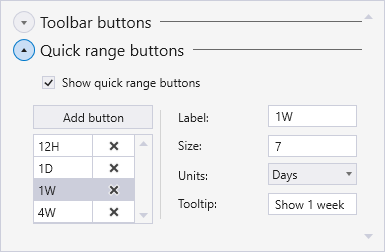

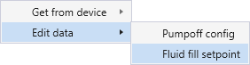
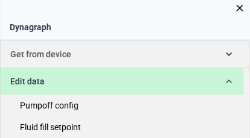
 (Configure date range) button on the chart's toolbar in run mode. This button allows you to change the date and time range to be trended in the chart, whether to enable live data updates, the live update rate, the starting time for a trend, whether to use relative or absolute dates, and the actual date range. The default setting for this button is enabled. See
  (Export as image) button and a
  (Export data to CSV) button on the chart's toolbar in run mode. The default setting for this button is enabled. See
 (Disable live updates / Enable live updates) toggle buttons on the chart's toolbar in run mode. These buttons allow you to stop and start live updates for the chart. The default setting for this button is enabled. See
  ) in the Tag Chooser hierarchy. Grayscale icons are also available for use with the dark (
 ) and light (
 ) color themes.
 (Print current view) button on the chart's toolbar in run mode. The default setting for this button is enabled. See
  (Reset to unzoomed state) button on the chart's toolbar in run mode. This button allows you to return the chart to its original state after dragging, panning, or zooming. The default setting for this button is enabled. See
  (Save the chart's configuration to a file) button and a
  (Open a previously saved chart) button on the chart's toolbar in run mode. The default setting for this button is enabled. See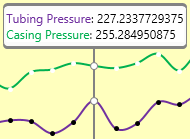
 (Add a new style based on this control) next to the Style property, after you have configured property values in the Properties pane. See