The CygNet Thin Web Client provides a way to add any CygNet point presented in the main web view to an on-demand or ad hoc chart. For any point-based control that supports a context menu, an option is available to add a selected point to a new chart or existing chart, which then opens in a separate browser tab.
Ad hoc charts are interactive in that you can change the date and time range displayed in the chart via a Date/Time calendar or six preset shortcut buttons, enable or disable live updating, and hide or show unreliable points. Each chart page includes a grid of point data, which is responsive to the selected point series. A series can be deleted on demand, and the grid data can be exported to an Excel file.
Note that an ad hoc chart is not a template. Any saved chart is hard-coded with specific point tags. You can always add a other points to a previously saved chart. And then you can delete a point from the ad hoc chart as desired.
All ad hoc charts are saved by default. Each chart is given a default chart name; and any chart can be renamed, duplicated, or deleted when no longer needed. Ad hoc charts are browser based, stored in the local storage space of the browser, meaning if you save a chart in Edge, it cannot be viewed in Chrome. Each logged-in user has their own local storage space for the browser. Each chart has its own URL, taking the form: https://<server_name>:5001/adhocchart/<name of chart>. Once saved, an ad hoc chart can be viewed from the main TWC page via the  (Saved Charts ) button.
The following sample ad hoc chart shows Pressure Casing (PRCASXIN) for four facilities on the Colfax Central Delivery Point (CDP) for the last eight hours. Series data for the highlighted facility, Ash Well, is presented in a grid below the chart. Any series in the chart can be displayed in the grid by selecting the facility in the legend. From here you can export data to Excel or delete the series. Any point in a series can be examined by hovering over the point to see a small popup showing the long point ID, point value, and timestamp. Also shown in this example is the Settings menu on the far right where you can rename, duplicate, or delete the current chart.
|
Click the thumbnail to see a |

The page design for an ad hoc chart is fixed. The chart page is divided into several sections, with different options to interact with the data presented. See the following subsections for more information:
Menu Bar
The menu bar along the top of the chart page provides options to interact with the chart by manipulating the time range and data visibility.
| Option | Description | ||||
|---|---|---|---|---|---|
|
Date/Time pickers |
To change an ad hoc chart's time range use the From Date/Time and To Data/Time calendars to select date and time:
Note: You can also type the desired date and/or time directly into the control. |
|
|||
|
Shortcut buttons |
Use the shortcut buttons (1 Hour, 6 Hours, 8 Hours, 1 Day, 5 Days, or 7 Days) to quickly select a predefined time range for the chart. |
||||
|
Live chart |
The Live chart toggle indicates whether the ad hoc chart will request new data allowing the chart to trend data at a real-time pace. When live updates are enabled and any change occurs, e.g., the next poll, the series line will update to reflect the slope change.
Note: The live chart update rate is not configurable in TWC. The update rate is based on a subscription model and points will be sent to the client browser whenever the server is updated. So, if the point updates every second on the server, then the web client will update that data point every second. |
|
|||
|
Clean data |
Click the Clean data toggle to display only clean data and hide any unreliable data in the chart based on a point's unreliable point state. The UNRELIABLE status bit is set when a point is deemed unreliable. When enabled data points marked as unreliable will be hidden in the chart. When disabled, unreliable data points will be shown in the chart. |
||||
 (From Date/Time) to reveal a Date picker.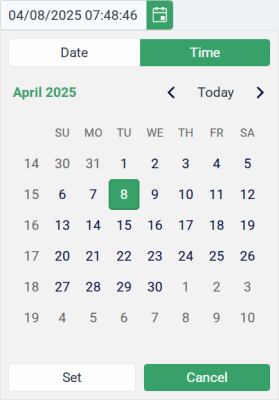
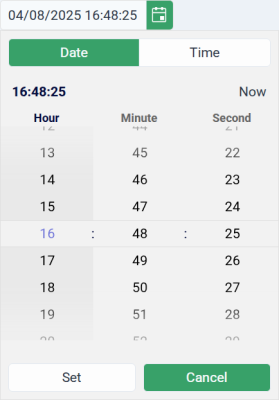
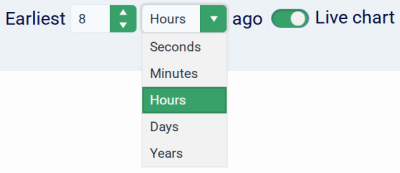
Settings Menu
|
A Settings menu is available on the far right of the page with three options to rename, duplicate, or delete the current chart.
|
|
 (three vertical dots) to reveal the Settings menu.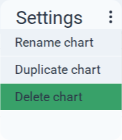
Chart
The chart is presented below the menu bar.
- The chart title matches the name of the saved chart.
- The x-axis displays date and time; the y-axis displays value range.
- The chart is immediately responsive to any changes made to the menu bar: date and time changes, shortcut buttons, live chart updates, and hidden unreliable data.
- Hover over any point in a series to see its long point ID, value, and timestamp in a popup.
- A legend below the chart identifies the color and the point description or UDC for any point displayed in the chart. Hover over a legend item to highlight that series in the chart.
- A series can be deleted from a chart using
 (Delete ) in the grid's title.
Grid
The grid presented below the chart displays historical data for the selected series in the chart in five columns: Timestamp, Value, Point State, Status, and Point Tag. If the chart contains multiple series, the grid is populated with the first series when the chart is first loaded.
- Click a series in the chart's legend to populate the grid with the selected series values. The grid data will change to match selected series. The grid will also update to show changes in the chart made in the menu bar.
- The grid's title is the long point ID for the selected series. The grid displays 10 rows of data; scroll down to see the latest values.
- The Value and Point State columns include a colored point state beacon for the point record.
- Click any column header to sort that column in ascending or descending order.
- Click (Delete) to remove a selected series from the chart. When a series is deleted, the first series in the chart is automatically displayed in the grid.
- Click
 (Export) to export grid data to an Excel file (.xlsx). The exported data is written to C:\Users\<username>\Downloads and the file name is the series' long point ID.


