The CygNet Thin Web Client supports its own context menu in the web view. When activated the context menu appears on the right side of the page. From the CygNet TWC web view context menu you can view point values, acknowledge a point in alarm, view and edit alarm values, and add a selected point to an ad-hoc chart.
|
The following Canvas controls support a context menu in the CygNet TWC web view:
Using the Context Menu
|
|
 (Edit) then click on the Value or Priority you want to edit.
  (Cancel) to abort and return to the read-only mode.
 (
( (Close) to close the context menu and return to the TWC page that launched the menu.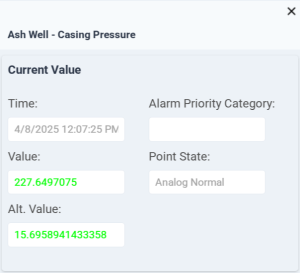

Context Menu Properties
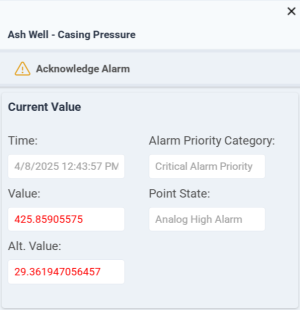
The TWC context menu consists of the following sections. The following table describes the properties and attributes visible in the menu.
| Property | Description | |||
|---|---|---|---|---|
|
Current Value |
Displays current values and other statistics in the associated CygNet CVS applicable to the selected point in the control. The point values and statistics displayed are for those points configured in an associated Point Service. |
|||
|
Time |
Displays the last time that the current value was updated. |
|||
|
Value |
Displays the applicable current value for the point. Varies depending on point type. |
|||
|
Alt. Value |
Displays the current value as converted by the specified alternate units. |
|||
|
Alarm Priority Category |
Displays the applicable Alarm Priority Category for the point. |
|||
|
Point State |
Displays the applicable Point State for the point. |
|||
|
Acknowledge Alarm |
An alarm icon will indicate if the point is in alarm.
|
|||
|
Alarm Summary |
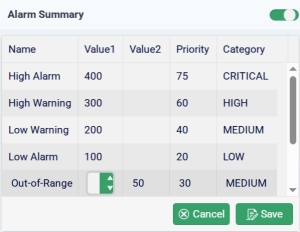
Displays information about the point's alarms, as configured in the PNT Editor in CygNet Explorer. |
|||
|
Toggle Alarm Summary |
Indicates whether to display alarm summary details for the point. Click the toggle to show or hide the alarm summary. |
|||
|
Name |
Displays the name of the alarm for the enabled alarm bit for the point. |
|||
|
Value 1 |
Displays the value of "Val 1" for the alarm calculation. For all alarms except Out-of-Range, this is the alarm Setpoint Value. For Out-of-Range, this specifies the High Out-of-Range value. The value can be any rational number; however, value field is limited to 16 characters. |
|||
|
Value 2 |
Displays the value of "Val 2" for the alarm calculation. This is applicable only to the Out-of-Range alarm. It specifies the Low Out-of-Range value. The value can be any rational number; however, value field is limited to 16 characters. |
|||
|
Priority value |
Displays the priority value for the point's alarm. Option is 0 to 99, with 99 being the highest. |
|||
|
Category |
Displays the priority category for the point's alarm. For analog alarms the values are LOW, MEDIUM, HIGH, or CRITICAL. |
|||
|
Edit / Save / Cancel |
From here you can edit alarm threshold values or the alarm priority in the context menu, which will be written back to the point on the CygNet host server. A warning will show if you do not have the appropriate security access level to edit points.
|
|||
|
Chart |
Displays a trend line for the selected point showing the last eight hours of value history. The chart will update with each new point value received. Hover over any point in the trend to see the point value. |
|||
|
Add to new chart Add to existing chart |
You can add points to a new or existing ad hoc chart from the context menu.
Once saved an ad hoc chart can be viewed from the main CygNet TWC web view via the |
Additional Resources
For more information about CygNet point current values, configuring and working with alarms, see:
- UIS > Current Values
- Points > Points Overview > CVS Metadata File > PointStateDefinitions
- Points > Point Editor > Analog Properties
- Security > Security Reference > Point Service (PNT) Security
- Alarms
- Alarms > Working with Alarms
- Alarms > Alarms Overview > Alarm Priority, Alarm Priority Category, and Alarm Category


