This topic describes the CygNet Thin Web Client web view user interface.
Login to TWC
To connect to the TWC web server, use your favorite web browser to view the CygNet TWC site and your TWC applications via a secure connection. Use the following URL:
https://<server_name>:5001/<Application_Name>/<Domain ID>_<Site>_<Service>_<BSS_Folder_Name>_<File_Name>
- Or -
https://<server_name>:5001/<Application_Name>/<Short_Name>_<File_Name>
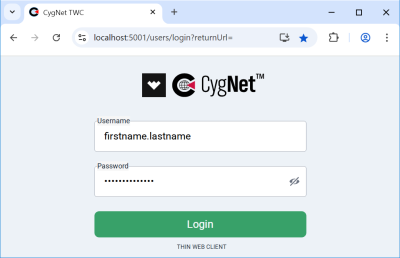
which will take you to the login page:
https://<server_name>:5001/users/login
-Or -
https://<server_name>:5001/users/login?returnUrl=
You will be prompted for login credentials (configured during installation), and upon successful authentication you will be directed to the Application Menu page of the CygNet TWC site.
|
CygNet TWC Login Page |
Choose an Application
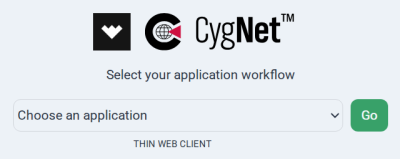
Once you've logged in you will be taken to the main application page, where you can choose any published application. Or you can access any menu by short name using the following URL:
https://<server_name>:5001/<Application_Name>/<Short_Name>
where
- <server_name> is the IP Address or Domain ID specified when registering the SSL certificate.
- Short_Name is the name configured for your application in the Canvas Backstage view > Server Settings > Short name property. Spaces are not permitted in the Short_Name.
|
CygNet TWC Application Page |
Navigate within the CygNet TWC web view
Once you choose an application the start page for that application will be displayed. Use the following icons to navigate within the UI:
-
 — Toggle to open and close a navigation pane on the left side of the page. All published applications will be listed. Click on any application to open its start page in the same browser tab.
 -
 — Click to open the Workflows or a list of the items in the current application. Click the desired item to open that screen in the same browser tab.
 -
 — Click to open a list of all saved Ad Hoc Charts. Click any chart to view in a new browser tab.
Access Saved Charts
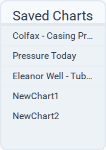
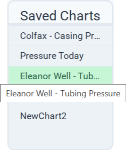
Click (Saved Charts) on the top-right side of the screen to quickly access any saved ad hoc charts you may have previously saved in the current browser. Note that an ad hoc chart is not a template. Any saved chart is hard-coded with specific point tags. Those point tags may be different from the facilities and points you are currently viewing. See Viewing Data in a TWC Ad Hoc Chart for more information about working with ad hoc charts.
|
All Saved Charts |
Saved Chart Highlighted |
No Saved Charts |
Access the Context Menu
Right-click on any point-based control on the page to access the built-in TWC context menu, which will appear on the right side of the web view.
Logout
If you need to logout of the TWC web view, use the following URL:
https://<server_name>:5001/users/logout


