(Run selected screen) to open a Canvas Viewer preview window for the currently selected screen, containing all saved user features. Screens will be automatically saved prior to previewing.
On the Canvas toolbar, click (Run selected screen) to open a Canvas Viewer preview window for the currently selected screen, containing all saved user features. Screens will be automatically saved prior to previewing.
The Canvas Viewer window provides the screen developer a view of current work as it will appear to users. Use the preview feature to preview your screens in run mode, so you can test out usability, workflow, load time and help further refine your design. This will help you to understand the implications of editing decisions while the screen is still in progress. The Canvas Viewer window floats in front of the current application window by default.
The Canvas Viewer dialog box contains a navigational toolbar which allows you to refresh a screen, show the default chart, and chooser a different Facility tag or SiteService / Facility combination for the previewed screen:
|
Canvas Viewer — Navigation Toolbar |
| Item | Description | |
|---|---|---|
|
|
Click |
|
|
|
Click |
|
|
Facility tag or SiteService / Facility radio buttons |
Two selection modes are available to determine how the CygNet connection will be configured for the screen. This split configuration allows for the setting of these properties for the screen, or the manual configuration of the SiteService and the facility, while dynamically changing the other. Options include:
Click the desired mode and the selectors will change. |
|
|
Facility tag > Facility Tag selector |
If your screen is configured to pick up data from a different facility tag, you can change the full facility tag identifier used. Click |
|
|
SiteService / Facility > Service and Facility selectors |
If your screen is configured to pick up data from a different service, you can change the service used. Click If your screen is configured to pick up data from a different facility, you can change the facility used. Click |
|
|
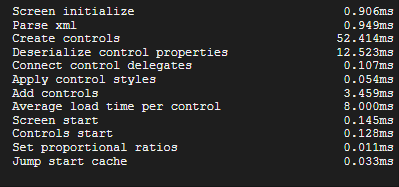
Load time tells you how long Canvas took to load the previewed screen in milliseconds (ms). Click Load time: to access a small popup, which provides a more granular understanding of where time is being spent as the previewed screen is loaded. Load time is a summation of the time it took to process all the elements of the screen: initialize screen, parse xml, load controls, apply styles, run script, etc. The screen load times are also available via the log file if Debug logging is enabled.
The following list describes all metrics available:
|
Note: This toolbar does not appear in a screen opened in Canvas View.
In Canvas v9.4 a new run mode method was introduced to improve screen performance and reduce load time. This enhanced run mode is the default method when you hit F5. The new run mode also allows you to dynamically add controls via script.
Note: The new run mode implemented in Canvas v9.4 does not support panning and zooming. Thus, Canvas has retained the old method of running screens for backwards compatibility. If you need to pan and zoom on a specific screen (configured via the IsPanZoomEnabled property on a screen), you will not be able to take advantage of the performance improvements the new run mode supports. The legacy run mode is accessible from the Run icon on the Canvas toolbar: Run > Run current screen (Legacy).
|
|
|
 or
or


 to select a different facility tag identifier using the