
Sample Default Chart in Canvas View
A default or on-demand chart is a pre-configured chart that you can access anytime from a Canvas or Canvas View screen in design or run mode in a separate dialog box. The default chart feature provides a customizable means to open multiple default charts from a screen, and to trend selected data from different controls, such as a CygNet Grid or Text Tool control, quickly giving visual context to your data. A default chart can be associated with a Canvas screen or opened on demand from that screen in run mode. Any chart configuration can be saved with a Canvas chart file (.ccf) extension, which can be opened directly, or assigned as the default chart for a specific screen.
The default chart is analogous to the Default Trend option in CygNet Studio.
|
Sample Default Chart in Canvas View |
Any chart configuration can be saved and used as a default chart. The default chart features are identical to those of the Canvas chart control, and required the configuration of at least one series, colors, a date range, the CygNet connection, legend, axes, toolbar, and panning and zooming to suit your needs. See the following chart topics for more information about general chart configuration:
Once you have configured a suitable chart in design mode, save it as a default chart, then you can assign it to a screen as the default chart, and access it in run mode.
To save a chart as a default chart:
 (Save the chart's configuration to a file) on the toolbar to open the Save dialog box.
A default chart can be associated with a Canvas screen or opened on demand from that screen in run mode. Open the Canvas screen in design mode and locate the Chart and Chart date range properties in the Properties pane. Configure the following properties to set the default chart file:
| Property | Description |
|---|---|
| Chart | |
|
The Default chart file property specifies the path to the chart file associated with this screen.
See Default Chart for more information. |
|
|
This property specifies the source to the file, image, object file, or screen. Options include:
The default file source is Local. |
|
| Chart Date Range | |
|
The Begin date (or Start or Start date) property specifies the start date and time for a control (or screen or chart or column) for an absolute date and time view window. The format is MM/DD/YYYY hh:mm:ss AM/PM. The default value is the system date and time at which the control was first added to the screen. Click |
|
|
The Begin relative date (or Relative start date or Start) property specifies a wildcard string defining the amount of time by which to adjust the start date and time. The space-separated elements in this string must be of the form: "x-#", "x+#", or "x=#" where # is an integer and x is one of the following unit specifiers: y — Year, m — Month, d — Day, H — Hour, M — Minute, S — Second, and # is an integer. T wildcard is also supported and must be in the form: T, T+#, T-#, where T represent today at midnight, T-1 is yesterday at midnight, and T+1 is tomorrow at midnight, etc. Any integer can be used. For example, H-8 represents data from the 8 hours before the current hour, d+3 represents data 3 days after the current day, and d+2 H+1 M+30 represents data 2 days, 1 hour and 30 minutes after the current date and time. d-4 H=6 sets the relative start date and time to four days ago (d-4) at 6:00 a.m. (H=6). See Date and Time Wildcards for more information about adjusting relative time. |
|
|
The End date (or End) property specifies the end date and time for a control (or screen or chart or column) for an absolute date and time view window. The format is MM/DD/YYYY hh:mm:ss AM/PM. The default value is the system date and time at which the control was first added to the screen. Click |
|
|
The End relative date (or Relative end date or End) property specifies a wildcard string defining the amount of time by which to adjust end date and time. The space-separated elements in this string must be of the form: "x-#", "x+#", or "x=#" where # is an integer and x is one of the following unit specifiers: y — Year, m — Month, d — Day, H — Hour, M — Minute, S — Second, and # is an integer. T wildcard is also supported and must be in the form: T, T+#, T-#, where T represent today at midnight, T-1 is yesterday at midnight, and T+1 is tomorrow at midnight, etc. Any integer can be used. For example, H-8 represents data from the 8 hours before the current hour, d+3 represents data 3 days after the current day, and d+2 H+1 M+30 represents data 2 days, 1 hour and 30 minutes after the current date and time. d-4 H=6 sets the relative end date and time to four days ago (d-4) at 6:00 a.m. (H=6). See Date and Time Wildcards for more information about adjusting relative time. |
|
|
The Override chart dates check box indicates whether to use the screen's dates, when displaying charts for this screen. |
|
|
The Use relative date check box indicates whether to use relative dates and time for the chart. Use the Begin/Start and End properties to specify the relative date ranges to use in the chart. If Use relative date is unchecked all dates and time will be absolute. Use the Begin/Start and End properties to specify the absolute date ranges to use in the chart. |
|
Once configured a default chart is accessible from several places in Canvas, Canvas Viewer, or Canvas View:
If no default chart is configured, Canvas will allow you to select the location where the default chart is saved from the Open dialog box, either in a BSS or Local file-system folder.
You can also trend selected data from different controls, quickly giving visual context to your data. The default chart is accessible from the right-click context menu for any control that shows single point values.
Several controls support the option to add point values as a new series to a default chart, providing additional visual context for trended data:
|
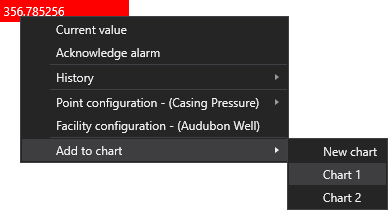
Grid cell context menu |
|
|
|
 to access the Open dialog box and select either the BSS or Local.
 to change the date using the
