Viewing Alarms in Canvas and TWC Screens
Point alarm information can be displayed in Canvas and Thin Web Client in the several ways:
- Any control that can be configured to show attributes of a primary point can be configured to show point status information in addition to the point property. For example, a Text Tool can show a point’s value in its label and reflect the point state in its background color.
- Any control that can be configured to show primary point attributes, and that point's current value meets or exceeds the alarm setpoint, will display the point in alarm.
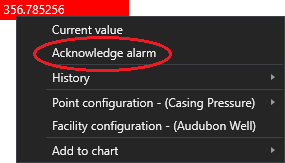
- Canvas Native view — Any point-based control showing points in alarm can be right-clicked in run mode to acknowledge the point’s alarm from the object's context menu. You can also view the point’s alarm settings and alarm history from the context menu.
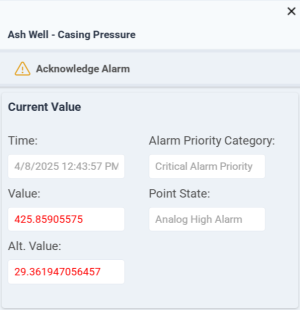
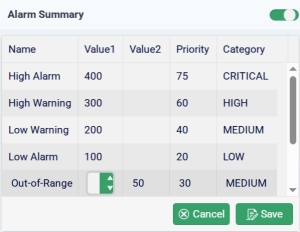
- CygNet TWC web view — Any point-based control showing points in alarm can be right-clicked in run mode to acknowledge the point’s alarm from the TWC context menu. You can also view the point’s alarm settings and edit alarm summary properties.
- Any screen viewed in Canvas.View and Canvas.View.Lite that is configured to display the Alarm Notifier will display all active (unacknowledged) alarms. Information about each alarm is accessible from customizable links within alarm notifier.
CygNet Alarm Configuration
CygNet alarms are configured in the point configuration record for each point type in the Point Service (PNT). Alarm bits and alarm reporting can be enabled for any point in the system. Alarm notification is configured in the General Notification Service (GNS). The following items must be considered when configuring alarms for a point: Setpoint value, Alarm category, Alarm suppression, Alarm calculation, Alarm priority, Reporting to the Common Alarm Service (CAS), Reporting to the General Notification Service (GNS), Alarm delay, Alarm deadband (analog points only), and Alarm notification recipients (primary, secondary, tertiary).
Alarm Settings
Several Canvas objects provide access to the point properties associated with the alarm settings for a selected point via the right-click context menu in the Canvas Native view run mode. Select Point Configuration > on the context menu to view and/or edit various point configuration record properties for the selected point. These properties can also be manipulated via script using the COM API exposed through the CxPnt.dll or the CygNet .NET API through the CygNet.API.Points namespace.
Acknowledging Alarms
Canvas Native view
When an alarm is reported to the CAS, its state is "unacknowledged", meaning that the alarm is new and that a user or the system has not acknowledged its presence. An unacknowledged alarm may be identified by the color settings for the control (background, text, border, ring, bar, fill, or marker color), if configured to represent the point state of the associated point. Additionally, some controls may blink to warn of a point in alarm, if configured to do so.
|
Acknowledge the alarm from the context menu:
See the control properties for more information about configuring alarm acknowledgment options. |
Canvas Native view |
CygNet TWC web view
|
The CygNet Thin Web Client supports its own context menu visible in the web view. Perform the following actions from the TWC context menu:
|
|
 (Edit) then click on the Value or Priority you want to edit.
  (Cancel) to abort and return to the read-only mode.
 to close the context menu and return to the TWC page that launched the menu.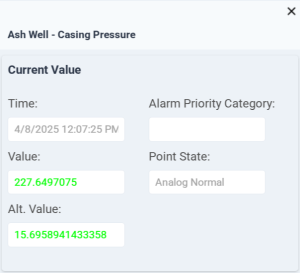
Additional Resources
For more information about configuration, setting, and properties of CygNet alarms, see:
- Alarms
- Alarms > Alarms Overview > Alarm Priority, Alarm Priority Category, and Alarm Category
- CygNet Studio > Displaying Alarms in CygNet Studio
- Points > Points Overview
- Points > Points Overview > Understanding the CVS Metadata File
- Scripting > CxCas > CasClient Object
- Scripting > CxHmiCas > CxHmiCas3 Object
- Scripting > CxPnt > PntClient Object
- Scripting > CxScript > GlobalFunctions > GlobalFunctions Methods
- Scripting > CxScript > PointMetadata Object
Also refer to the following topics in the CygNet.API Help for more information:
- CygNet.API.Alarms Namespace
- CygNet.API.Points Namespace


