Configuring a Context Menu
The Canvas screen and many controls support a right-click context menu that is available in run mode. Each context menu contains a set of standard (fixed) menu items, which may differ depending on the screen or control, and optionally any configured custom context menu items, which can be scripted to support customized screen and control behavior.
For more information, see the following subsections below:
Standard Context Menus
For the screen the context menu with fixed items is always available. There is no option to turn it off.
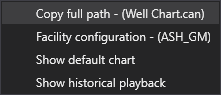
ScreenThe screen has its own set of fixed context menu items: |
||
|
Screen context menu
|
|
Controls
For the controls the context menu with fixed items is optional. The context menu is configured via the Show context menu property in the Properties pane for the control —
The Show context menu check box indicates whether a right-click context menu will be available or suppressed in run mode. The default context menu will allow alarm acknowledgment, access to point history and alarm history, point configuration, and facility configuration.
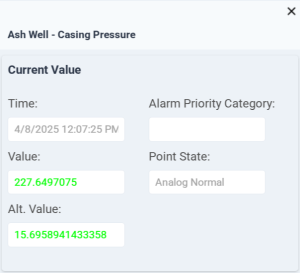
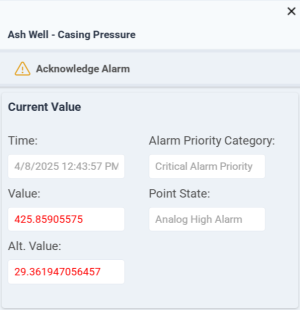
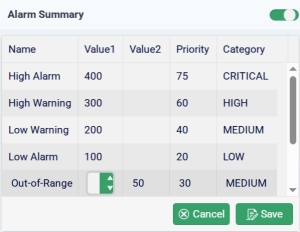
Note: The CygNet Thin Web Client supports its own context menu in the web view. When activated the context menu appears on the right side of the page. From the CygNet TWC web view context menu you can view point values, acknowledge a point in alarm, view and edit alarm values, and add a selected point to an ad-hoc chart. See Using the Thin Web Client Context Menu.
|
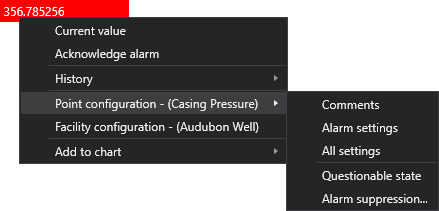
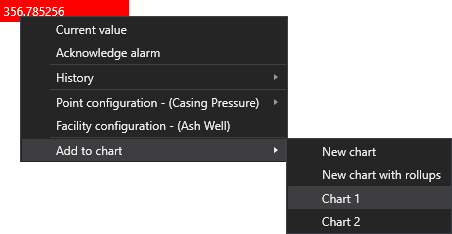
The standard context menu for controls and the CygNet Grid displaying point data displays the following fixed items: |
||
|
Standard context menu
Standard context menu |
|
|
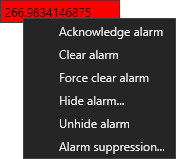
The Alarm Grid has a unique set of fixed context menu items: |
||
|
Alarm Grid context menu |
|

Custom Context Menu Items
 Canvas supports scripted context menu items, in addition to the standard context menu items that display in run mode. A custom context menu item will call an event into script allowing customized control behavior. The custom context menu options will appear at the bottom of the fixed context menu options, separated by a line.
Relevant Property
Context menu items —
The Custom Context Menu Configuration dialog box is where you configure any custom context menu items that will appear in the right-click context menu for the screen or control. Each custom context menu item will call an event into script so that you can customize screen or control behavior.
The custom context menu options will appear at the bottom of the fixed context menu options, separated by a line.
Each custom context menu item has a title and an event script ID; items can be designated as a separator; and custom context menus support nested menu items.
Click  to open the Custom Context Menu Configuration dialog box.
Relevant Script Event
Custom Context Menu Action —
The Custom Context Menu Action event is called when the custom context menu item is clicked. A Script event ID (configured for each custom context menu item in the Context Menu Items property for the screen or control) is passed in along with other relevant information in the context of the click, for example, facility or point tag, as appropriate.
Example
The following example shows how to use the Custom Context Menu Action event for the CygNet Grid. Substitute Grid1 with your control.
Canvas.Controls.Grid.CustomContextMenuActionEventArgs
When you click on a custom context menu item from a control, Canvas will execute the following function:
- Grid1_CustomContextMenuAction(object sender, EventArgs args)
CustomContextMenuActionEventArgs.EventActionID indicates the Script event ID defined in the Custom Context Menu Configuration dialog box.
private void Grid1_CustomContextMenuAction(object sender, EventArgs args)
{
CustomContextMenuActionEventArgs myargs = (CustomContextMenuActionEventArgs)args;
MessageBox.Show(myargs.MenuItemText + " " + myargs.EventActionID + " " + myargs.FacilityTag + " " + myargs.PointTag);
}See Event Argument Type for more information about EventArgs.
CygNet Thin Web Client Context Menu Items
|
The CygNet Thin Web Client supports its own context menu visible in the web view. Perform the following actions from the TWC context menu:
See Using the Thin Web Client Context Menu for more information. |
|
 (Edit) then click on the Value or Priority you want to edit.
  (Cancel) to abort and return to the read-only mode.
 (
( (Close) to close the context menu and return to the TWC page that launched the menu.